
Free Jira time tracking integration
An easy to use time tracker seamlessly connected to Jira

- Import your exact Jira structure
- Sync time logs to Jira worklogs
- Analyze time with powerful reports
- Use smart timesheet approvals

Trusted by more than 100.000 businesses worldwide


Get high user adoption due to easy to use time tracker
Track time with a classic weekly timesheet or with the stopwatch.
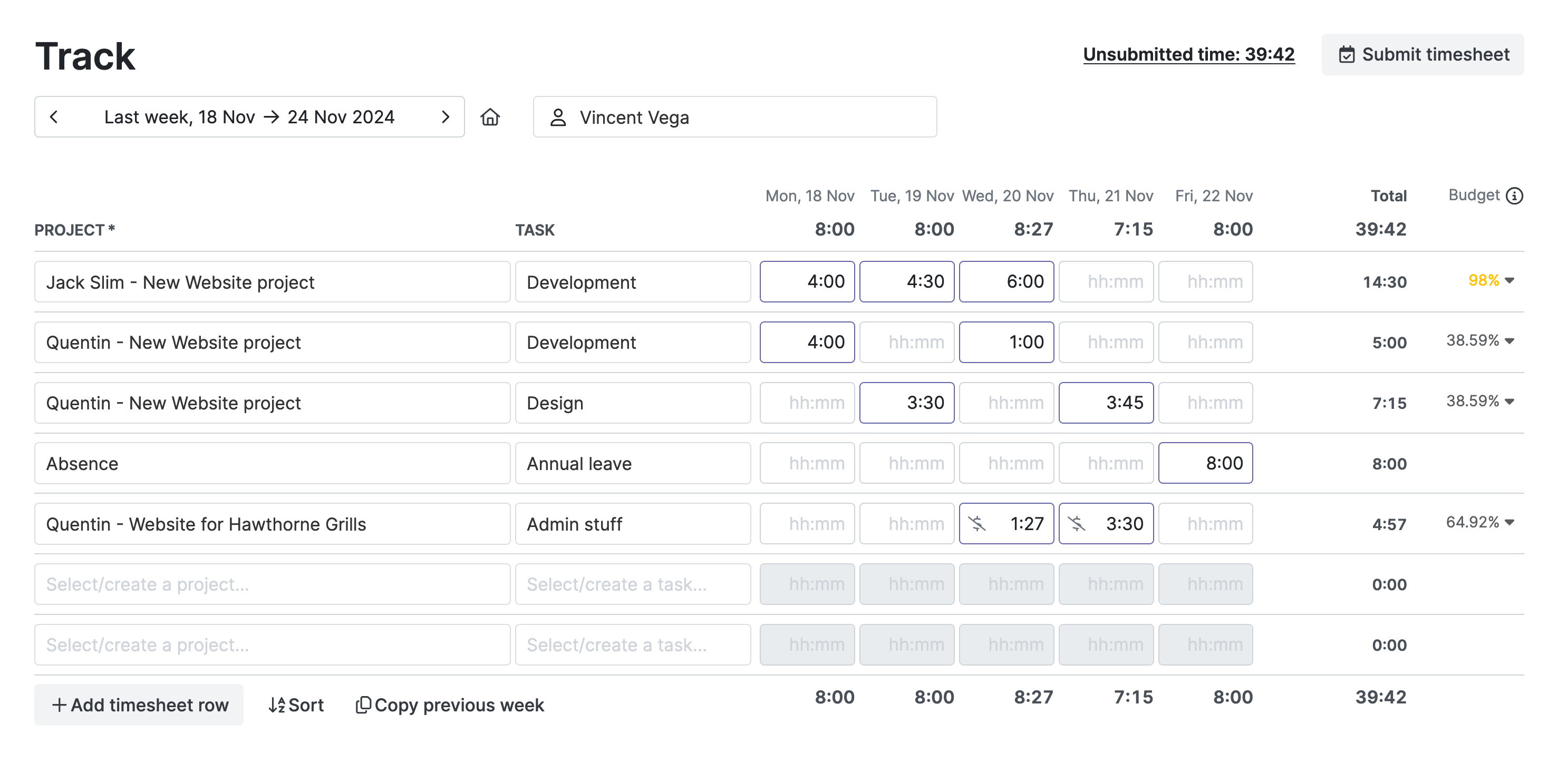
Over a few cycles, the time tracking in My Hours makes Jira estimates more accurate, capacity planning tighter, and overruns less likely.
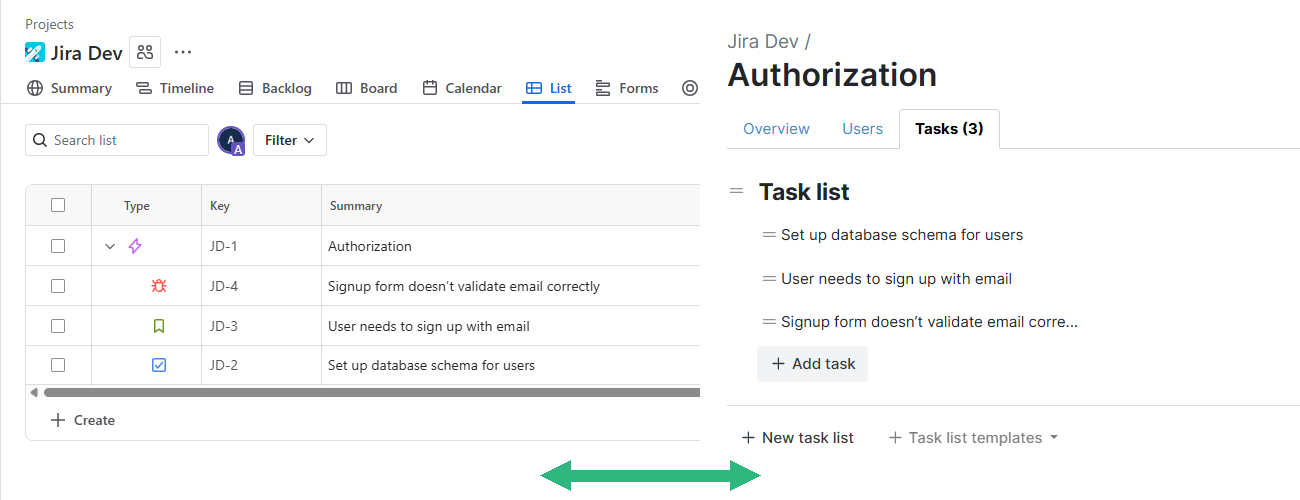
Import old issues and automatically sync new ones
Existing issues are transferred as soon as you integrate. After that you will never forget to add a new Jira issue with the automatic sync.
Precise approval workflow without messy email threads
Managers can request fixes, approve, and lock periods for audit-ready accountability without chasing and spreadsheets.
.png)
Review and approve timesheets directly in My Hours, so you don't need to install Jira plugins.
Bill your hours with advanced billing & budgeting methods
My Hours tracks against budgets, applies project/task rates, separates billable vs. non-billable, and exports invoice-ready reports or CSVs.
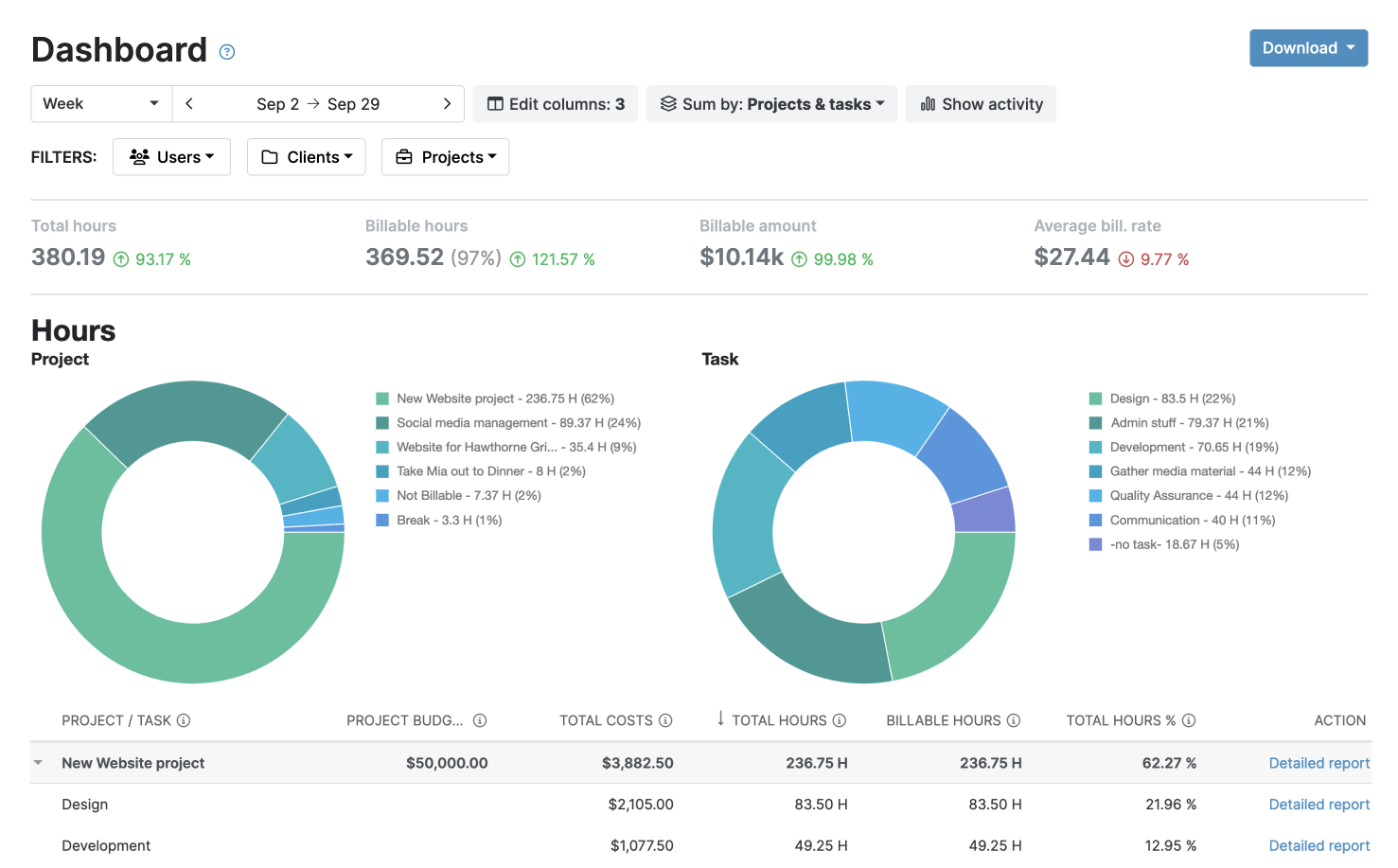
Aditionaly you can track expenses alongside hours and add them to invoices without the need for separate spreadsheets.
Run time reports against Jira estimates, either in Jira or My Hours
Slice time by client, project, task, tag, user, or billable status. Spot over-burn early, share audit-ready summaries, and keep finance out of spreadsheets.
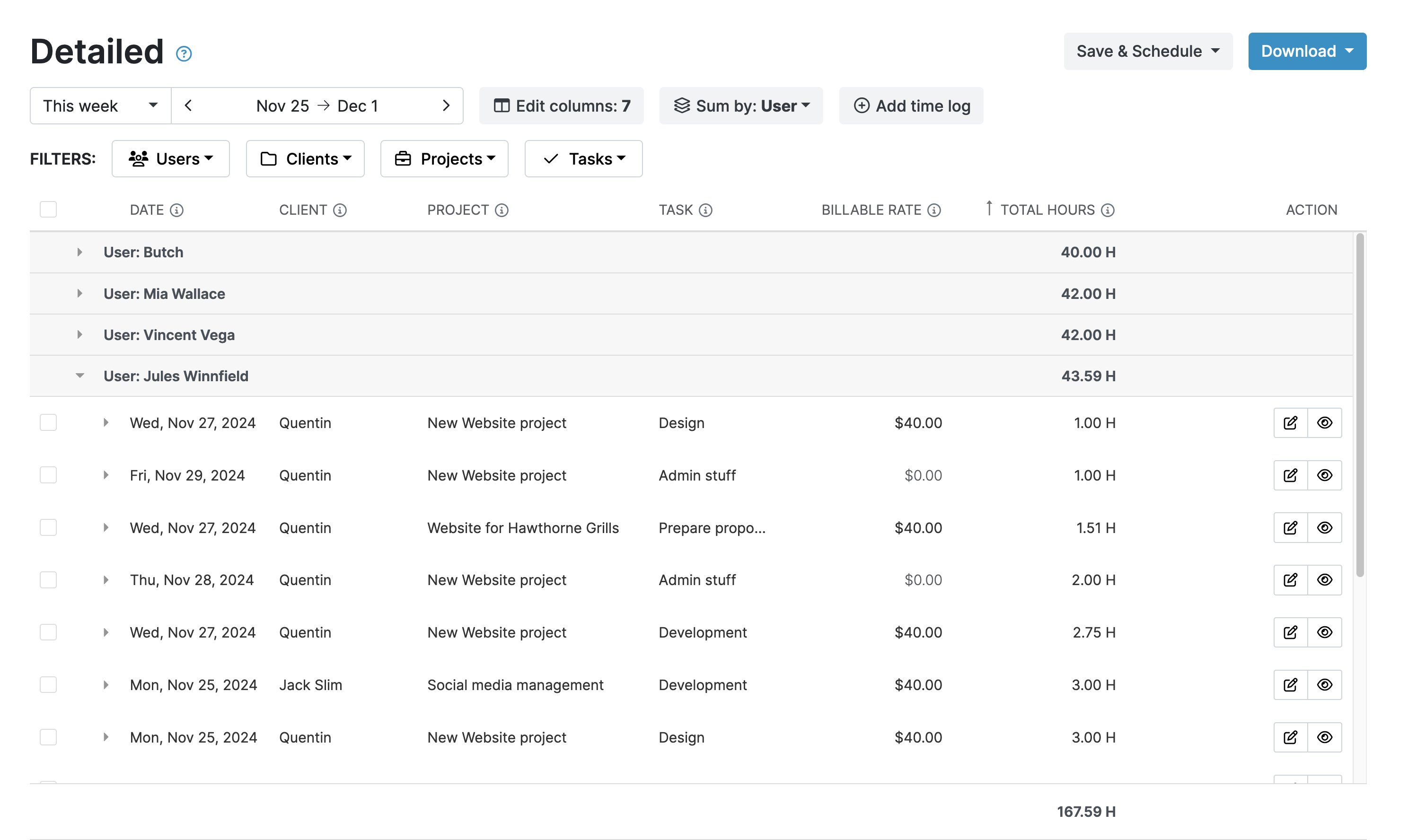
Reports can be customized to your needs and scheduled to be sent to you or your client via email.
How to integrate in 4 easy steps
1) Connect: Go to Settings-Integrations-Jira and authenticate and grant access.
.png)
2) Map: Choose how to map Jira items (Epics → Projects, Issues → Tasks).
.png)
2.1) Advanced import filter (optional): Use advanced JQL filters to import specific Jira issues.
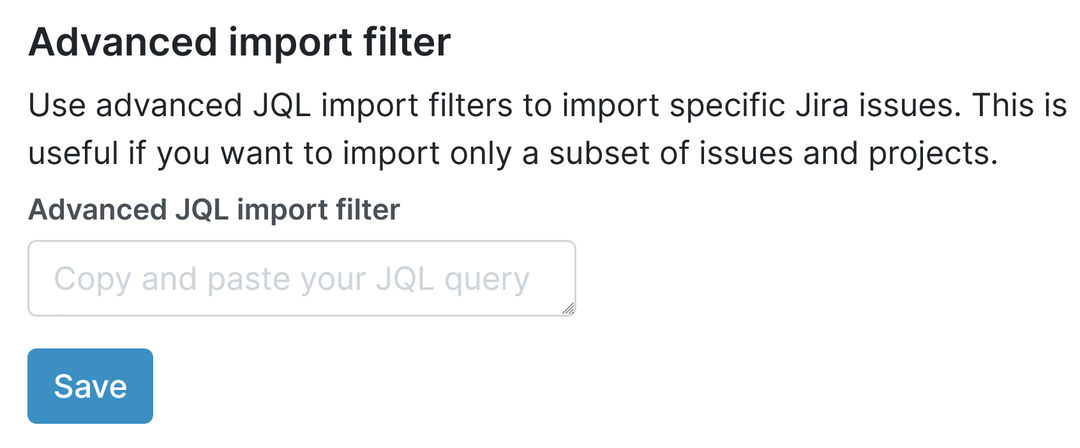
3) Import & go: Import your existing Jira issues. New Jira issues will automatically appear in My Hours.

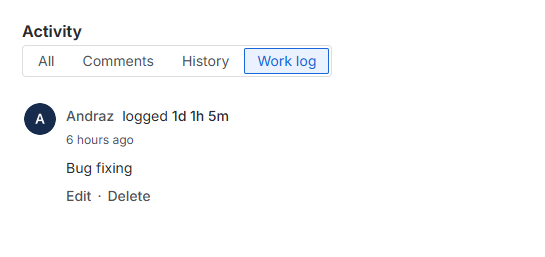
4) Time tracking: Create worklogs on Jira issues by tracking time in My Hours.
FAQ
Highest praise from our customers


Waste no more time,
jump right in!

All rights reserved.