
How to Export Data from Clockify to My Hours
Move your clients, projects, team and time tracking history in an easy and secure way
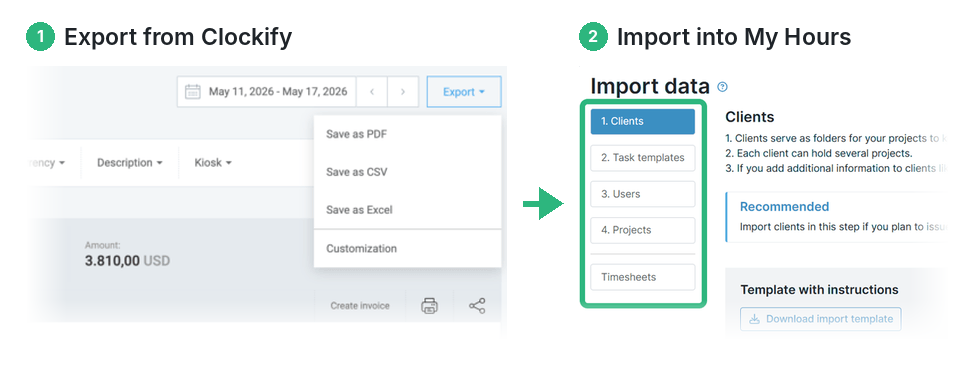
 Ready-made import templates
- One Timesheets file brings over your projects and past hours
- Keep your Clockify history in My Hours reports
- Free for teams of up to 5 users

Trusted by more than 100.000 businesses worldwide


Moving your data is easier than you think
You don't have to rebuild your workspace by hand. My Hours has a ready-made template for each type of data: clients, task templates, users, projects and timesheets. Download a template, copy your Clockify data into its columns and upload it.
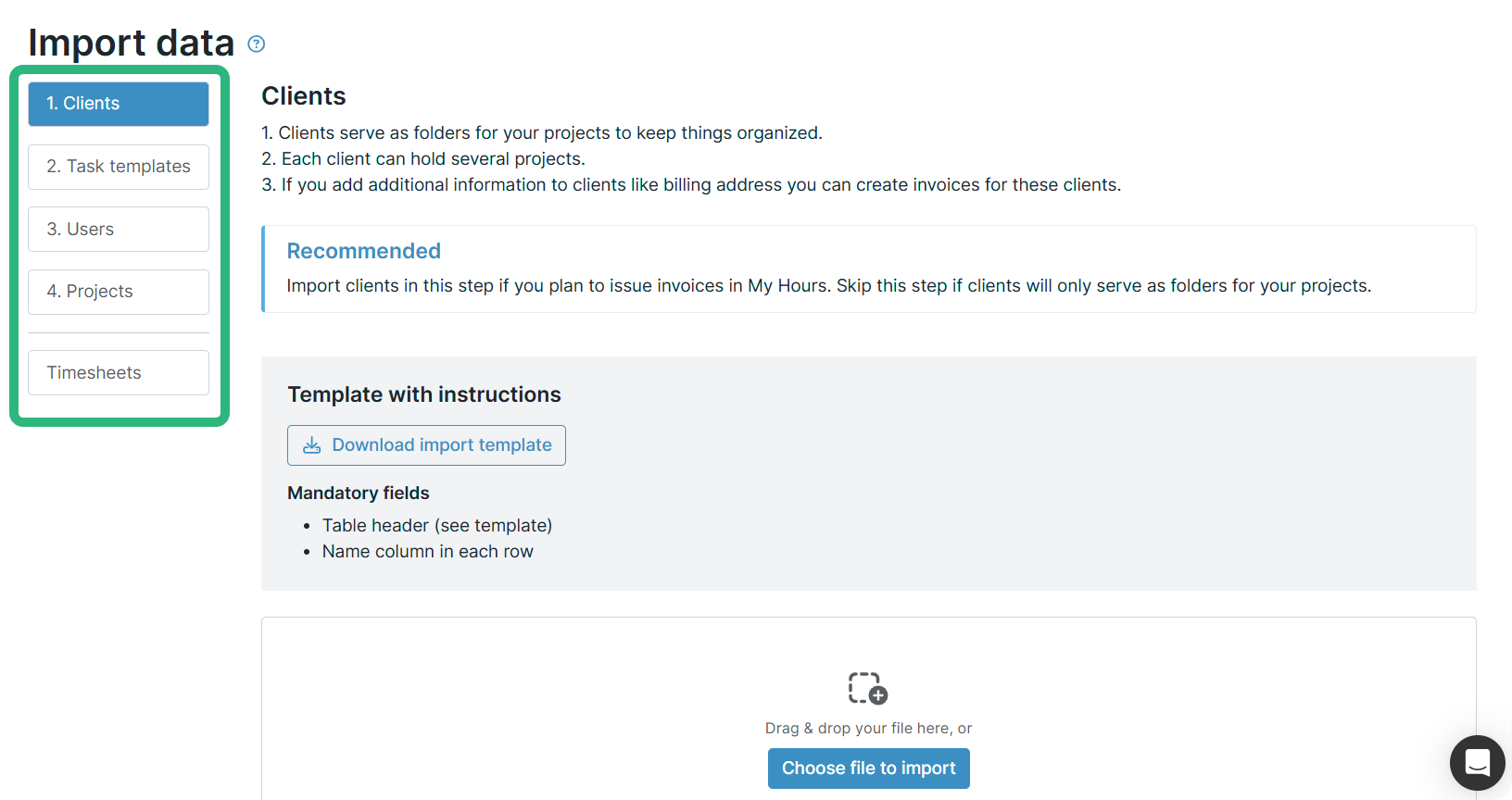
One file can do most of the work
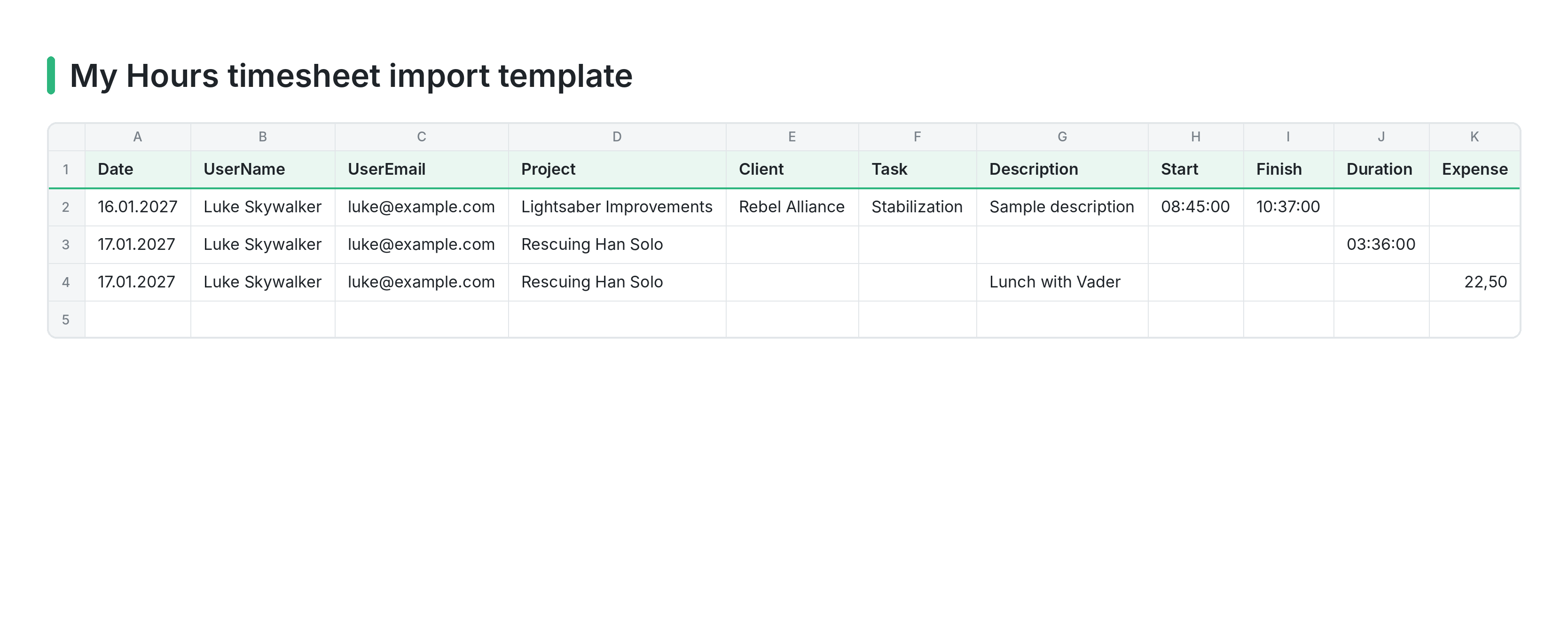
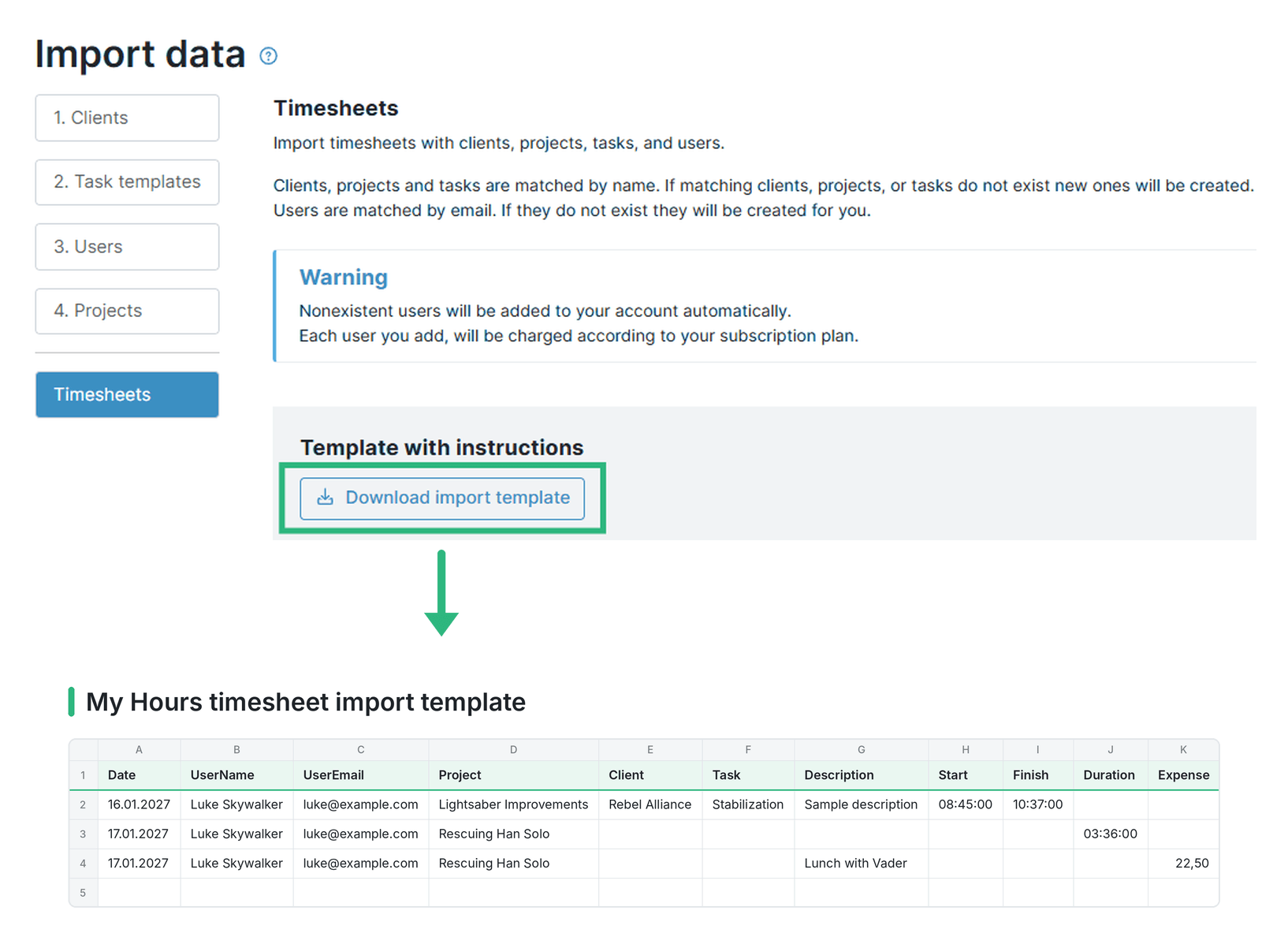
The Timesheets import is the quickest way to move, but also the least detailed. It matches clients, projects and tasks by name, and users by email. Anything that doesn't exist yet is created for you.
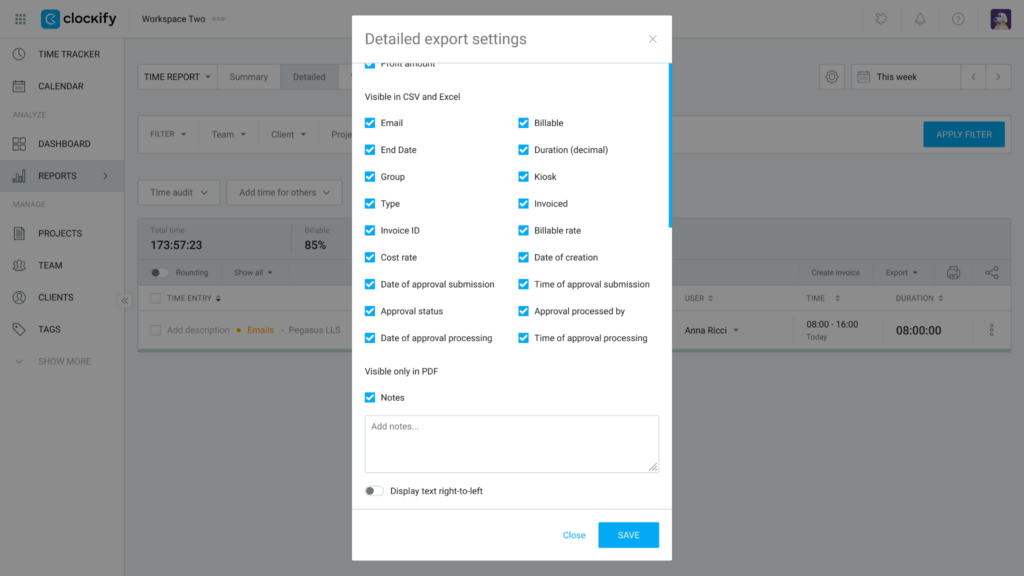
Take your Clockify reports with you
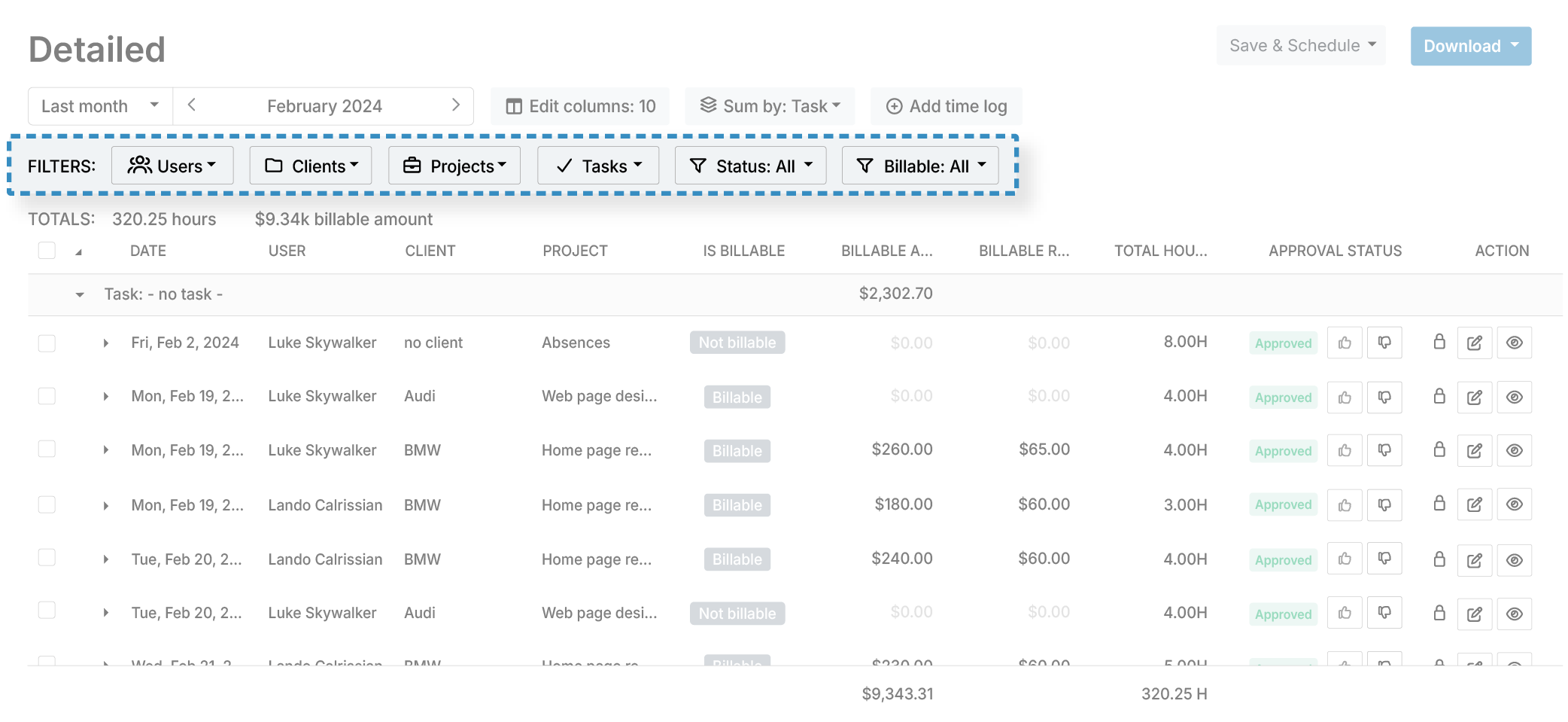
Clockify's Detailed report holds every time entry with its project, client, task, user, tags, billable status and duration. That is exactly the data My Hours needs.
Report and bill your old and new hours together
Imported logs appear in reports next to the time you track in My Hours. Filter them by client, project, task, tag or user.
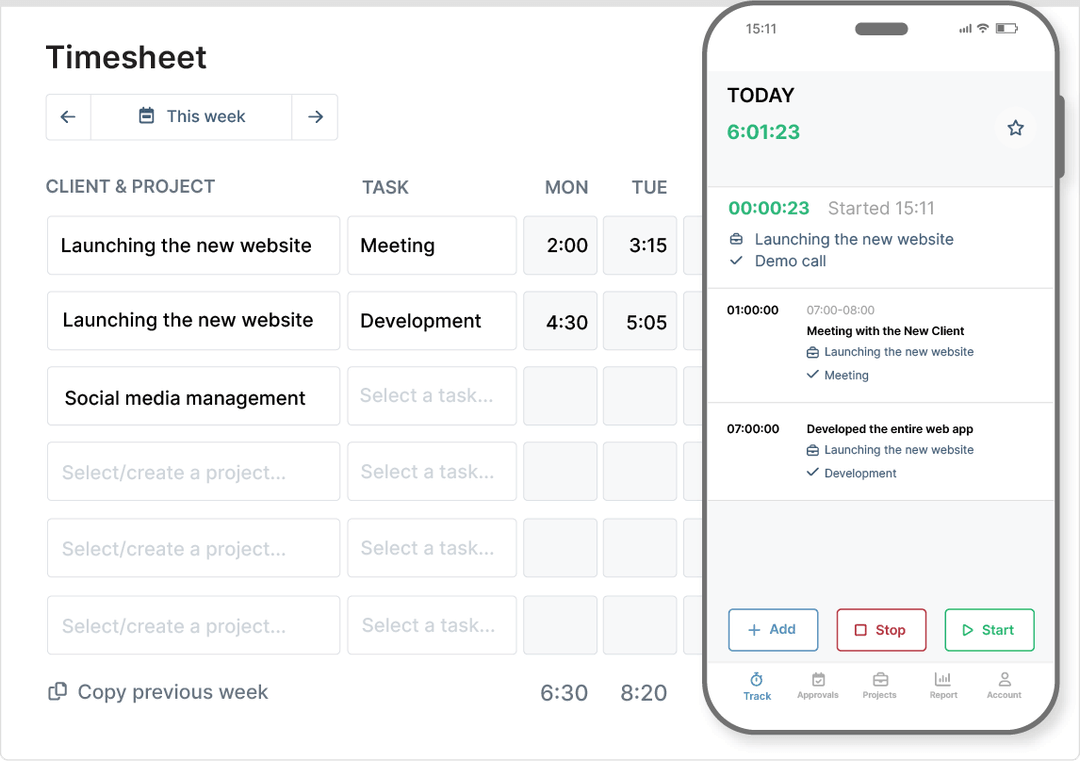
Keep tracking time the way your team is used to
Track time with a classic weekly timesheet or with the stopwatch, on the web or in the iOS and Android apps.
How to Export Data from Clockify to My Hours: 3 Different Ways
Export your time entries, projects and team from Clockify, then pick the way that suits your team.
1) Quickest:
one Timesheets file
Copy your Clockify time entries into the Timesheets template and upload it. My Hours creates any missing clients, projects, tasks and users for you.
2) Step by step:
one import per data type
Import one data type at a time for more control over your setup.
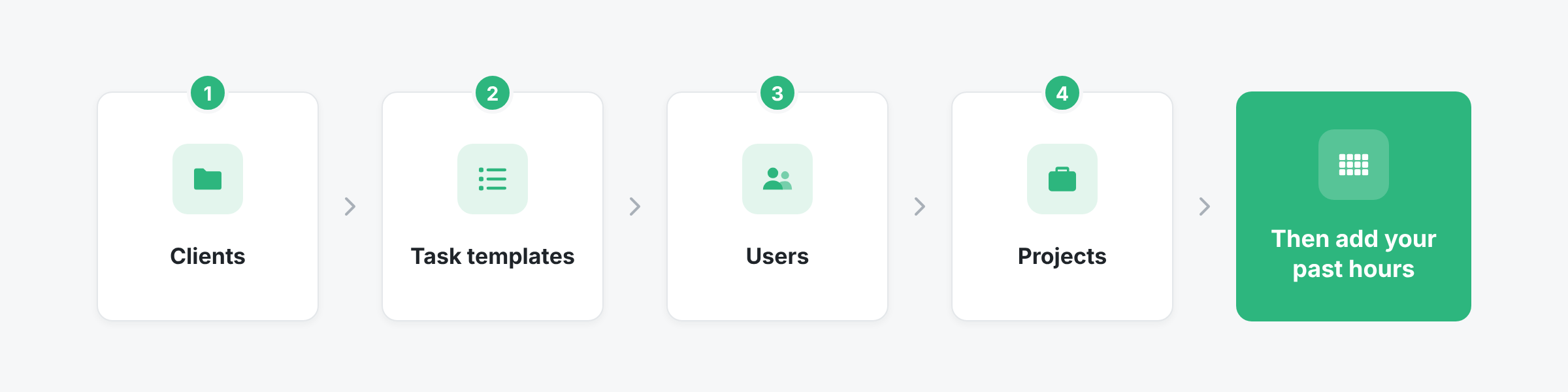
The order matters, because each import builds on the one before. Projects match the clients you already imported, and users imported before projects get added automatically.
Import in this order: Clients → Task templates → Users → Projects
3) Hands-off:
the API or AI
Prefer not to fill in templates? You have two options:
AI route:
Export from Clockify → Download the My Hours import templates → Upload both to an AI assistant like Claude → Check the import files it prepares → Import them into My Hours
Developer route:
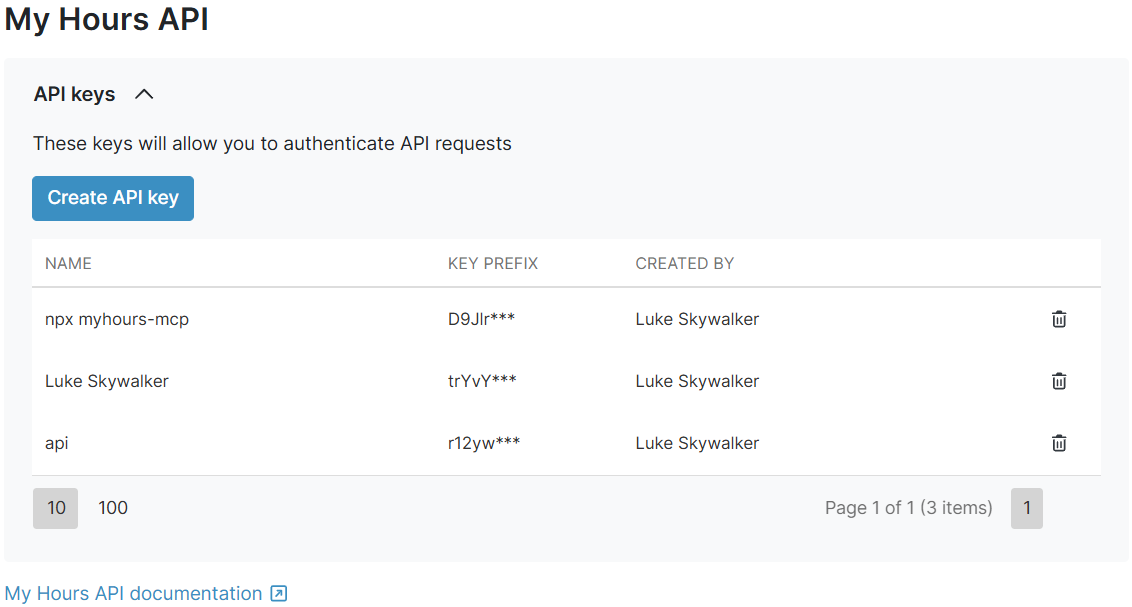
Use an API key (paid plans) and the My Hours API.
Find step-by-step instructions for each method in our help center.
FAQ
Highest praise from our customers


Waste no more time,
jump right in!

All rights reserved.