
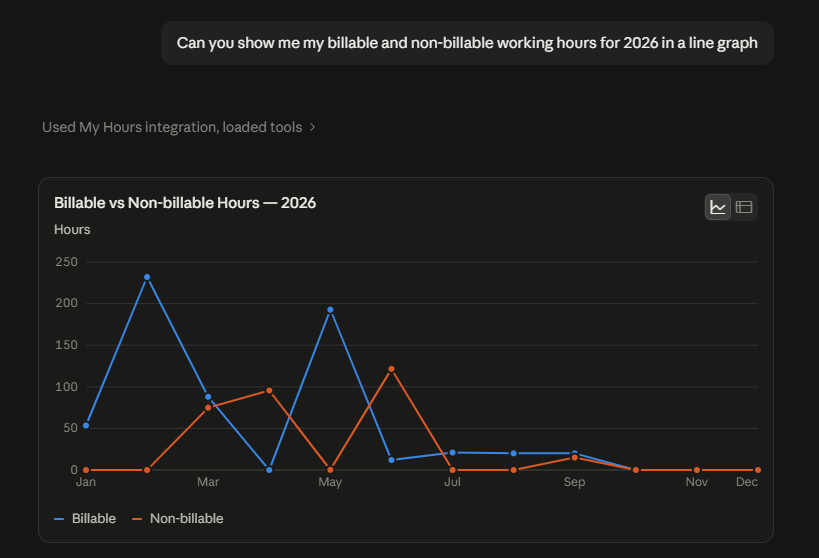
Log Time by Chatting
The best time to log work is right after you finish it. With Claude, that takes one sentence.
Tell Claude what you worked on, and it creates the time log in My Hours for the right project and task.
For example:
- “Log 2 hours today on the Website redesign project, Homepage task.”
- “Add 45 minutes to the Acme retainer for yesterday’s client call.”
Claude matches your words to your projects and tasks, so you don’t need to remember exact names.
Time logged through Claude lands in your timesheet like any other entry. It’s ready for reports, budgets and client invoices in My Hours.
.png)
Check Timesheets and Remind Your Team
Chasing missing timesheets takes time nobody bills for.
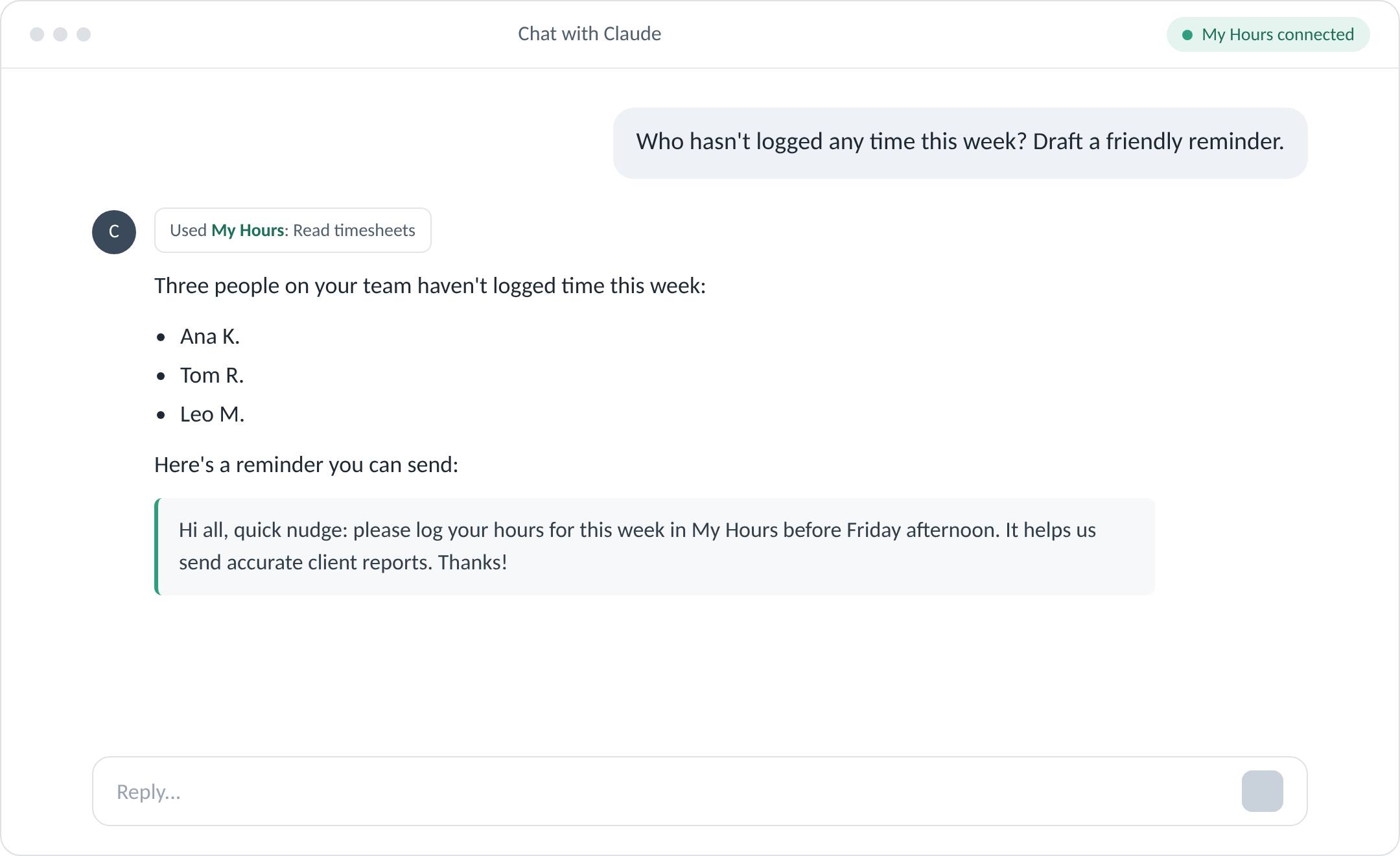
Claude can read timesheet data and turn it into answers you can use:
- Your own week: “How many hours did I log last week, by project?”
- Team check-ins: “Summarize what the team worked on this week.”
- Missing hours: “Who hasn’t logged any time this week? Draft a friendly reminder.”
You get the summary in seconds, and the reminder is ready to send. If your team also reviews hours before they’re final, see how timesheet approvals work in My Hours.
Note: Claude connects with your own My Hours login, so it works within the access your account has.
Find Projects, Tasks and People Faster
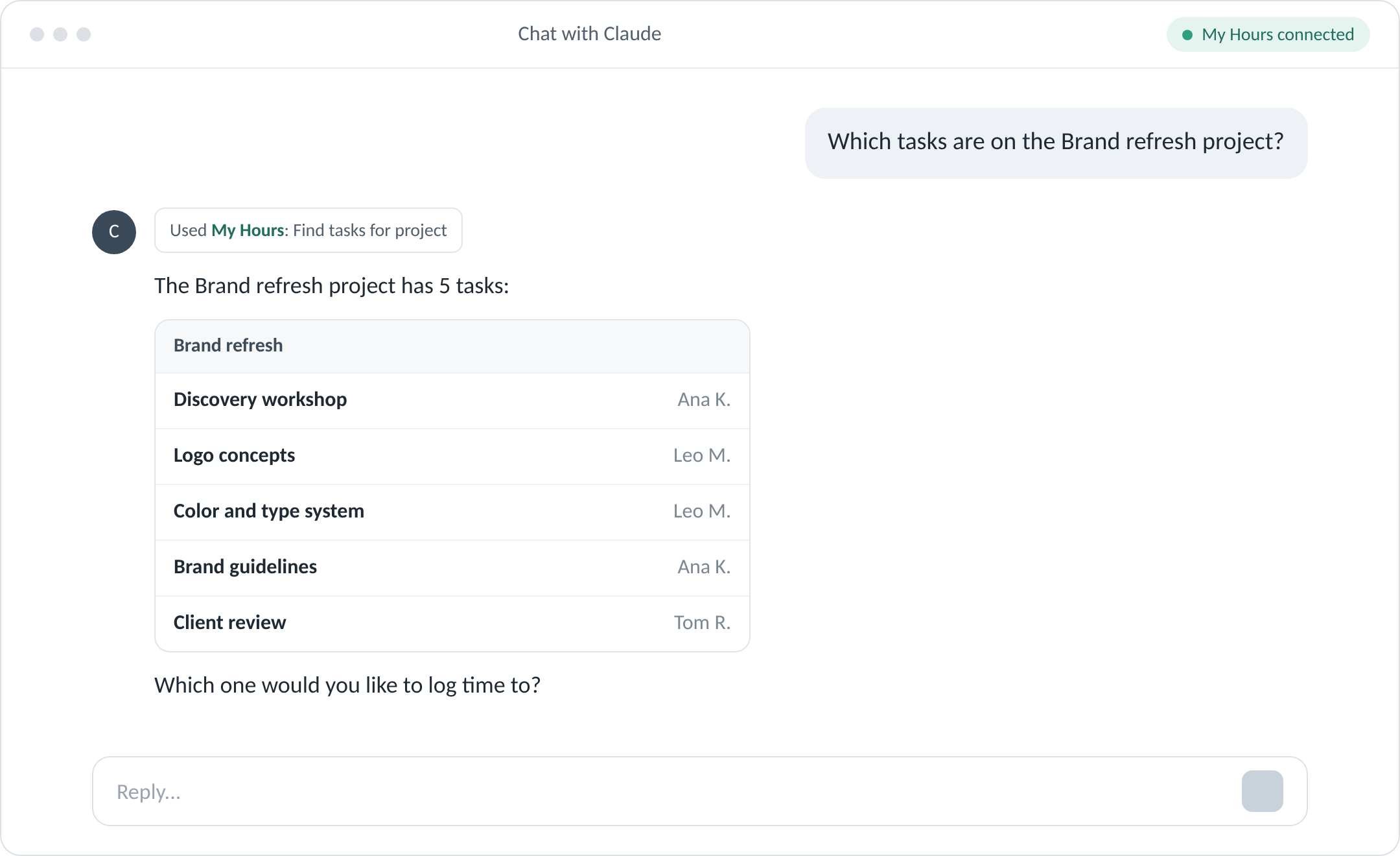
Large accounts can have hundreds of projects and tasks. Claude can search them for you:
- Find a project by client or part of its name.
- List the tasks on a project.
- Look up team members.
Example: Ask “Which tasks are on the Brand refresh project?” before you log time, and pick the right one from the list.
How Different People Use It
Freelancers and consultants
Log time between calls without opening another app. Ask for a weekly summary before you send your client update.
Team managers
Get a summary of what the team logged this week, see who hasn’t logged time yet, and have a reminder drafted in the same conversation.
Agency and studio owners
Review the team’s logged hours by project before you create invoices in My Hours, so nothing gets missed.

Stay in Control
You decide what Claude can do in your account.
- Choose the action level: In Claude, set each connector action to Always allow, Needs approval or Blocked.
- Pick a setup that fits you: A good setup is to let Claude read freely and ask for approval before it logs time.
- Disconnect anytime: Remove the connector in Claude’s connector settings whenever you want.
My Hours does not include employee monitoring and never will. Claude only works with the hours your team chooses to log.
Note: The connector focuses on time tracking. It doesn’t create invoices or change billing settings. You manage those in My Hours.
Connect My Hours to Claude in a Minute
Ready to try it? My Hours is in Claude’s connector directory. There’s nothing to install and nothing to set up.
- In Claude, go to Customize > Connectors.
- Find My Hours and select Connect.
- Enter your My Hours username and password, and select Sign in.
- Ask Claude to log your first time entry.
The connector uses MCP (Model Context Protocol), an open standard from Anthropic that lets AI assistants work with other apps.
For step-by-step help, see MCP for Claude in our help center.
Note: You need a paid My Hours plan or the free 14-day trial. The connector isn’t included in the My Hours Free plan. On the Claude side, connectors work on Pro, Max, Team and Enterprise plans.
Build Your Own Tools with the API
Sometimes a small business needs one tool that no app offers. With the My Hours API and Claude’s help, you can build it, even if you’re not a developer.
Describe what you need in plain words, share the API documentation with Claude, and let it write the code.
Ideas teams build on the API:
- Custom dashboards that combine My Hours data with other business data.
- Small desktop apps for tasks My Hours doesn’t cover, like printing checks.
- Payment tracking that marks invoices as paid.
- Automated exports to the other tools your business uses.
To get started:
- Create an API key in Settings > Integrations > API keys. API keys are available on paid plans.
- Read the My Hours API documentation.
- Give your tool only the access it needs, and test it before you rely on it.
Note: Treat your API key like a password. Each key belongs to the user who created it, and you can delete it at any time.
FAQ
Do I need a paid Claude account?
Yes. Claude connectors work on the Pro, Max, Team and Enterprise plans. They aren’t available on Claude’s free plan. On Team and Enterprise plans, an account owner first turns on connectors for the organization. Then each person connects their own My Hours account.
What if Claude logs time to the wrong project?
You can set Claude to ask for your approval before it logs time, so you check each entry before it’s saved. If an entry does end up in the wrong place, fix it in My Hours like any other time log.
Can Claude see my whole team’s data?
Claude connects with your own My Hours login, so it can only work with what your account can access. [VERIFY with product: confirm this follows My Hours user roles. If yes, add: “A normal user sees only their own time. Managers see their team’s time, and admins see everything.”]
Is my data used to train AI?
It depends on your Claude plan. On Claude Team and Enterprise plans, data from connectors isn’t used for model training. On individual Claude plans, Anthropic may use your content to improve its models only if you’ve opted in. You can check this in your Claude privacy settings. My Hours doesn’t use your data to train AI models. [VERIFY with legal before publishing the last sentence]
Does it work with ChatGPT or Microsoft Copilot?
The Claude connector works with Claude only. If you work in Microsoft tools, the My Hours app for Microsoft Teams lets you track time there, and there’s a My Hours connector for Copilot Studio and Power Automate (currently in preview). There’s no official My Hours app for ChatGPT, but you can build your own connection with the My Hours API.
Do I need to install anything?
No. My Hours runs the connector on its own servers. You add it from Claude’s connector directory and sign in.
Does it work on my phone?
Yes, in the Claude mobile app, once it’s connected. You need to add the connector on the web or desktop app first.
Try My Hours for Free
My Hours keeps time tracking simple, and now it works where your team already works.
With 24/7 expert customer support and enterprise-grade security, including ISO 27001 certification, My Hours is trusted by over 100k clients.
Want to log time by chatting with Claude? Start your free 14-day trial and connect it today.

