
GovCon Migration Guide
From Spreadsheets and Legacy Systems to DCAA - Compliant Time Tracking
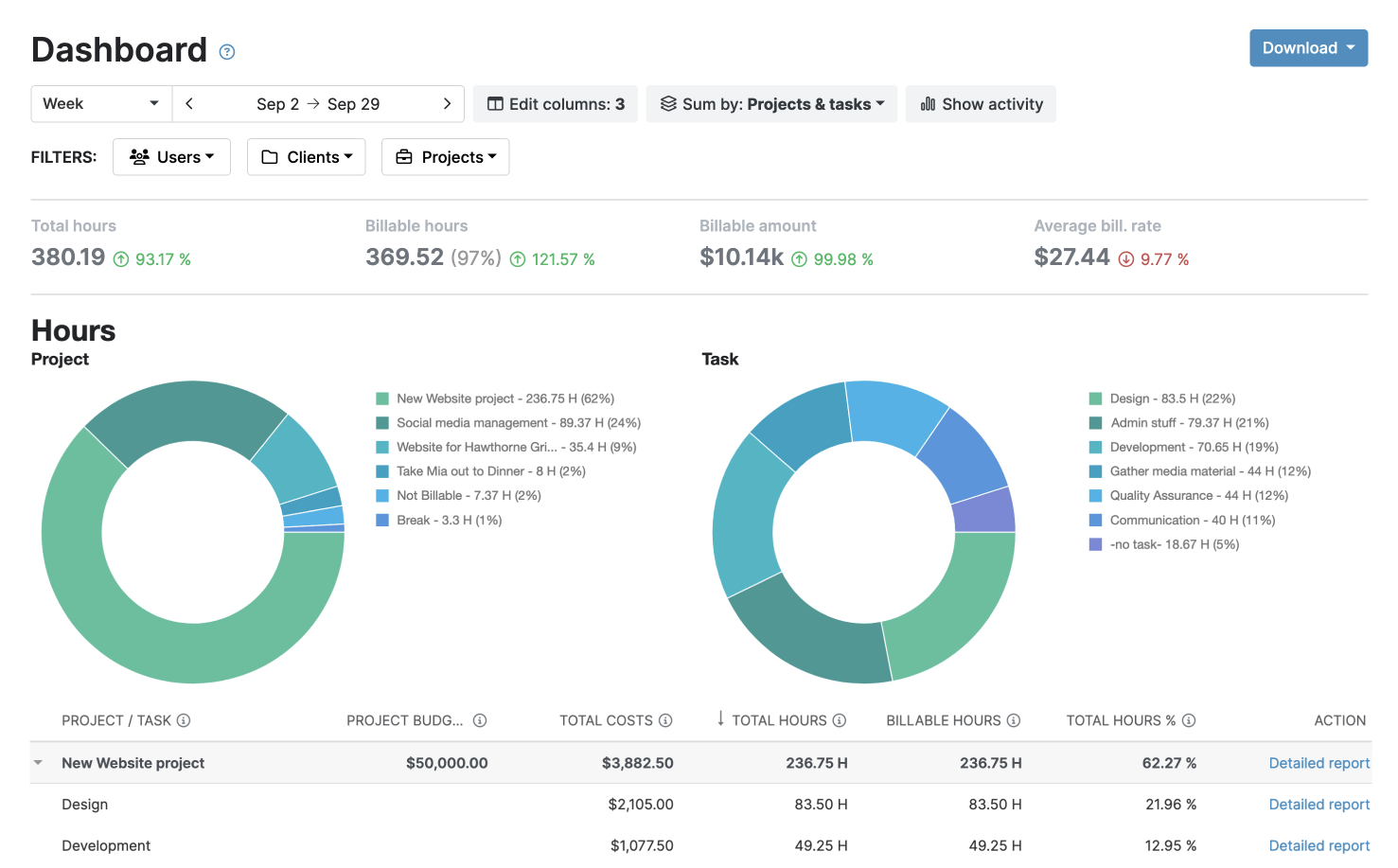
 Step-by-step guide to migrating to My Hours time tracking
- Downloadable XLS data migration templates
- Policy and training templates for faster implementation

Your Step-by-Step Migration Plan to
DCAA Compliant Time Tracking Software
Although it’s not mandatory, the DCAA actively encourages government contractors to switch to digital time tracking systems.
Doing so results in a single source of truth, fewer gaps and errors, and a solid audit trail.
However, migrating existing data can be complex, especially if you’ve been relying on multiple spreadsheets or siloed legacy systems.
If you’re ready to make the switch to My Hours, follow our handy guide to make the process smoother.

6 Steps to a Successful GovCon Timekeeping Migration
1. Start with existing data
First, gather all data sources and document where current timekeeping information exists. Whether you’ve been historically relying on XLS spreadsheets, a legacy ERP, or even paper records, this is what you need:
- Staff roster and org chart
- Employee timesheets per contract
- Charge code lists
- Project/task structures
- Labor categories
- Payroll exports
- Rate tables
2. Build the data mapping plan
There are two options for migrating data into My Hours:
- Manually: Slower process, but gives you tighter control over data quality and lets you fix issues as you go. Best for smaller datasets or messy legacy setups.
- Data import via XLS: Faster process, but requires clean, standardized data. The risk of importing bad data is higher, so we recommend completing a couple of test imports first. Best for large datasets and importing historical data.
Tip: You can use a combination of manual and XLS data migration. For example, migrating all employee/user data via XLS, but inputting projects and tasks manually.
If you pick the manual route, then you’ll need to map internal data to the My Hours counterpart as follows:
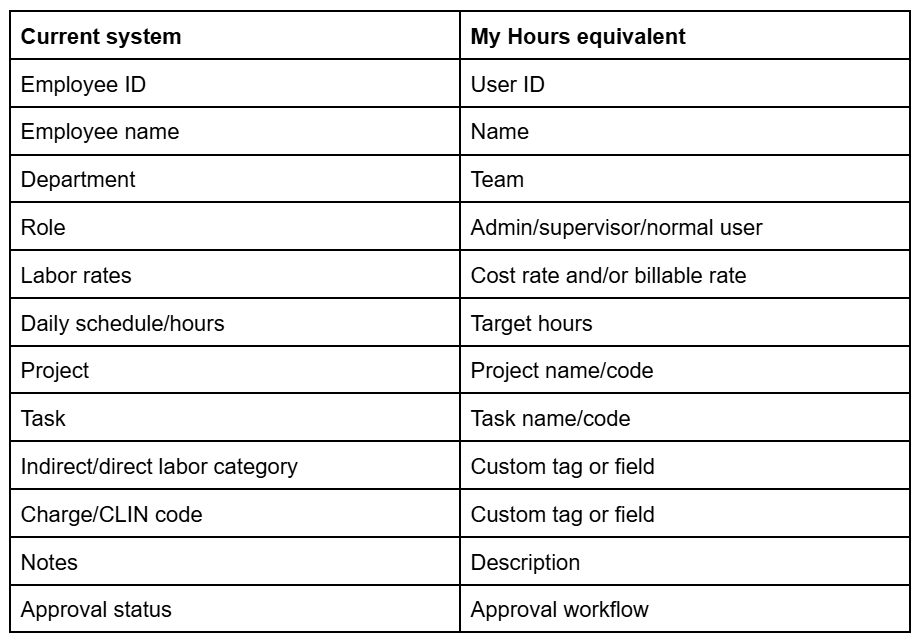
To import data from XLS, download the provided Excel templates in My Hours.
The file contains five separate sheets, and each sheet includes one template corresponding to a specific data type (Clients, Projects, Tasks, Users, and Timesheets).
Download My Hours Import Templates

1. Clients

2. Projects

3. Tasks

4. Users

5. Timesheets

3. Migrate and cleanup
Once your data is ready, go ahead and migrate it into My Hours. Then, check it and correct any errors.
If you have migrated a large dataset, take samples of users, projects, timesheets, etc., and check for accuracy. Compare a handful of records against the original source to make sure nothing was lost or misformatted during the transfer.
4. Enable My Hours compliance controls
Now that the data is present and correct, it’s time to configure the settings within My Hours to ensure that it is handled in a compliant manner.
Here’s a quick checklist of what you must do:
- Enforce project and task allocation and description entry on time entries
- Switch on automated reminders for daily time entry
- Configure role-based permissions for users (admin, manager, project manager, normal user)
- Prevent normal users from creating new custom tags
- Activate timesheet approval workflows
- Prevent admins and supervisors from approving/rejecting their own time logs
- Activate the daily timesheet data lock
- Enable the audit log
5. Update your timekeeping policy
Your written timekeeping policy has to reflect the new changes and include directions on how to track time within My Hours.
For example, you'll want to cover things like adding custom tags, completing custom fields, and understanding how the approval workflow operates from start to finish.
To help, we have a comprehensive timekeeping policy template that you can adjust accordingly.
Download Timekeeping Policy Template


Once the policy has been updated:
- Review internally and adjust as needed
- Distribute it to all staff
- Collect signed acknowledgements
- Archive acknowledgements
6. Staff training cadence
All staff must receive training on how to use the new timekeeping system and align it with DCAA requirements.
Feel free to download and use our DCAA timekeeping training slide template.
Download DCAA timekeeping training slide template

Here’s a recommended timeline to use:
- One week before go-live:
- An initial 45-60-minute session that covers the importance of timekeeping, DCAA requirements, and a My Hours demo
- A separate 45-minute manager session focusing on approvals and enforcement
- 30-minute hands-on practice session using the My Hours platform (you can set up dummy user accounts for this and delete the data after)
- Go-live week:
- 15-minute daily Q&A sessions
- Drop-in support and troubleshooting
- First 30 days:
- Weekly micro-trainings for fixing common mistakes and user errors.
- Ongoing:
- Embed timekeeping training into the onboarding process
- Carry out staff-wide annual refresher sessions
- Have a point of contact for questions or troubleshooting
Important: For every training session, ensure you receive signed acknowledgements from all staff that confirm they have attended.
First 30 Days Compliance Checklist
After an organization has adopted a new system, the first 30 days are the most critical, since this is when most errors are made.
Use this as your working checklist for the first month after you go-live to ensure that compliance is upheld:
Daily:
- Employees are entering their time on the same day it is worked, not catching up after the fact
- Managers run a daily exception report to check for missing hours and to follow up
- All timesheet adjustments and corrections are documented, justified, and timestamped
Weekly:
- All employees submit their timesheets by a set cutoff time
- Managers review timesheets for correctness, reasonableness, and any unusual patterns
- Managers approve or reject timesheets (rejections must include comments on what to fix)
- Finance/compliance compiles a weekly timesheet report and saves it to the audit archive by week ending date
By the end of the 30 days, confirm that:
- All employees are logging time daily
- All timesheets are going through the approval workflow
For extra reassurance, it’s a great idea to:
- Perform a mock floor check by selecting a handful of employees and asking them how they record time and who approves it
- Run an internal check against DCAA expectations by pulling a sample of timesheet data and reviewing entry information and approval/rejection workflow
- Document any gaps and address them with additional training, My Hours configuration, and/or policy adjustments
All the features you need, and none you don’t

Timer or weekly timesheet
Track time with our seamless timer or enter your time through our keyboard-friendly timesheet. Add a description and custom inputs.

Set billable rates and budgets
Automate calculation of billable amounts by setting precise hourly rates by project, task or team member. Add a project budget to monitor its progress.

Analyze logged hours & expenses
With the Dashboard you’ll get a bird’s-eye view of billable vs non billable hours, earned income by project, under- or over-utilized employees and more.

Generate custom reports
Detailed reports are completely customizable and display as much information as needed. Print to PDF, export to XLS or send schedule it via email.

Manage tasks
Add and assign tasks with an estimated budget. Create templates when identical tasks appear across projects.

Submit and approve timesheets
Supervisors get email whenever timesheets are submitted. Each timesheet can be approved or rejected with an email message.

Set flexible roles
Invite your team to track time on their projects without seeing each other’s hours and rates. Designate managers to oversee their team and manage their work.

Prevent inconsistent reporting
Lock team’s time logs to prevent editing or adding new logs in a selected period. Download the audit log report to keep your books in order.

Streamline invoicing
Create numbered invoices straight from hours logged. Integrations with the most popular invoicing apps are available to all customers.

Integrate with other tools
Connect My Hours data with other tools or vice versa through Zapier connectors. Alternatively, use our API to develop your own integration.

Access from anywhere
My Hours is a cloud-based app with nothing to install. View and manage your hours from any web browser or install our native mobile apps.

Secure infrastructure
My Hours is hosted in Microsofts Azure cloud and we are proud of 99.95% uptime. We perform regular security checks to keep your data in safe hands.
Highest praise from our customers


Waste no more time,
jump right in!

All rights reserved.