
track unpaid breaks
Stop paying for lunch breaks. Log unpaid breaks and keep worked hours accurate.
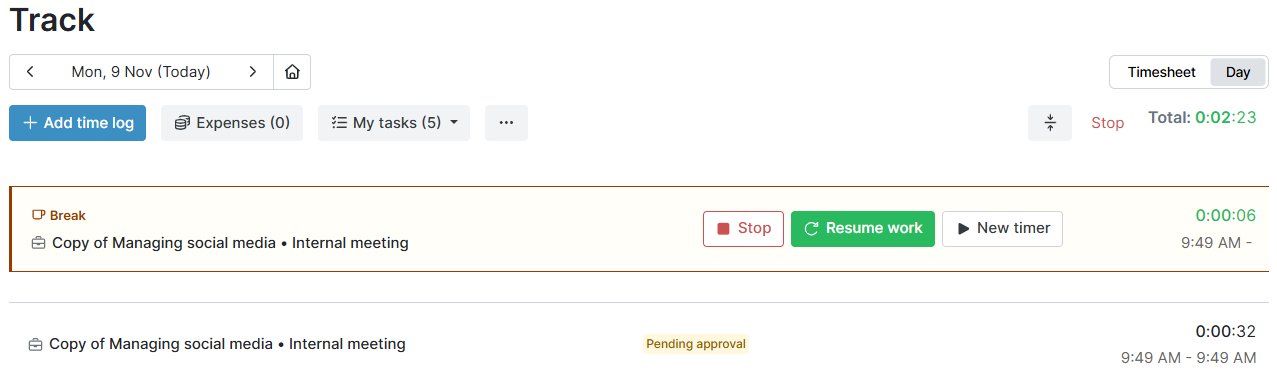
 Start an unpaid break from the running timer, or mark any log as one.
- Unpaid breaks stay out of worked hours, so you don't pay for them.
- See every unpaid break in its own column, across your reports.

Trusted by more than 100.000 businesses worldwide


What makes unpaid breaks different?
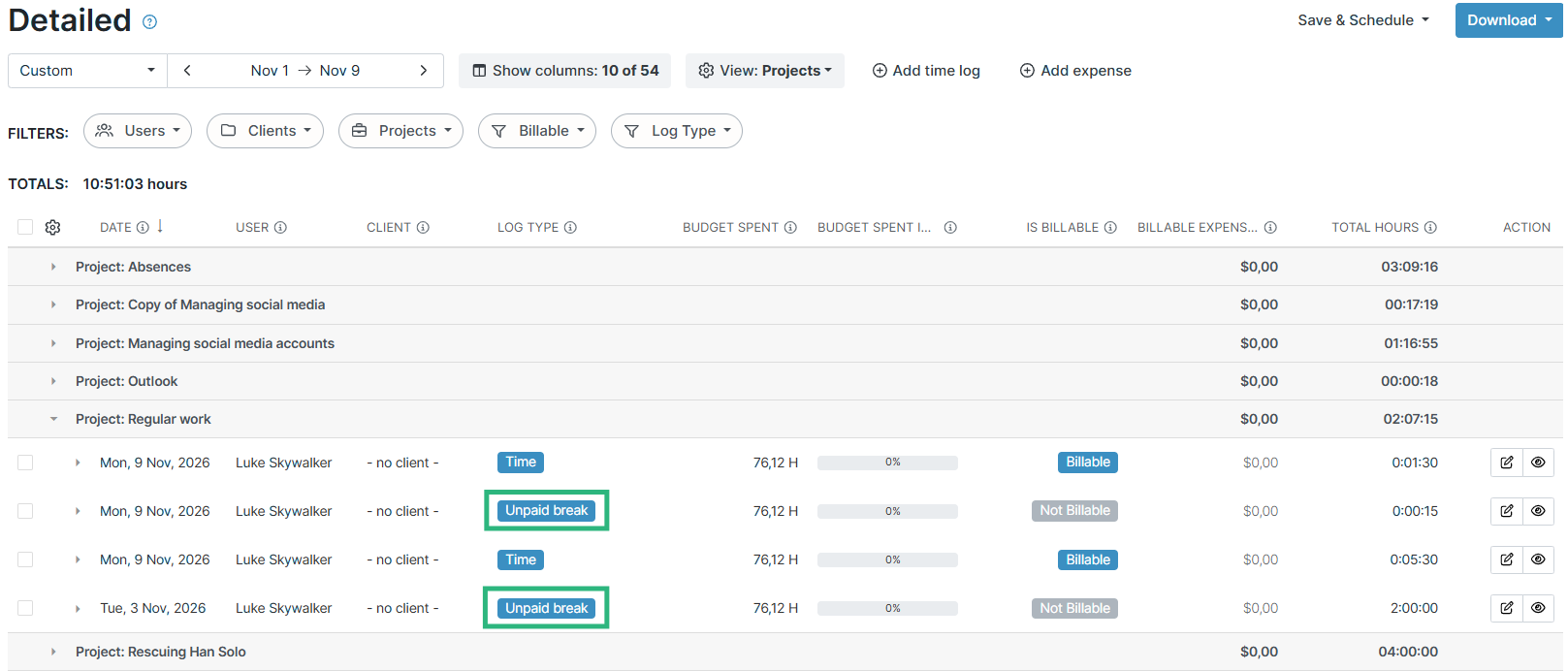
Accurate worked hours.
A break isn't work, so you shouldn't pay for it.
In My Hours, an unpaid break counts in Total hours and Actual hours, but not in Worked hours. It is always non-billable.
Target reminders and labor cost calculations leave unpaid breaks out. So the worked hours you report are the hours your team actually worked.
Available on Basic and Pro plan.
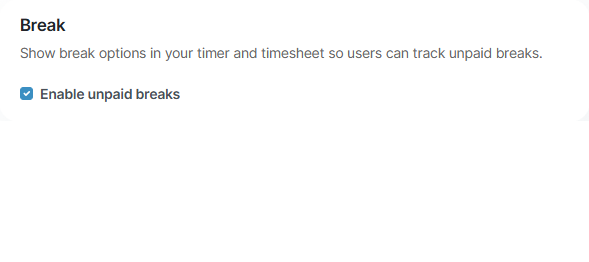
Turn on unpaid breaks
Unpaid breaks are off until you turn them on.
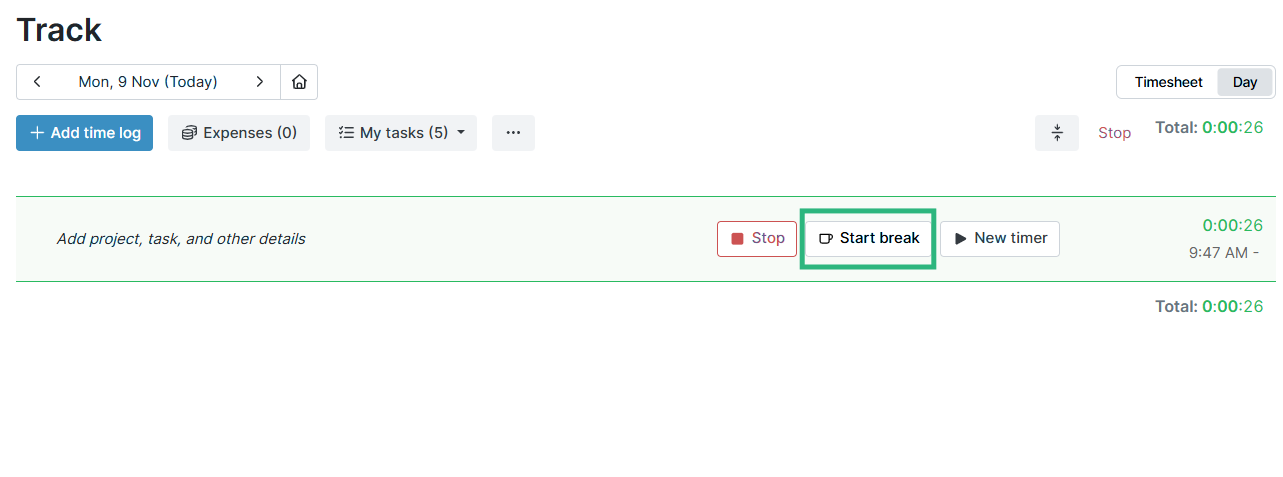
Start an unpaid break from the timer
Start a break without leaving the timer.
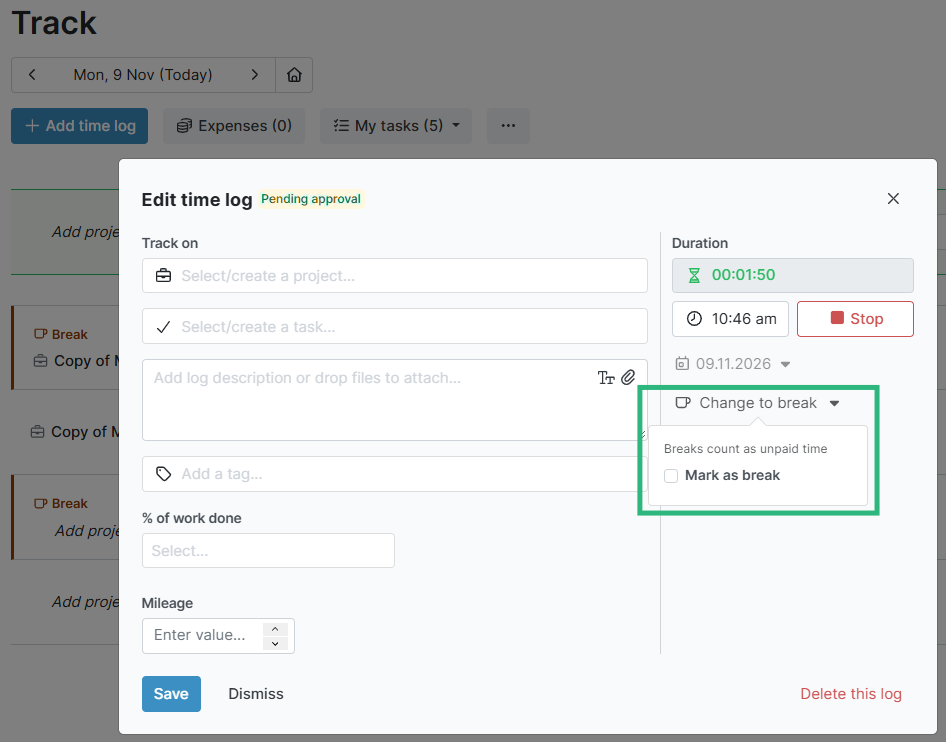
Or mark any log as an unpaid break
Breaks don't have to be logged in the moment.
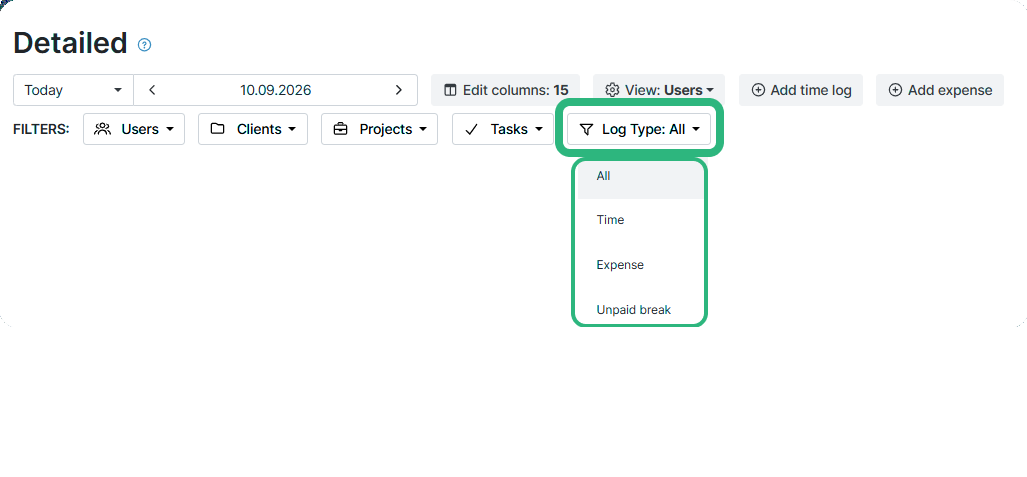
See unpaid breaks in every report
You can always check how much time went to breaks.
All the features you need, and none you don’t

Timer or custom timesheet
Track time with timer or enter your time through keyboard-friendly weekly, bi-weekly or monthly timesheet. Add a description and custom inputs.

Set billable rates and budgets
Automate calculation of billable amounts by setting precise hourly rates by project, task or team member. Add a project budget to monitor its progress.

Analyze logged hours & expenses
With the Dashboard you’ll get a bird’s-eye view of billable vs non billable hours, earned income by project, under- or over-utilized employees and more.

Generate custom reports
Detailed reports are completely customizable and display as much information as needed. Print to PDF, export to XLS or send schedule it via email.

Manage tasks
Add and assign tasks with an estimated budget. Create templates when identical tasks appear across projects.

Submit and approve timesheets
Supervisors get email whenever timesheets are submitted. Each timesheet can be approved or rejected with an email message.

Set flexible roles
Invite your team to track time on their projects without seeing each other’s hours and rates. Designate managers to oversee their team and manage their work.

Prevent inconsistent reporting
Lock team’s time logs to prevent editing or adding new logs in a selected period. Download the audit log report to keep your books in order.

Streamline invoicing
Create numbered invoices straight from hours logged. Integrations with the most popular invoicing apps are available to all customers.

Integrate with other tools
Connect My Hours data with other tools or vice versa through Zapier connectors. Alternatively, use our API to develop your own integration.

Access from anywhere
My Hours is a cloud-based app with nothing to install. View and manage your hours from any web browser or install our native mobile apps.

Secure infrastructure
My Hours is hosted in Microsofts Azure cloud and we are proud of 99.95% uptime. We perform regular security checks to keep your data in safe hands.
FAQ
Highest praise from our customers


Waste no more time,
jump right in!

All rights reserved.