
Enterprise-Ready Time Governance
Implement a consistent, accurate, and easy-to-use time tracking process
 Customizable time entry forms for consistent data collection
- Clear user roles determine who has access to the data
- Approval workflows confirm that data is accurate and complete
- Multiple reporting options enable one-click regular reports

Strong timesheet governance, without the complex setup
My Hours is time tracking software that is fast to set up and implement. Years of customer feedback and experience have led to robust features for compliant and consistent timekeeping, without overcomplicating things.
It’s simple enough that anyone can use it, but contains the vital controls and oversight required for enterprise-level organizations.
With multiple ways for employees to accurately track their time and strong approval workflows, you can enjoy reliable and consistent data across the whole workforce.
Tested across thousands of workdays and organizations of all sizes and industries, My Hours is a solid choice for stress-free time governance.

1. Set up users and team structures
My Hours has clear user roles that determine who has access to what data. Set up your team structures according to authority:
- Normal users: Can only access their own time data and log time against their assigned projects and tasks.
- Managers: Can view and edit their team’s time data, create new projects and tasks, and approve/reject time entries.
- Admins: Full access to all data.

2. Choose the time entry requirements
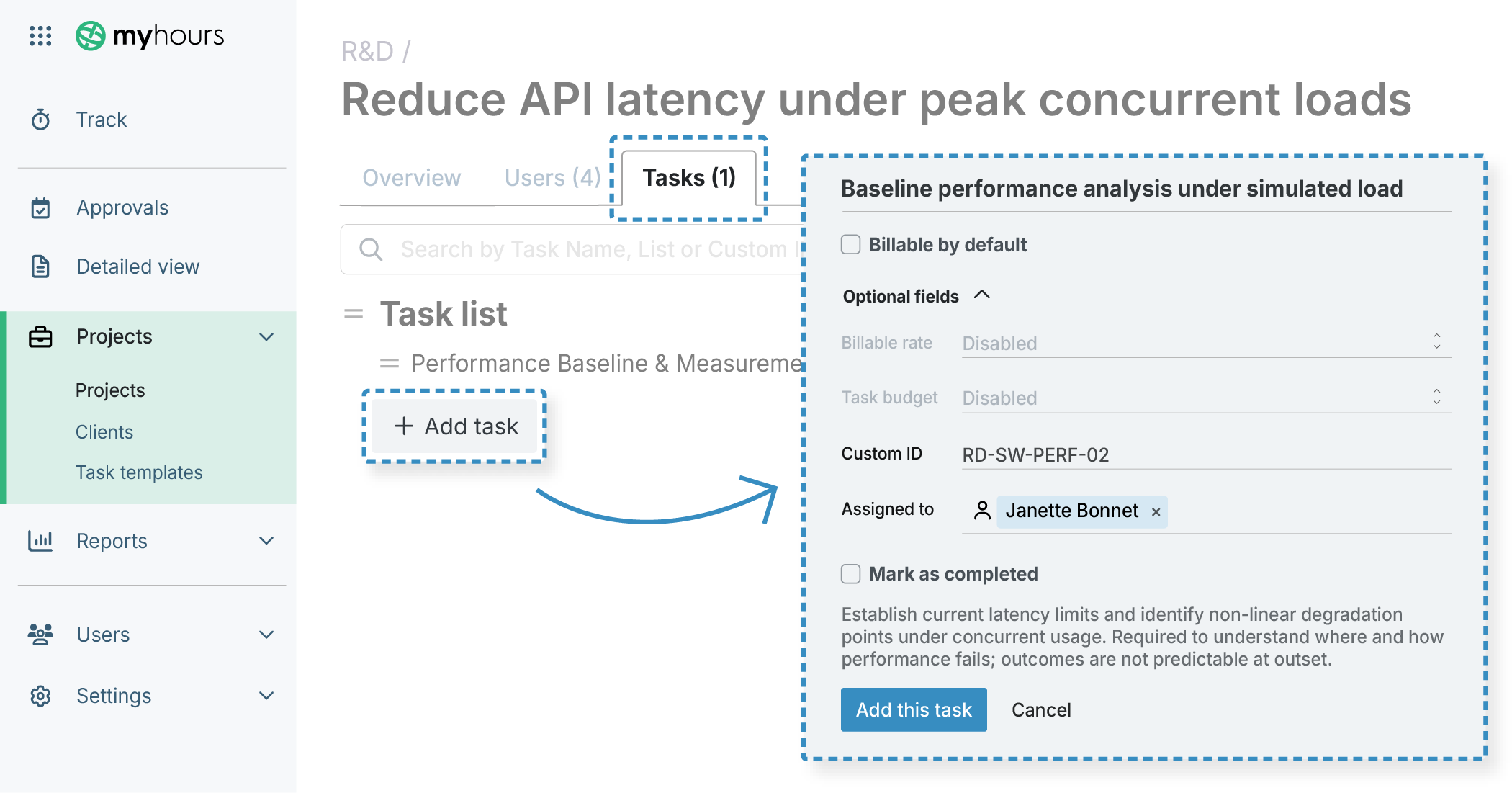
Time entry forms are flexible and customizable. You choose what information employees have to input:
- Enforce mandatory assignment of a project/task and description for each time entry.
- Create custom fields and tags to capture unique information like charge codes, project, identifiers, and more.
- Choose which optional fields to display, like tasks, tags, and budget information.
3. Switch on automatic timesheet submission
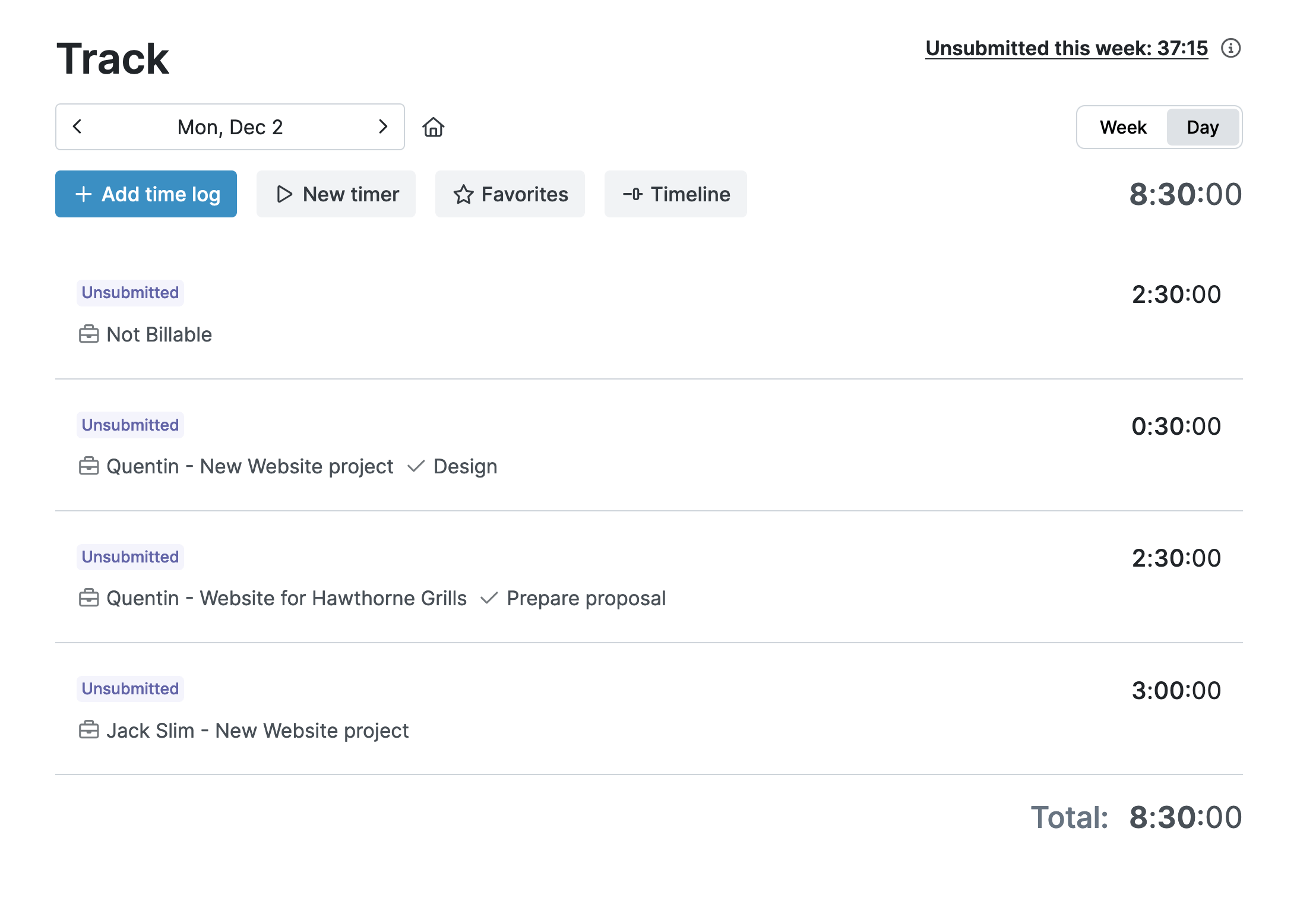
Even with clear deadlines, staff can forget to submit their timesheets or may submit them late. To avoid this, you can select automatic timesheet submission.
As each worker logs their time, it is automatically assigned to the timesheet, which is then made available to the supervisor to approve.
4. Set up automated reminders
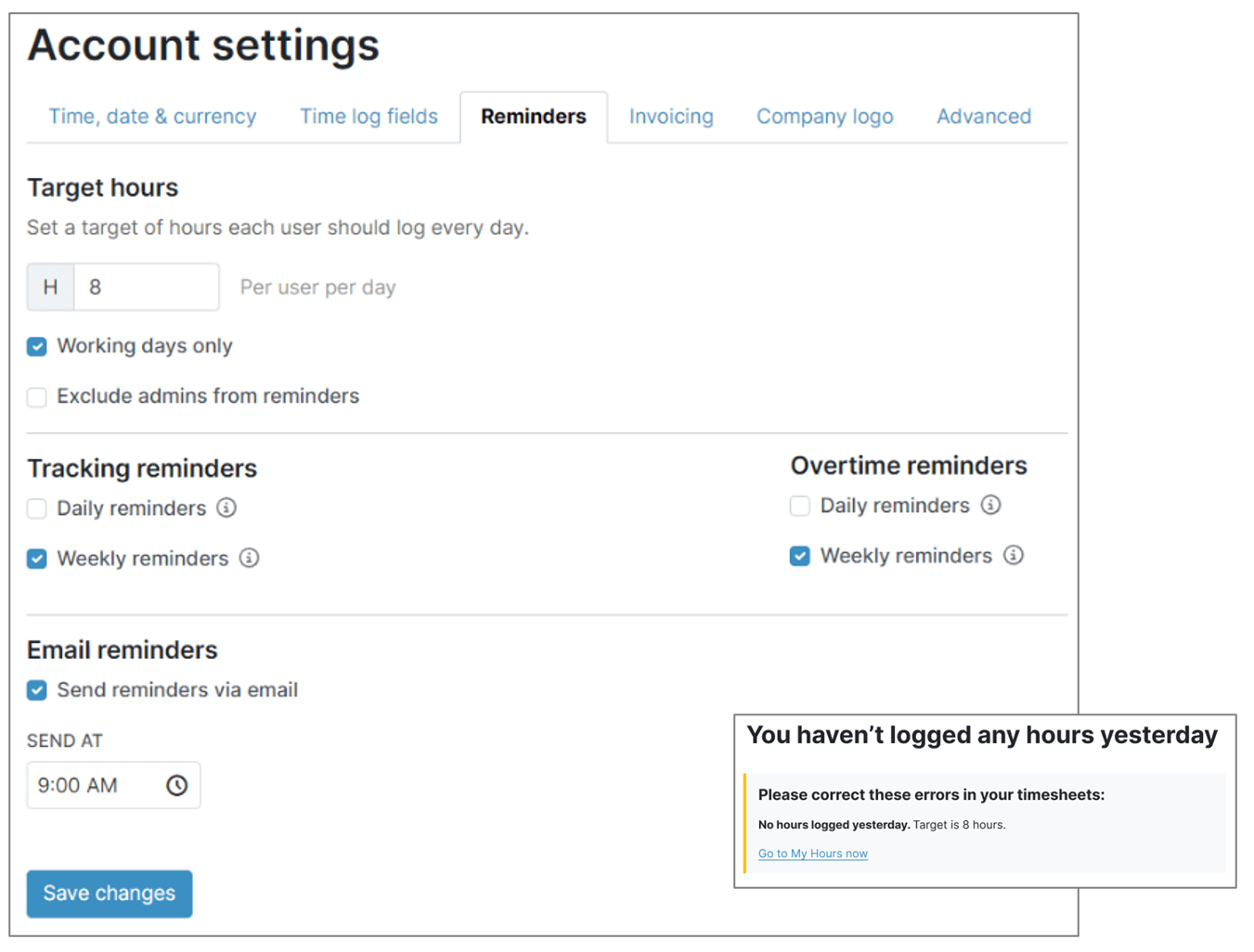
Automated reminders encourage users to adopt daily tracking habits.
- Set a unique daily number of target hours for each user or universal target hours across the whole workforce.
- My Hours will send an automatic reminder to any user who has not logged their target hours for the day.
- The system can also send a pre-submission alert if it detects any errors in timesheet data.
5. Configure the approval workflow and data lock period
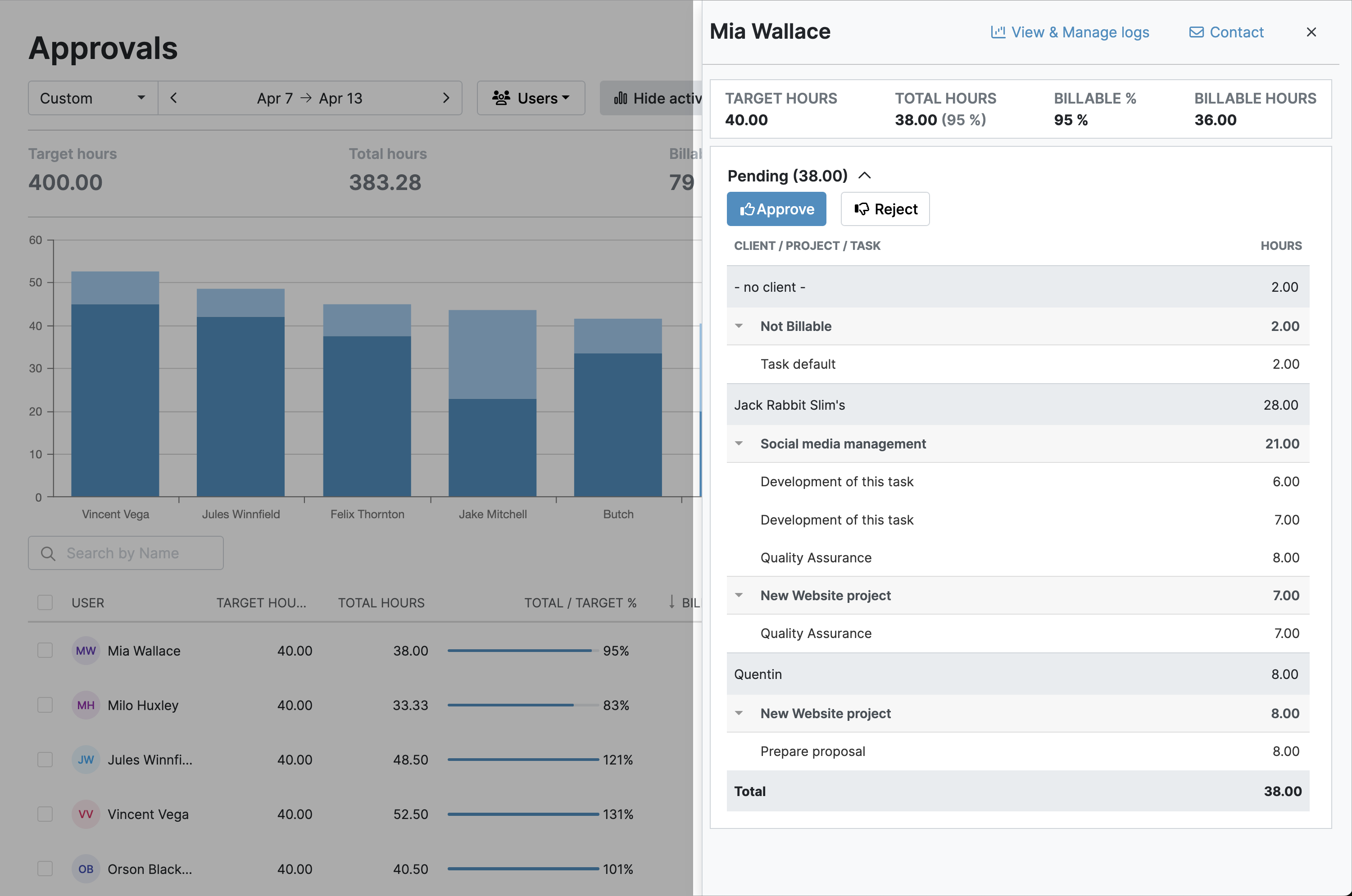
Timesheet approvals confirm that the data is complete and accurate before it reaches payroll.
- Managers receive an alert when a member of their team submits a timesheet.
- Entire timesheets or individual time entries can be approved or rejected in one click.
- All timesheet corrections are documented with a reason and timestamped.
- To prevent time entry manipulation, choose when the timesheet data is locked (daily, weekly, or monthly).
6. Customize and save regular report settings
My Hours has a broad range of reporting options that allow you to adhere to regular reporting cycles.
- Choose from the detailed, dashboard, or timesheet reporting options
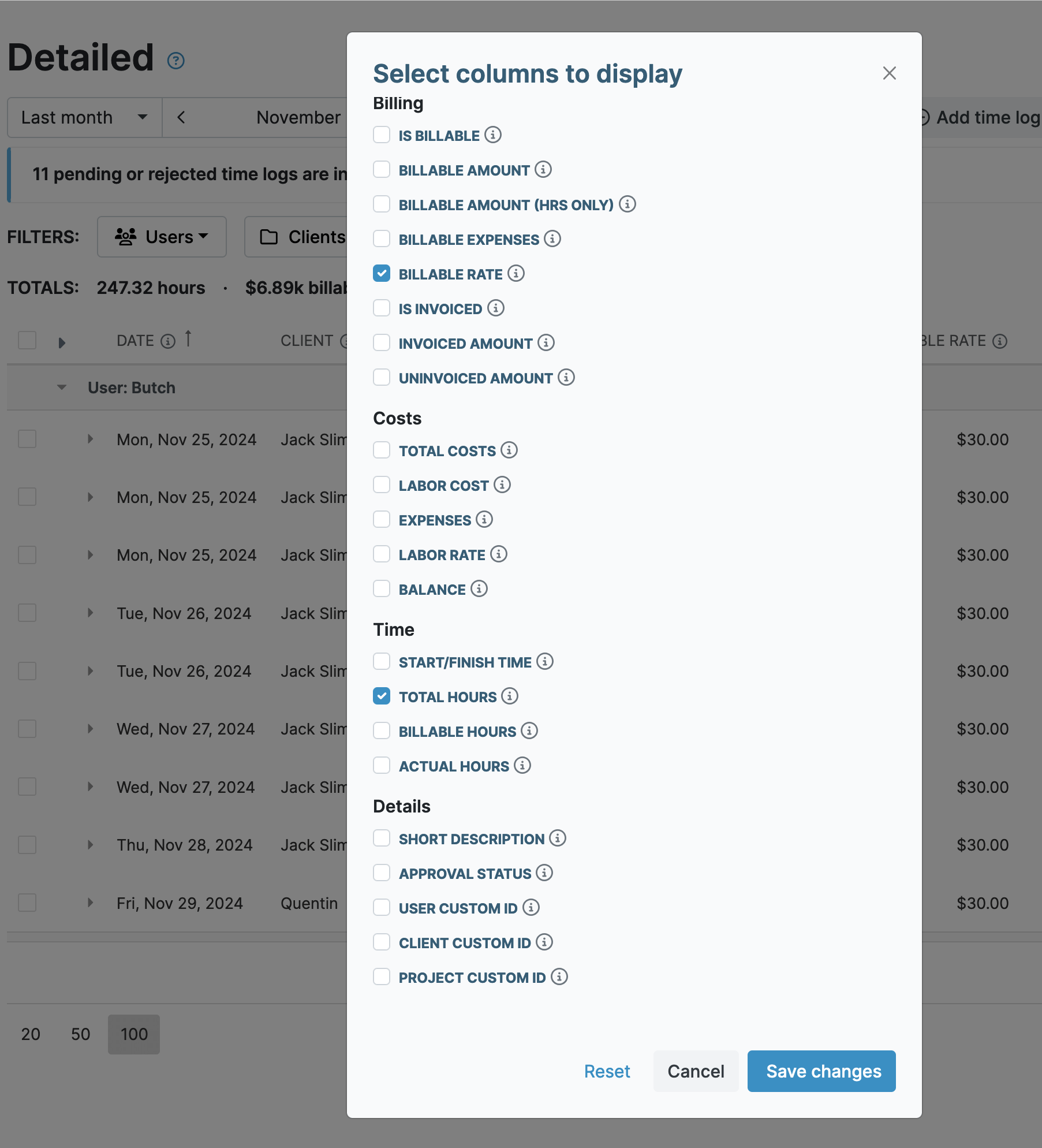
- Customize by choosing the desired filters and data columns
- Save each report’s settings as a template
- Send reports directly from within My Hours, or use the scheduling tool to automatically send regular reports on your behalf.
- Export reports as PDF overviews or in XLS format for granular analysis.
7. Enable the audit log
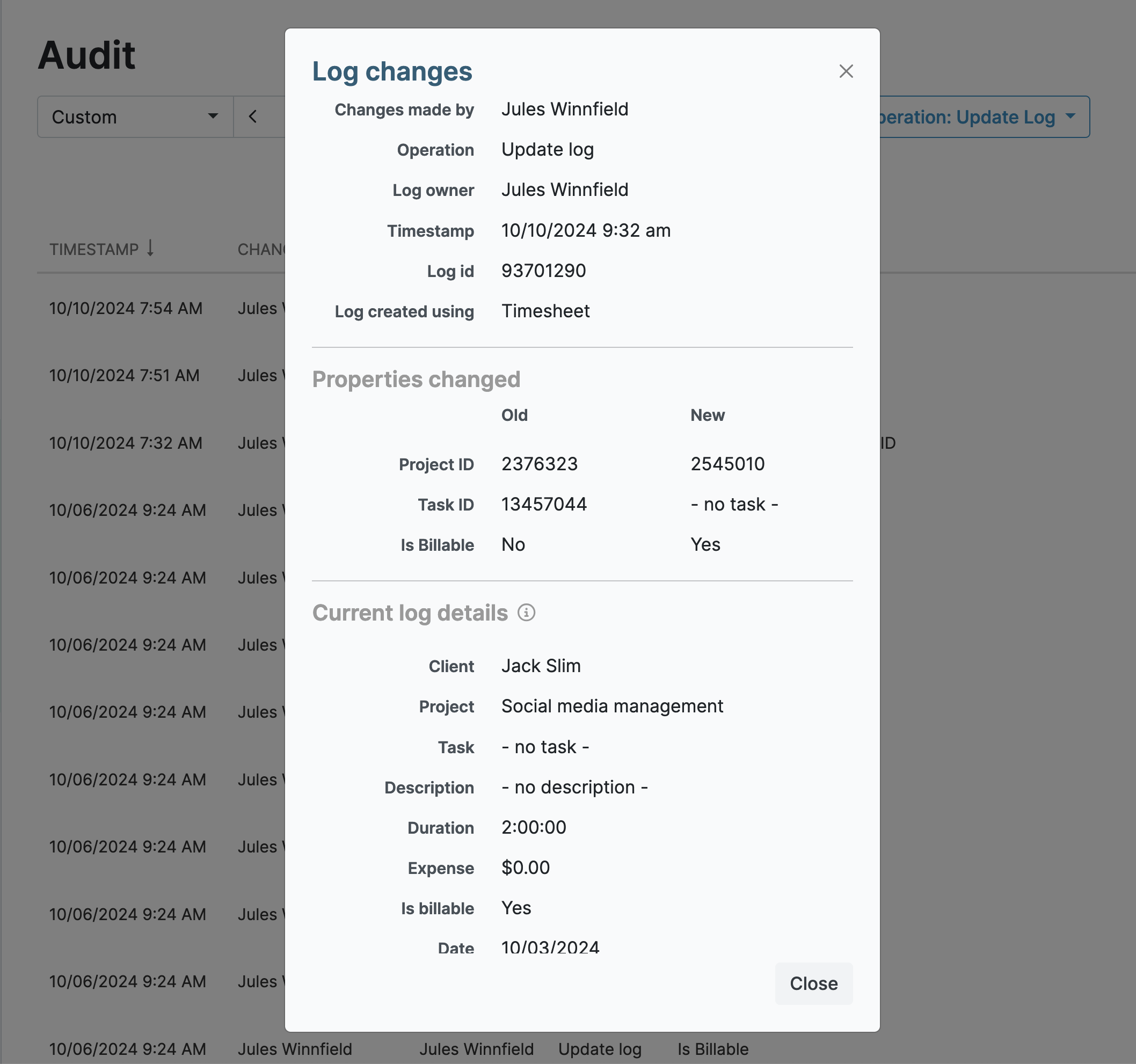
The audit log captures and documents all actions, changes, and edits that take place within My Hours. This log is necessary for compliance and maintaining a trail of who did what and when.
The audit log is retained for a period of 90 days, but you can get in touch and request a longer retention period if needed.
Download the audit log in XLS format whenever you need to.

Waste no more time,
jump right in!

All rights reserved.