

Here’s how My Hours combines time and cost tracking into one convenient solution.
I looked at various time recording apps and found that My Hours was the most suitable app for my company's needs. I particularly like the ease of recording hours spent for work done for my clients. To date, I have not had any problems with My Hours. I have requested the potential to add certain actions that they have considered and placed in their system. I greatly appreciate their consideration. I now have an accurate time recording of hours spent on processing my clients' accounts, and I also have the ability to run reports on hours spent, along with costing reports. It is a great product.
- Julie C., Accounting
Accurate Labor Cost Tracking for Payroll
Use My Hours to track employee labor costs (including overtime). Totals are automatically calculated, removing the need to perform manual calculations for every payroll run.
- Set a unique hourly labor rate for each user
- Users track time in real-time using the mobile app, browser extensions, or desktop app
- As time is tracked, so is the labor rate, giving you accurate cost data down to the second

Export user time data into payroll-ready reports that can be imported into your payroll software.
Note: Labor rates can be hidden in My Hours to prevent users and managers from viewing the information.
Billable Rates and Profitability Tracking
Besides hourly labor rates, users can also be assigned unique hourly billable rates. Billable rates are tracked separately from labor rates, giving you clear insight into incoming revenue.
Not only is this essential for clean, easy client billing, but it also gives your team an instant view of profit margins. By using the reporting feature, you can:
- Monitor profit margins in real time at the project and task level
- Track revenue vs. labor across departments
- Validate pricing assumptions with actual delivery costs
- Identify high-cost internal work that reduces margins
- Support pricing adjustments for future proposals
Flexible Billing Structures
No matter how your organization invoices its clients, it’s possible to mirror the setup within My Hours. There are several flexible options that you can pick from:
- User-based rate: The billable amount is calculated from the billable rates of users assigned to a project.
- Task-based rate: Set a unique billable rate per task within a project. For example, $35/hour for operations and $55/hour for field work.
- Project-based rate: Applies the same hourly rate for all time tracked within a project, regardless of user or task.
- Flat fee: Use this when a project is charged as a fixed fee.
- Not billable: Billable rates are not calculated. This is used for project work that is not chargeable to a client, such as admin or internal meetings.
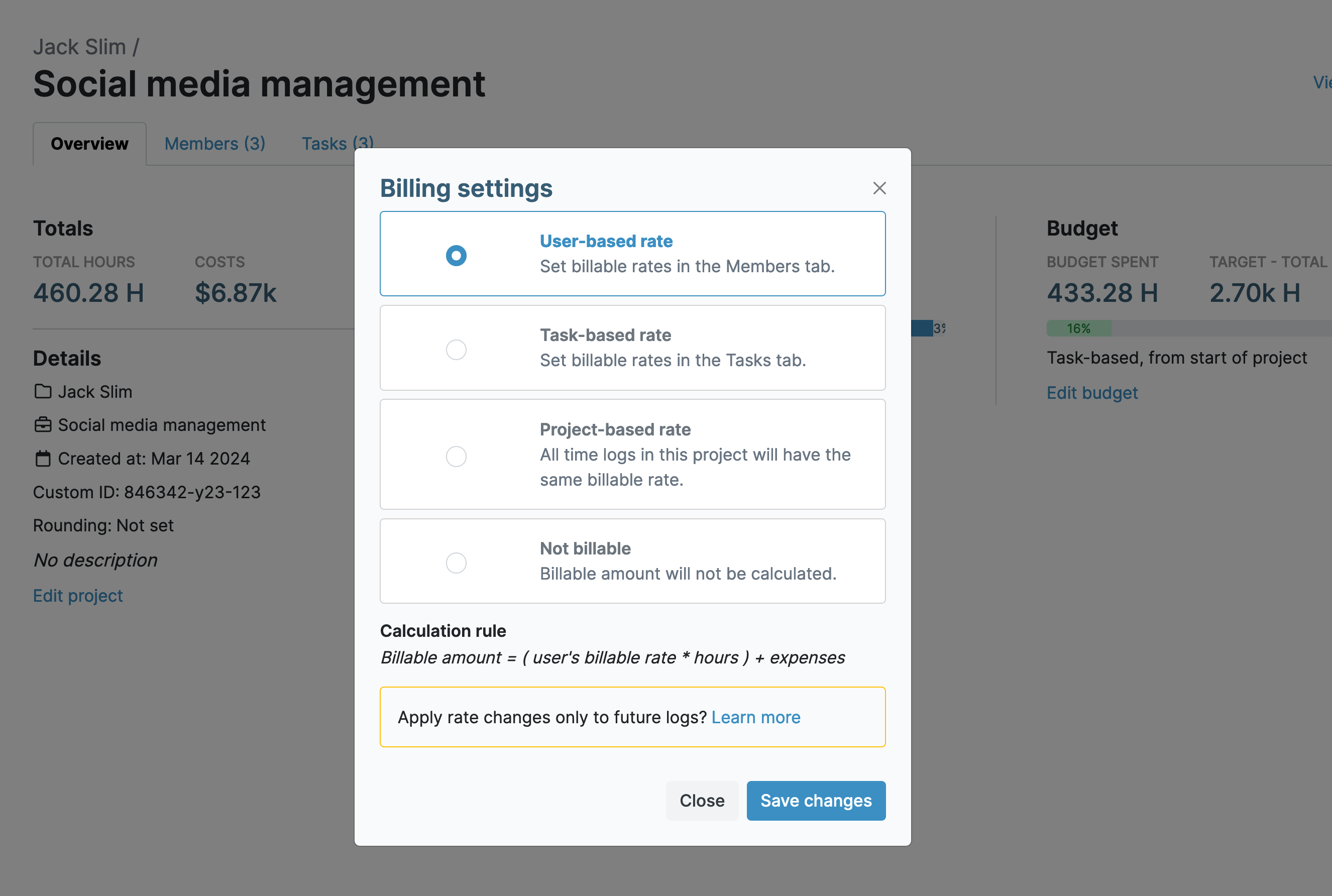
For greater control, select whether or not time logs are billable by default. Users can deselect this for any time logs that are not billable to the client.
Additionally, My Hours supports time rounding. Choose to round time up, down, or to the nearest interval. Intervals can be set from one minute right up to an hour.
I love the simplicity, and it gives me everything I need. Love the dashboard that shows me my average billable hours per day and my average hourly rate. I've set up projects/tasks for unbillable time as well as billable, so the dashboard is invaluable in showing me how productive my time is.
- Jeannie C., Accounting
Streamlined Expense Management
There’s now no need to record expenses on a separate system. My Hours lets users upload their expenses and assign them to a project and task:
Users:
- Create a log for each expense and map it to the relevant deliverable
- Enter the expense amount and choose whether or not it’s billable
- Add a description and upload a copy of the receipt or invoice
- Add any necessary tags
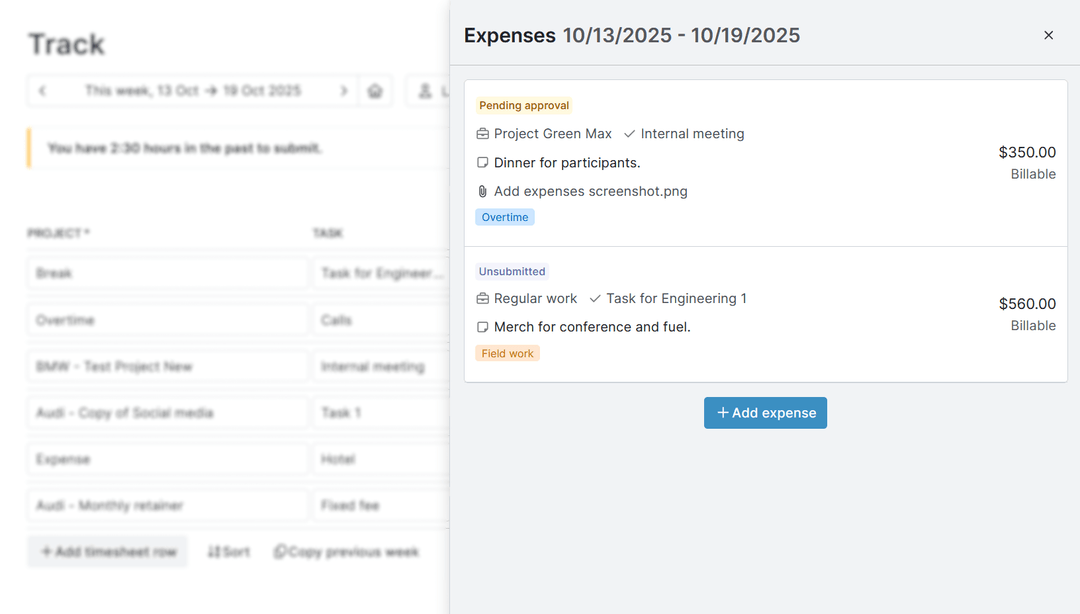
Note: Up to two custom fields can be added to expense logs to capture specific information.
Adding expenses to My Hours gives you a full picture of costs, not just labor. This allows you to quickly analyze spending for each deliverable and make decisions in real time.
Custom Fields and Tags for Finance-Ready Data
Mapping deliverables to cost codes, job codes, and other identifiers is easy in My Hours. Clients, projects, and tasks have a default field for custom IDs; however, you can add more if you need to.
Up to two custom fields can be added to clients, projects, tasks, users, and time entries. You have the choice to use:
- Dropdown select
- Dropdown multi-select
- Date field
- Text field
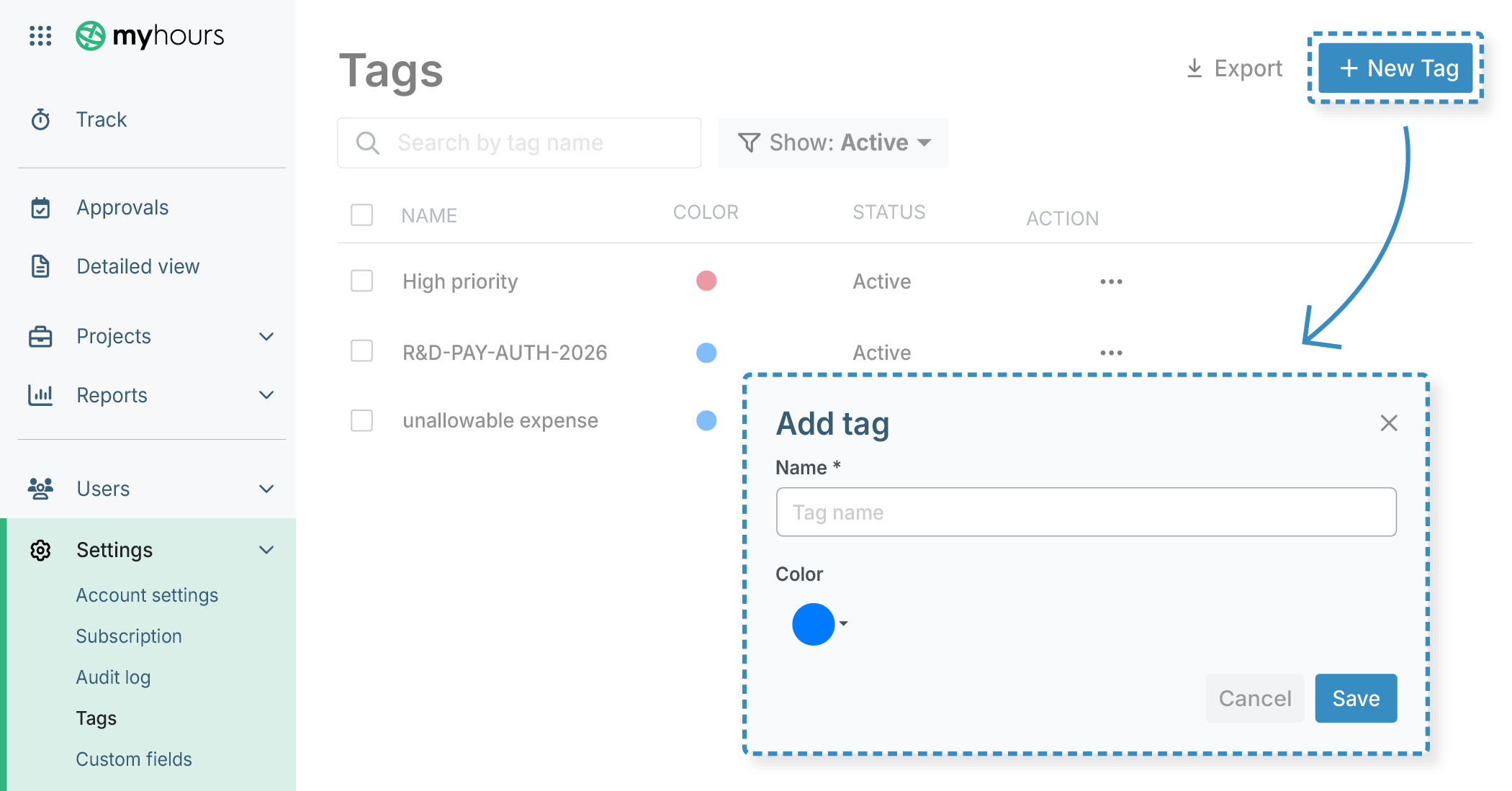
The custom tagging feature is also highly useful for categorizing and organizing work. An unlimited number of tags can be created, which you can use to:
- Distinguish allowable and unallowable work for tax credit claims
- Separate CapEx and OpEx activities
- Identify grant-funded or subsidized activities
- Classify time for profitability tracking
- And more
Tip: For easier management, tags can be color-coded into relevant groups.
Better Budget Control
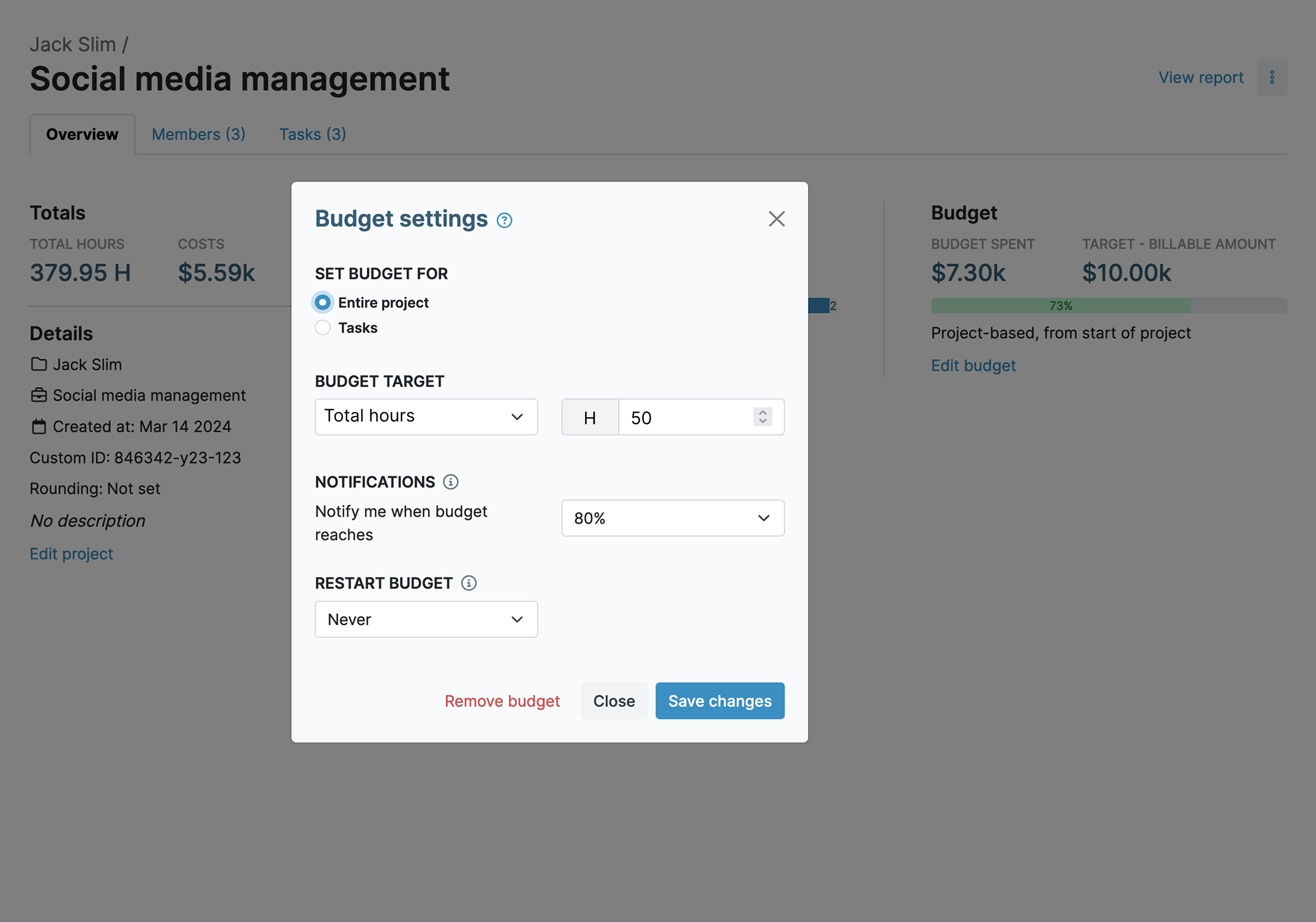
Help teams stick to their assigned budgets and prevent costs from running out of control. My Hours has a few different budget options that you can assign at the project or task level:
- Total hours: Set a time-based budget that updates based on the number of hours logged.
- Billable amount: Define a fixed monetary budget that decreases as billable time is logged.
- Costs: A budget calculated from logged time, applied labor rates, and expenses.
- Rolling budget: Configure billable, hourly, or cost-based budgets to automatically reset each month.
Tip: The costs budget is great for helping departments manage internal costs, while the billable budget is perfect for client projects.
Additionally, to help teams stay on track, My Hours includes automated alerts that tell supervisors when a certain percentage of the budget has been spent.
Control and Manage Overtime Costs
My Hours gives finance and payroll clear visibility into overtime hours the moment they are logged.
The platform tracks overtime automatically, and this is how it works:
- Set daily target hours for each user in My Hours. You can set a global target that applies to every user, or you can set unique targets per user.
- As users track time, it counts against their target. Once they exceed the target, they go into overtime.
- The platform sends a daily or weekly alert when users log under or over their target number.
- Hours exceeding targets can be filtered in the reporting feature, giving you accurate data for overtime payments.
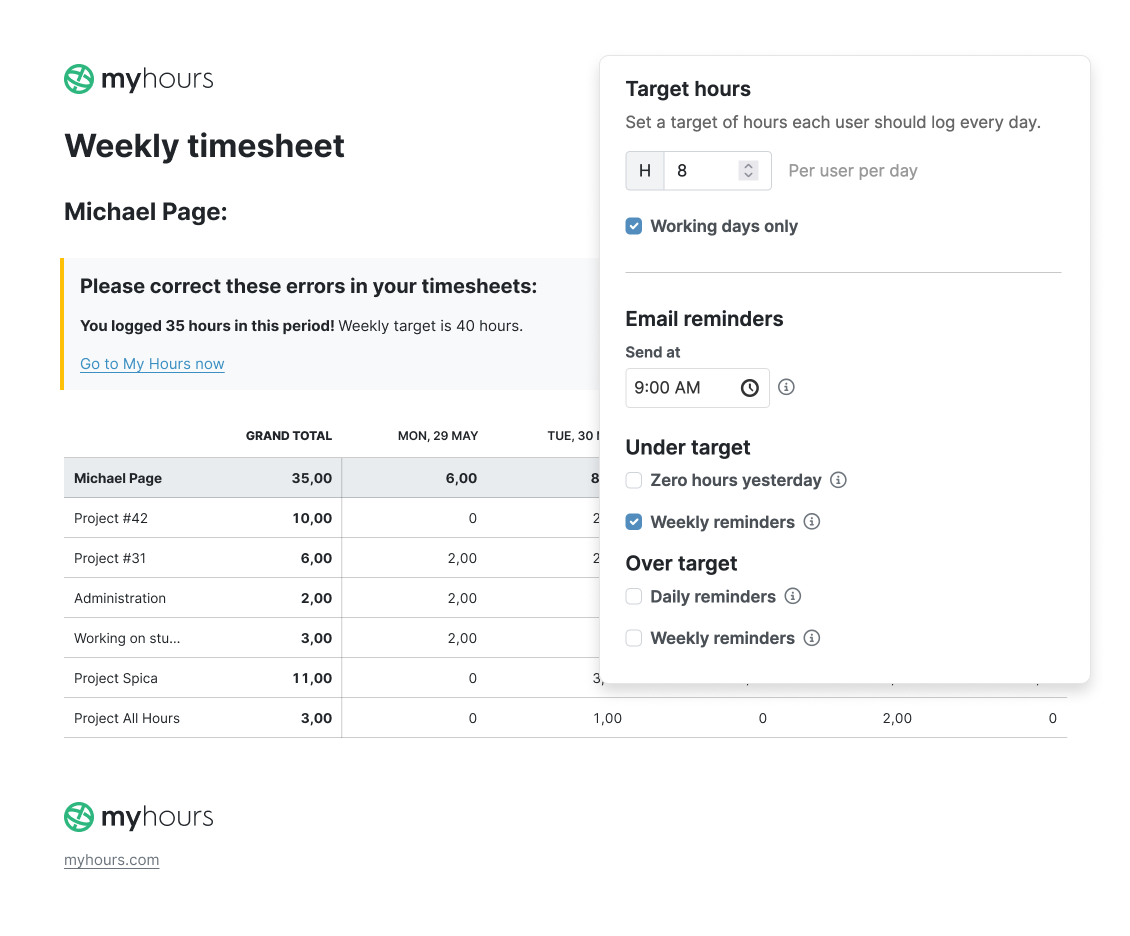
Tip: Use custom tags to further define time entries for overtime, such as classifying them by type (weekend work, emergency coverage, etc.).
Audit-Ready Time Records
Validating labor costs, investigating discrepancies, and preparing audit documentation requires clean, transparent records.
My Hours automatically maintains an audit trail that captures and documents all changes, actions, and adjustments that take place within the account.
You can also enable timesheet approval workflows to ensure each timesheet is checked and validated before being sent over to finance. Any timesheet adjustments are documented and timestamped, creating a fully traceable record.
Once approved, timesheet data can be locked, preventing further edits and data manipulation.
Clean Exportable Reports
Whether you need a report for payroll, billing, or financial analysis, My Hours can provide it.
Several flexible reporting options mean you always have access to the right level of data:
- Detailed report: The full set of time and financial data in granular detail
- Dashboard report: Visual high-level overviews, perfect for regular reporting
- Timesheet report: View a breakdown of time spent by user and team
Once you’ve generated the first report, save the settings as a template and generate future reports in one click. Additionally:
- Export reports in PDF or XLS format
- Auto-schedule reports to be sent out at regular intervals directly from My Hours

Simple Client Billing
My Hours includes a built-in, streamlined invoicing tool that allows you to bill clients directly.
Choose the client, pick the items to invoice, and send it off. You can easily keep track of invoices by updating their status to Paid or Partially Paid as the payments roll in.
While the invoicing tool is simple, you can still:
- Customize invoices with the company logo and other details
- Add discounts and tax info
- Email invoices directly from within My Hours
Integrate with Accounting Tools
Connect My Hours with QuickBooks and Xero using the native integration capabilities.
The platform also integrates with other popular platforms, such as Power BI, Jira, Asana, and more.
Try My Hours for Free
My Hours provides an out-of-the-box time and cost tracking solution for accounting teams and freelance finance professionals.
Currently trusted by over 100k clients from all industries, the platform offers enterprise-grade security and 24/7 live customer service.
Try My Hours for free by signing up for a 14-day trial.
It's great to be able to log time as you work, whether in the office or on the move. I'm sure being easy to do so means we capture more chargeable hours than we did using our old (very annoying) system. Our old time recording system ceased to be supported, so we had to find a new one. We looked at lots of alternatives and ran a new one for almost a year, but it was dreadful. Lots of systems want to manage your whole practice rather than just log time, so finding My Hours was a real relief. We run it alongside Xero and our CRM, both of which we didn't want to change. Apart from niggles as above, this has been a great system for us.
- Melanie L., Accounting

