
Catching these problems early requires that you have an accurate, current view of where time and cost are going across every team and at every phase of a project or task execution.
My Hours gives operations managers a live view of where campaign and department time is actually going, so decisions about staffing don't rely on guesswork.
With utilization data and retainer budgets in one place, you can catch a problem while there's still time to fix it.
You can track time across campaigns, cost centers, and internal projects from a single account. Chargebacks and reports both pull from that same data, which cuts down on rework and side spreadsheets.
“My Hours has meant that project time tracking on multiple projects for my team has been possible [...]. It gives me instant stats on project status and % of time used compared to budget."
Daniel F., Director, Media Production
Clear Client, Project, and Task Hierarchy
My Hours lets you organize work across four levels, matching how operations teams work day-to-day.
- Clients: Set up a folder for each internal business unit or outside account.
- Projects: Create one for each internal initiative, department workstream, or client engagement.
- Task lists: Group related work together so you can follow all the activities and stages connected to large projects.
- Tasks: Break things down to the activity level, and mark each one as billable or non-billable.
Every project, task, client, and user also includes a default ID field. Enter your department's cost center number or billing code there, and it stays attached to every entry logged against that project or task.
Track Team Utilization and Capacity
Knowing who's stretched thin and who has room for more work is one of the most persistent challenges for managers simultaneously juggling several projects or departments.
- With My Hours, you can set custom and global daily target hours for each team member and compare those targets against logged hours in the Detailed report. This shows exactly who's consistently over or under.
- Filter billable versus non-billable time at the client, project, or task level to spot where hours are going.
- Get alerts when someone's hours are way below or way over their target so you can quickly address imbalances.
- Run the same report across several projects or departments to catch recurring scope creep or process bottlenecks before they affect your budget or interrupt your workflow.
Tip: Run the report by team instead of by person when you need a department-level, birds-eye view on capacity.
Flexible Billing and Internal Cost Allocation
Whether a department bills external clients, cross-charges other departments, or simply needs to track cost without ever invoicing anyone, My Hours supports these billing approaches:
- User-based rate: The rate follows whoever logged the time, regardless of project.
- Task-based rate: Different rates apply to different types of work inside the same project, so you can appropriately charge for specialized work and routine work.
- Project-based rate: One flat rate covers everything logged against a project, no matter who did the work.
- Flat fee: Charge one fixed amount for a recurring engagement, no matter how many hours actually get logged.
- Not billable: Use this for internal work that never gets charged back, so it isn’t added to invoices or chargeback reports.
Time rounding: If you round time, select this option, so time is automatically rounded up, down, or to the nearest 1 to 60 minutes.
Cross-Team and Department Coordination
Operations work is rarely ever fixed in one silo. A single initiative can touch finance, HR, IT, and facilities all at once, each with its own reporting needs.
- Create teams inside My Hours that reflect your actual departments or functional groups.
- Add someone to multiple teams when their role cuts across different departments.
- Give each team its own manager, keeping oversight close to the work while leadership still sees the full picture.
- Set up projects and tasks across teams, so people can contribute wherever they're needed without a permissions request holding up the work.
This setup gives department leads day-to-day visibility into their own team, while operations retains one unified view across the whole organization.

Custom Tags and Fields for Cost Centers and Process Tracking
Chargebacks and process efficiency depend on you knowing exactly where time is going.
- Tag time entries by department or cost center, so the same log acts as documentation for internal chargebacks.
- Tag time entries by process stage, such as intake, review, or execution, to find where an operational workflow is slowing down.
- Add custom fields to clients, projects, tasks, and users to capture data like cost center numbers and billing codes.
- Use tags to filter reports by department or workflow stage, no spreadsheet required.

Note: Tags can be color-coded, which makes it faster to scan a busy report and spot which department or process is consuming the most time.
“[...] I love the fact that I can have clients with different rates, team members with different rates, multiple projects for clients, and tasks under those projects. It's incredible the amount of customization on such an easy-to-navigate product.”
Sabrina G., Founder and CEO, Human Resources
Reporting for Leadership and Stakeholders
Operations managers are accountable to leadership who want a current, accurate read on where budgets and time are going. You can set up the following reports on My Hours:
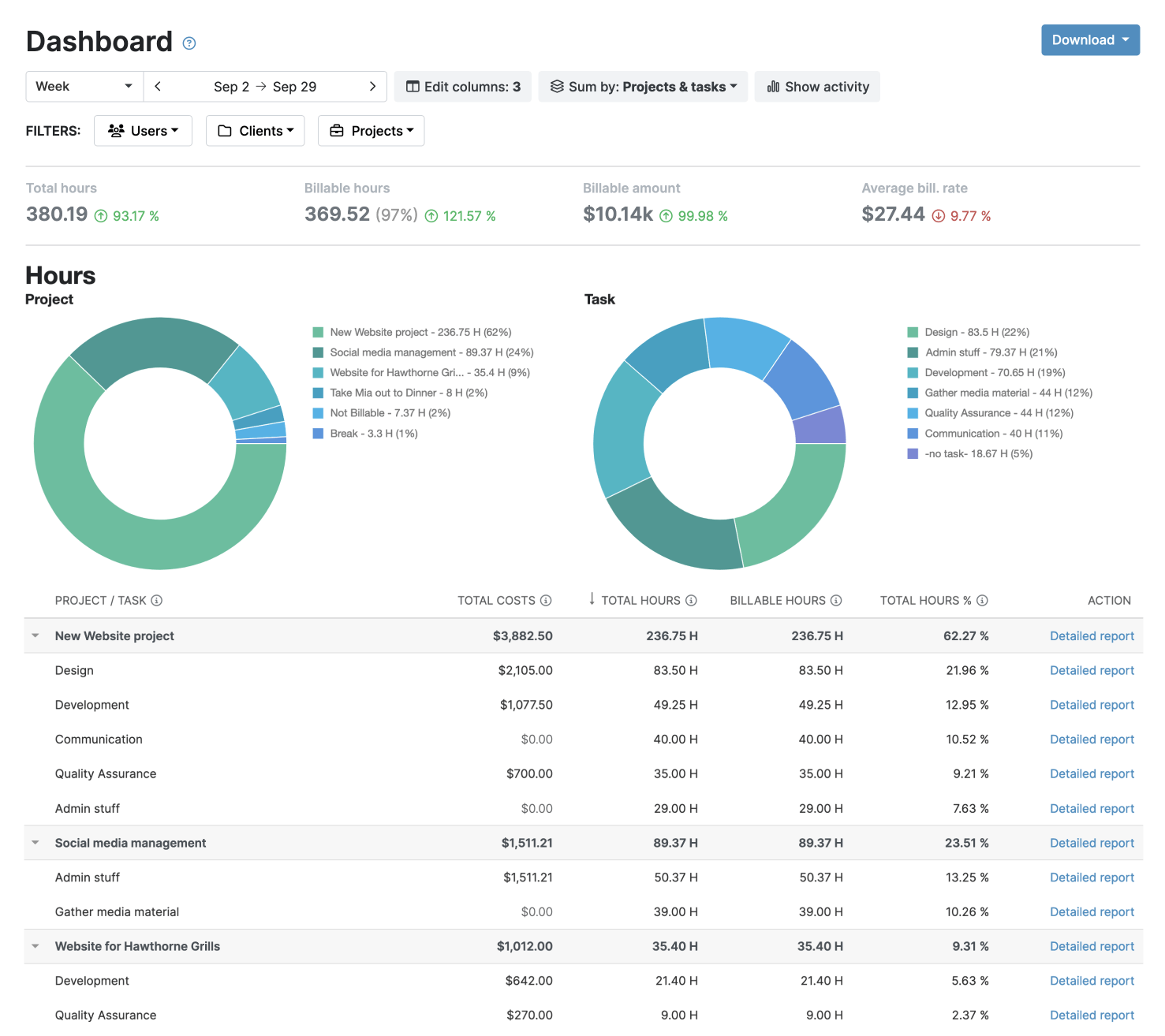
- Dashboard reports, with hours and costs broken down by client, project, or team.
- Detailed reports, containing every filter for tags, users, budgets, and custom fields. Useful when leadership asks questions that need a specific answer.
- Timesheet reports that break hours down by person or team, built for workload conversations.
Set up templates for these and export to PDF or XLS on demand, or set the auto-schedule option and let My Hours handle the delivery itself on whatever intervals stakeholders expect.
Expense Tracking for Departments and Projects
Labor hours are just one of the events that drive costs. You also need to track and monitor vendor invoices, software subscriptions, equipment purchases, and contractor costs.
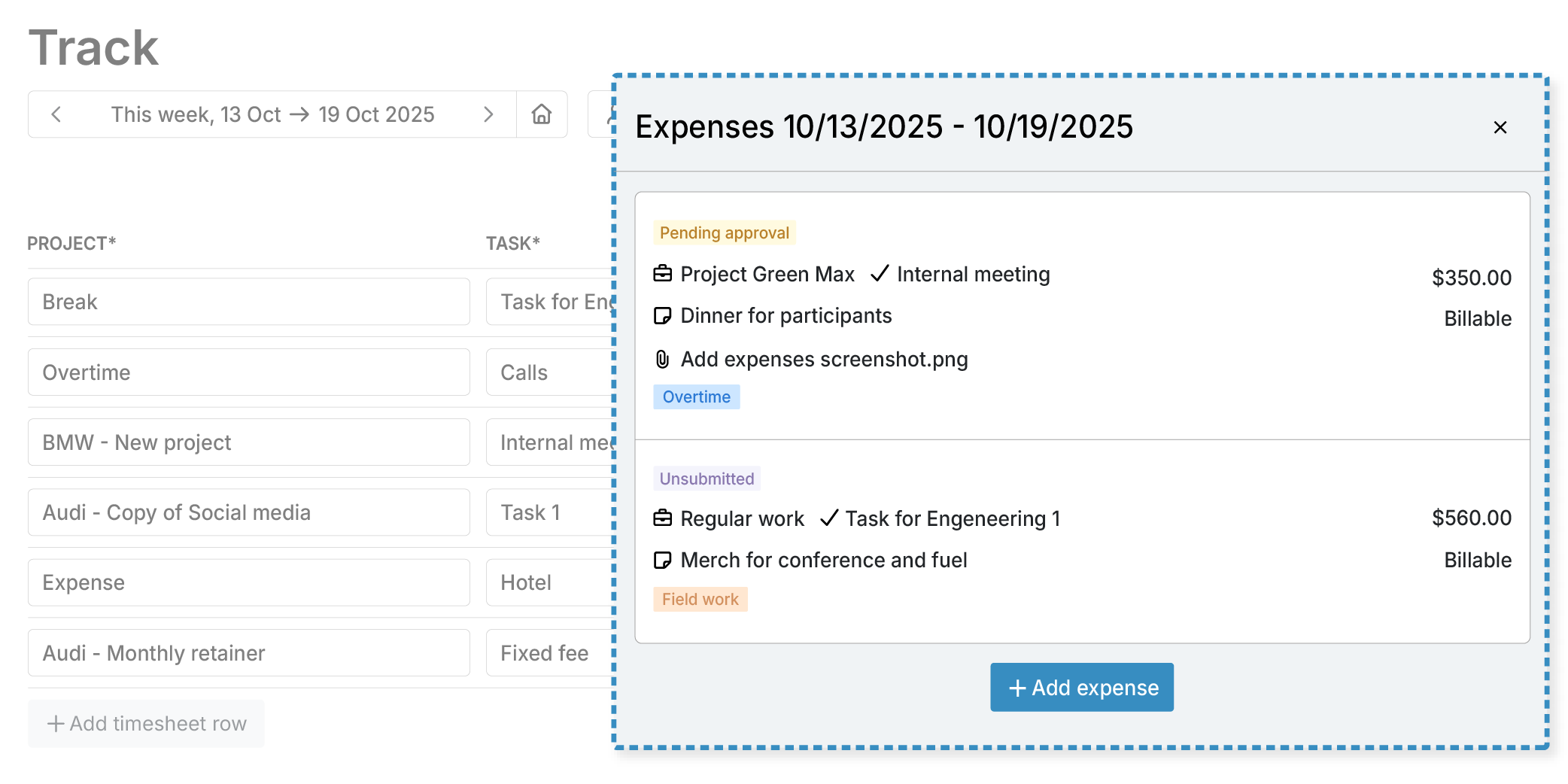
- Log the date, amount, and a short description against whichever project and task the cost belongs to.
- Attach a photo or scan of the receipt or invoice, so the record and the proof are stored together.
- Mark expenses as billable or non-billable.
- Billable expenses automatically count toward the budget you've already set, so costs and budget tracking are always in sync.
Approval Workflows for Accurate Data
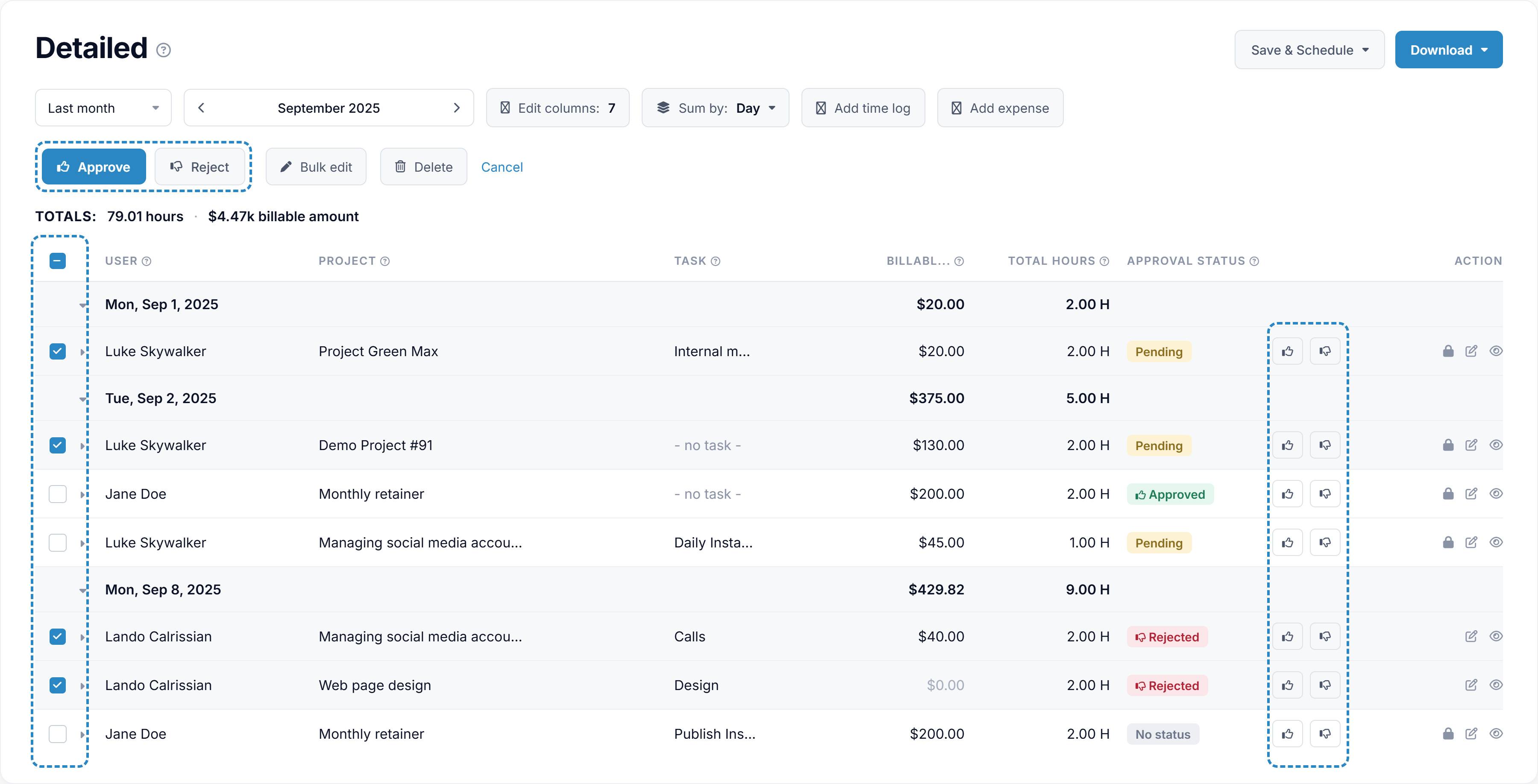
Before you send a report to leadership or pass a chargeback to another department, make sure the underlying time data has gone through approval.
- Require manager sign-off on submitted timesheets before they're used for billing or reporting.
- Approve or reject individual entries, with a reason attached to any rejection.
- Restrict edits on anything already signed off, so no one can change approved numbers.
- Pull a record of who approved what and when, exported in XLS format, whenever an audit or dispute needs backup.
.png)
Integrations with Operations Tools
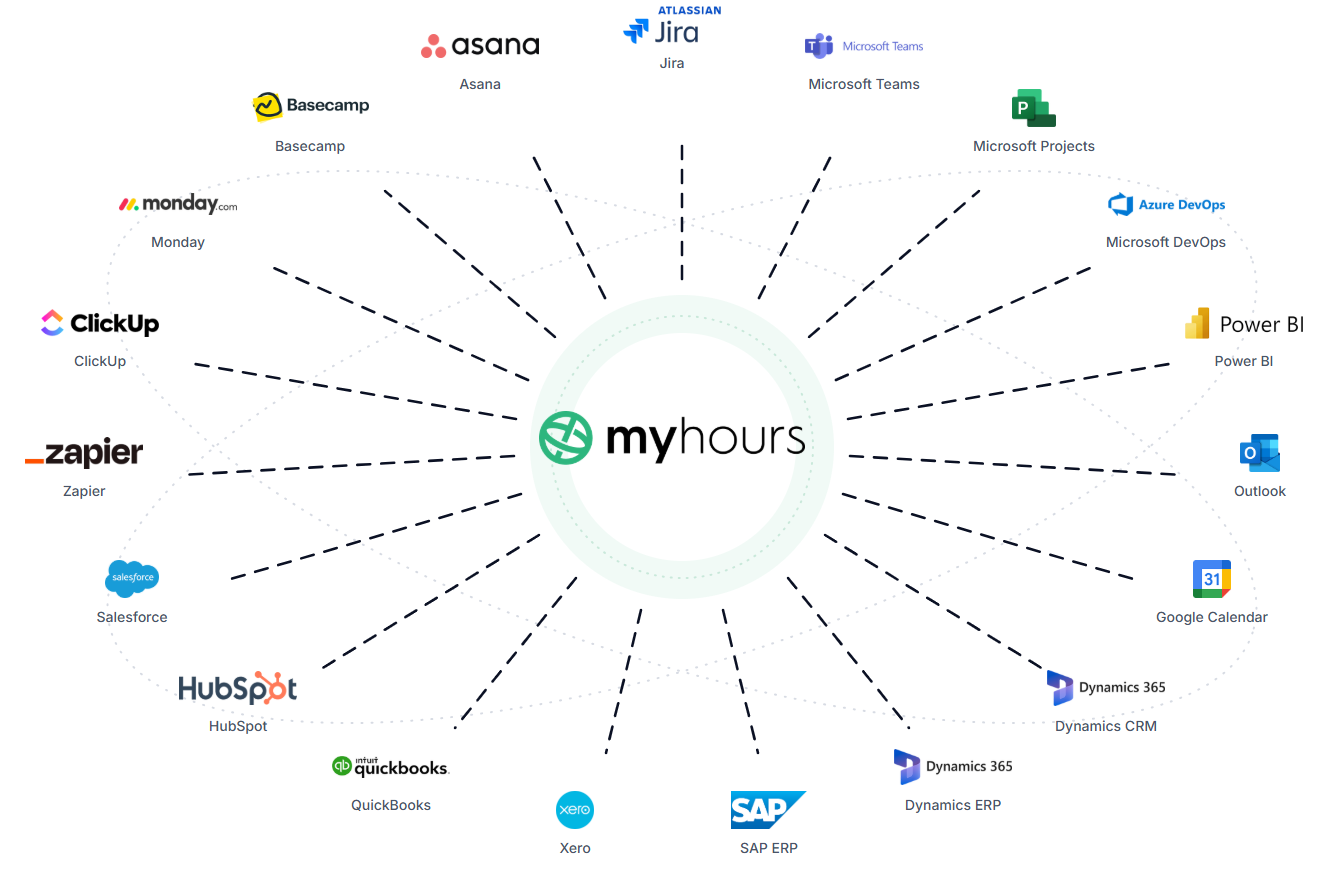
My Hours connects to the tools operations teams already use for daily work, so your team doesn't have to perform duplicate data entries.
My Hours provides integrations to systems like Asana, Monday, Basecamp, ClickUp, Jira, Azure DevOps, QuickBooks, Xero, Power BI, Zapier, and others
Capacity Data Without Invasive Monitoring
Getting visibility into your team's capacity should be straightforward and not require constant, manual monitoring.
Hours, tasks, and budgets are what My Hours measures. Keystroke logs, screenshots, mouse activity, and GPS pings are not part of the picture, and never will be.
This is especially beneficial for operations teams managing remote staff or contributors spread across departments.
With My Hours, you can easily analyze capacity data to see where workload is unbalanced and will not turn into a surveillance layer that costs you the trust of the people doing the work.
Try My Hours for Free
My Hours has helped over 250,000 people across more than 100,000 businesses track their time since 2002, without resorting to invasive monitoring to get there.
Featuring enterprise-grade security (including ISO 27001 certification and Single Sign-On) and 24/7 live customer support, the platform gives operations managers a current, accurate read on where their departments actually stand.
Try My Hours for free by signing up for a 14-day free trial.
“My Hours is very simple and easy to use to track work hours. I really like having access to detailed reports for future reference.”
Candida R., Customer Service Manager, Wine and Spirits

