


My Hours vs. Everhour for Field and Offsite Workers
Choosing the right software for teams that track time on the go
Field and offsite teams need to track time wherever work happens. As workloads grow, it's also important to capture expenses, record job details, and keep timesheets accurate without adding extra admin.
Both My Hours and Everhour help teams track time away from the office, but they differ in what features they offer.
While both platforms are excellent for tracking billable hours and budgeting, Everhour prioritizes staff and resource planning. My Hours, on the other hand, offers more functionality for off-site teams with its fully-featured mobile apps.
Last updated: August 2026

My Hours vs. Everhour: At a Glance

1. Mobile App Functionality
My Hours
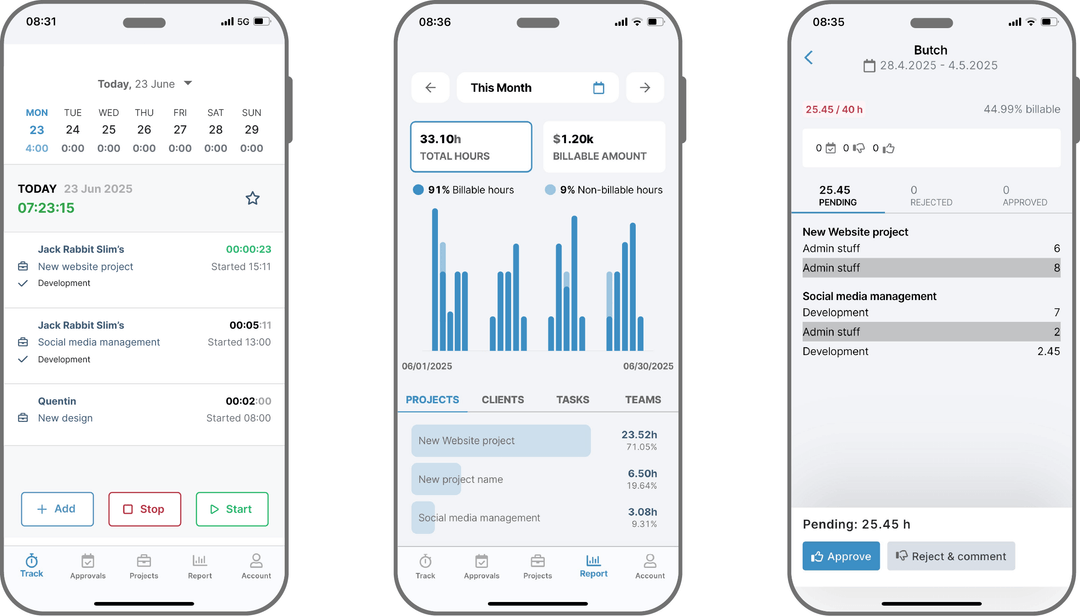
My Hours has both an Android and iOS app, which are free to download and use.
They support real-time tracking and allow you to assign projects, tasks, and descriptions, exactly as you would on the desktop version. Billable time and expenses can also be tracked, allowing users to record costs the moment they’re incurred.
Timesheets can be copied, edited, and submitted, plus it’s also possible to create new projects and tasks as they emerge in the field. Built-in to-do lists help users stay on top of their daily workload.
And for anyone who tends to forget to log time, automated reminders are available.
For managers, mobile access also supports approving or rejecting team time entries, with a streamlined version of the reporting tool included.
Everhour
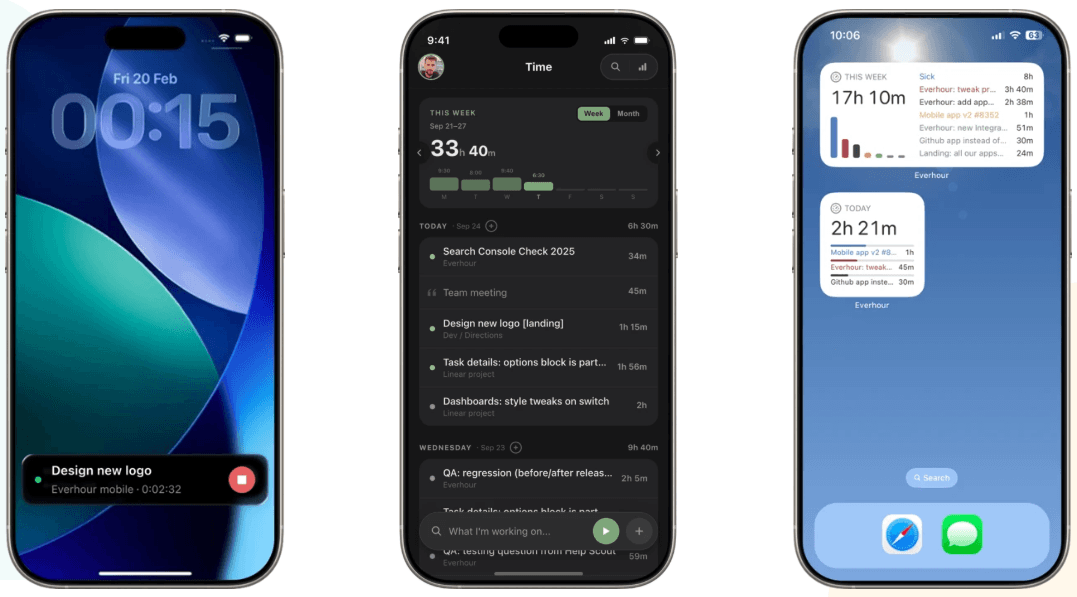
For a long time, Everhour only had an iOS app, but it has recently released an Android version. It also allows Apple Watch wearers to track their time from their wrists.
A handy lock screen widget keeps time tracking capabilities accessible without users having to open the app.
A calendar view is also available. This lets you browse monthly totals and identify any time gaps, then create a manual time entry to fill in missing time.
However, beyond these capabilities, there isn’t much else that you can do. For instance, there’s no way to upload expenses or access reports via the mobile apps.
Mobile app verdict
Everhour is great if you only want the apps for simple time tracking. The widgets and Apple Watch connection are convenient and let you track in one click.
That said, if you need more functionality out in the field, My Hours offers far more features. While the apps don’t support every single tool available on the desktop version, they come pretty close.
If you want a way to upload expenses, set up new deliverables, or run reports, without having to head back to the office, My Hours has you covered.
2. Expense Upload
My Hours
Since field work tends to come with a string of related expenses (travel, meals, etc.), My Hours makes it easy to record these costs the moment they happen.
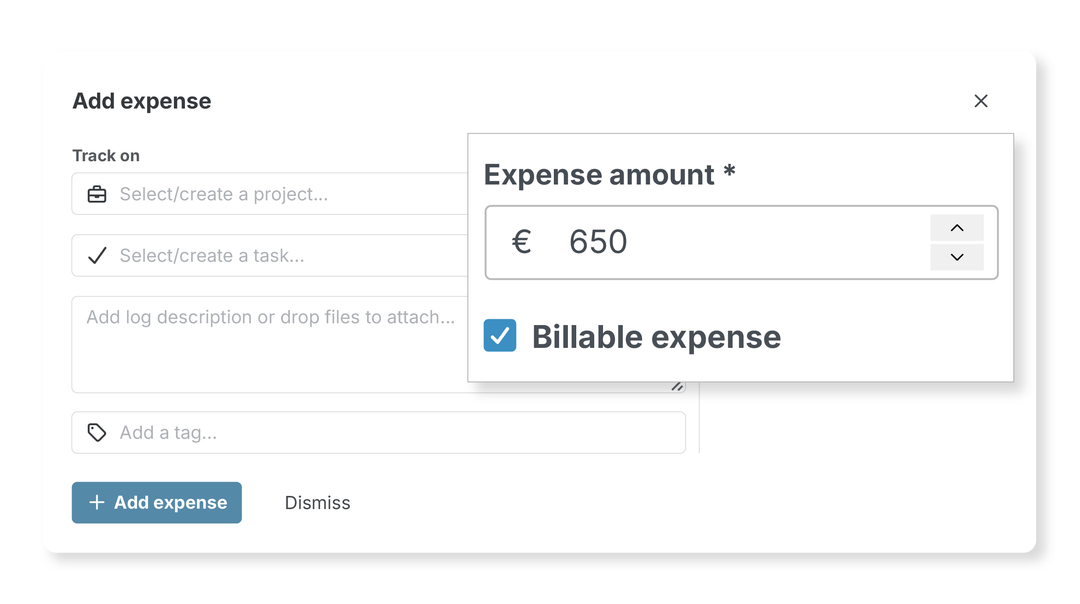
Using either the mobile app or the desktop version, you can create an expense entry with a description and the amount, and simply check a box whether it’s billable to the client or not.
Each expense is linked directly to a project and task, so you know instantly which deliverable they relate to.
My Hours also enables you to upload a copy of the receipt or invoice as proof. When using the app, all you do is snap a quick photo.
Everhour
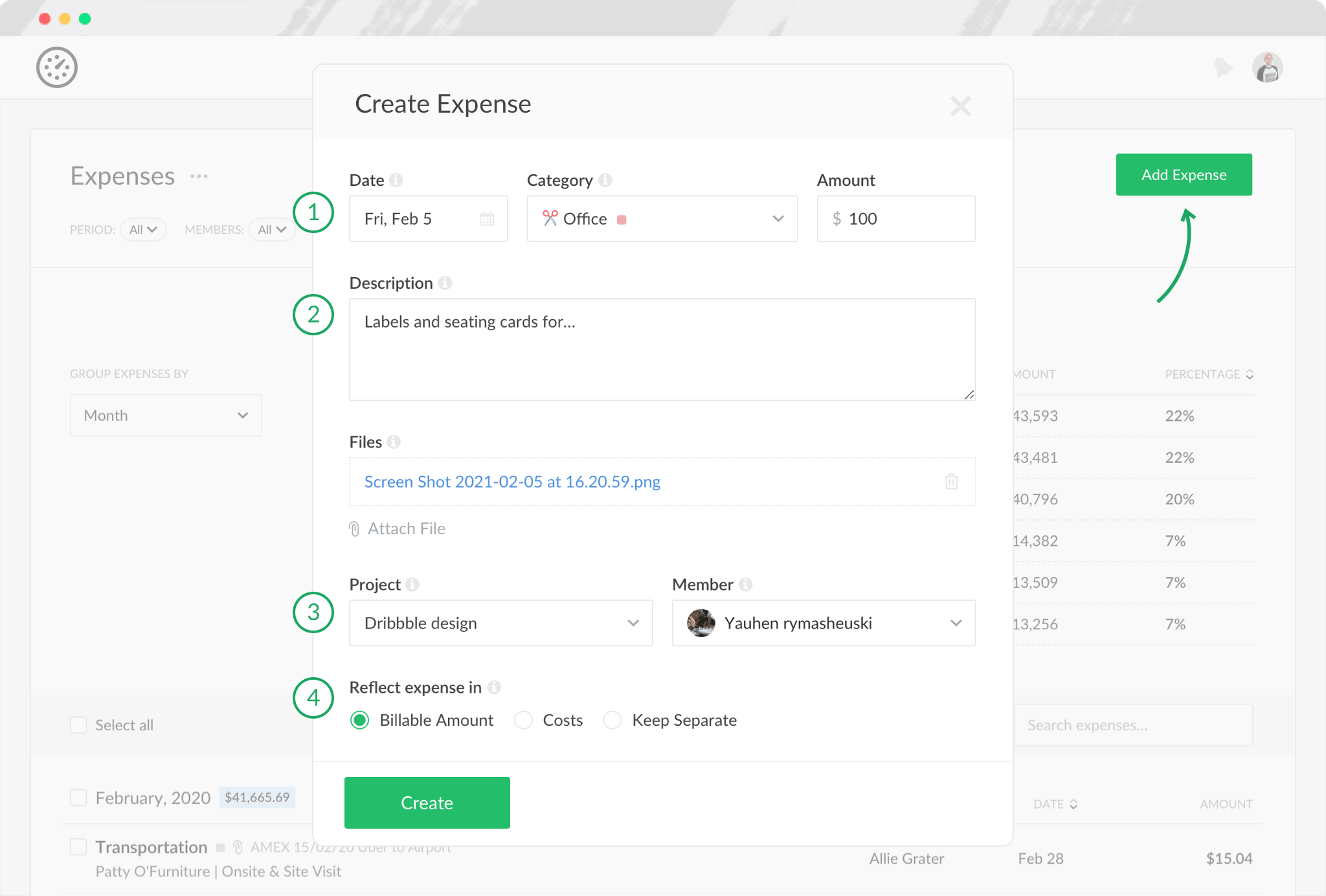
Like My Hours, Everhour supports expense uploads, but these are only available on the desktop version. This means expenses must be logged once you’re back on site.
Expense entries include a description, the amount, and whether it's billable to a client. Additionally, Everhour has expense categories, allowing you to assign categories and use them in reports to better understand where expenditure occurs.
While expenses are linked to projects, you cannot link them to specific tasks, so there’s a little less granularity in this respect.
Expense upload verdict
For field workers, My Hours offers “in the moment” expense capture, which saves you the effort of having to record them later on.
It’s also handy to be able to link expenses to tasks, because it provides a more accurate breakdown of project costs, particularly on larger jobs with multiple stages or activities.
It’s a shame that Everhour’s mobile apps don’t feature expense uploads. Let’s hope they introduce this functionality in the future.
3. Billable Time Capture
My Hours
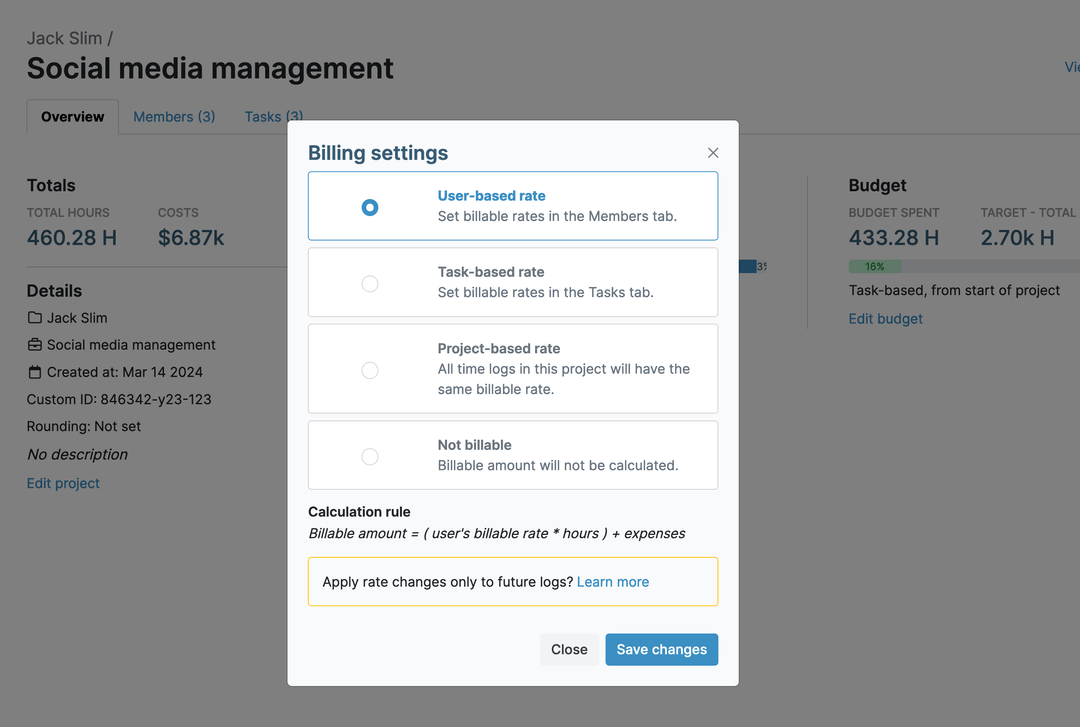
Set an hourly billable rate for each user, which is tracked alongside time to calculate accurate client invoices. You can even customize billable rates for specific projects.
For projects with different billing structures, My Hours supports task-based billing (unique hourly rates per task), project-based billing (a single hourly rate for the entire project), or fixed fee billing.
This allows you to bill clients according to what’s stated within their contracts.
Everhour
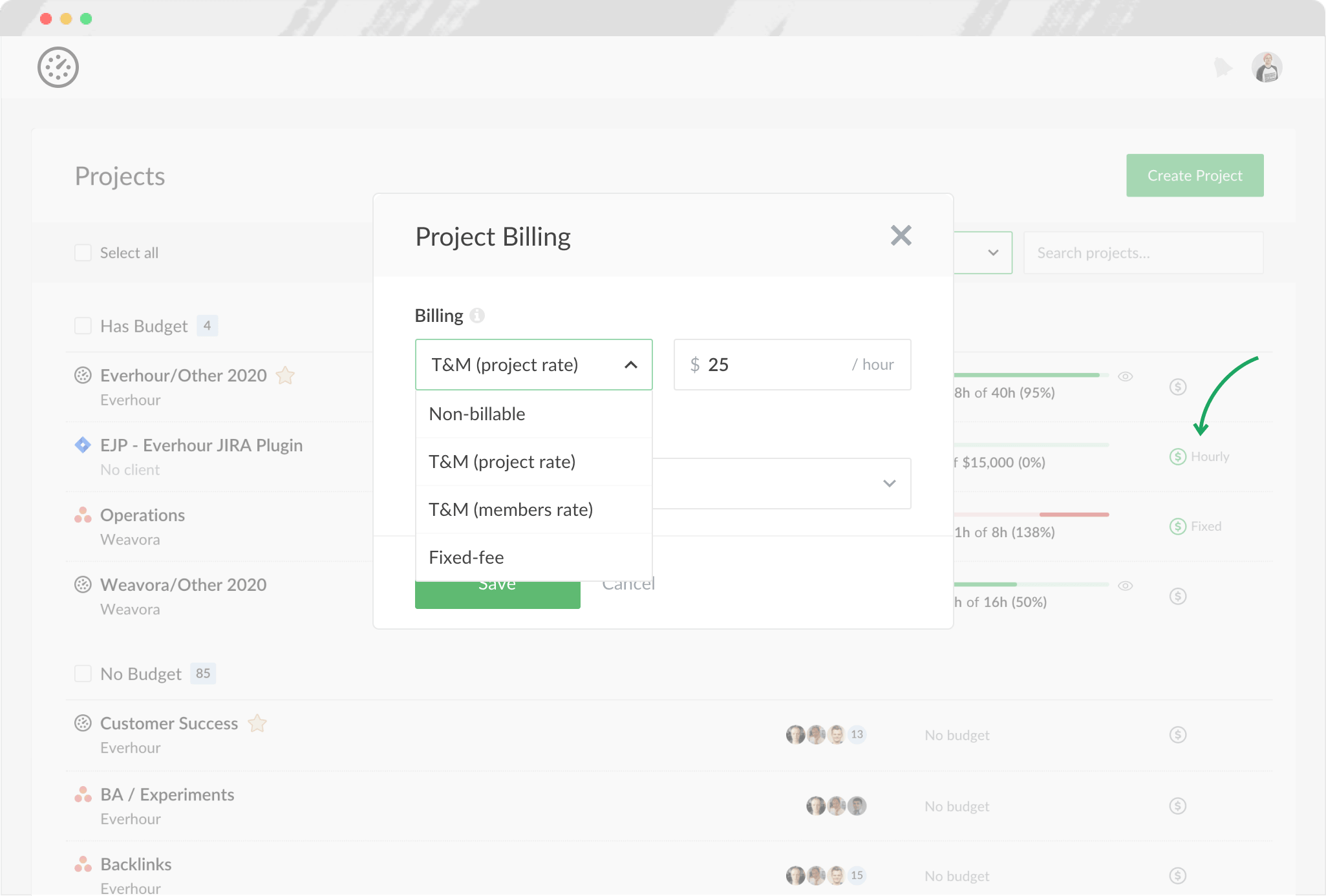
Everhour performs in pretty much the same way as My Hours here.
User billable rates can be adjusted per project, and you have the same additional project billing options, including the fixed fee.
Billable amounts are pulled through to the invoicing tool, allowing you to invoice clients in a few clicks.
Billable time verdict
Both platforms are equally strong when it comes to billable projects. They each enable flexible project billing structures and automatically track costs for invoicing.
4. Team Planning and Scheduling
My Hours
My Hours offers limited team planning and scheduling tools. For example, unlike Everhour, it doesn’t include specific features for staff rotas or shift planning.
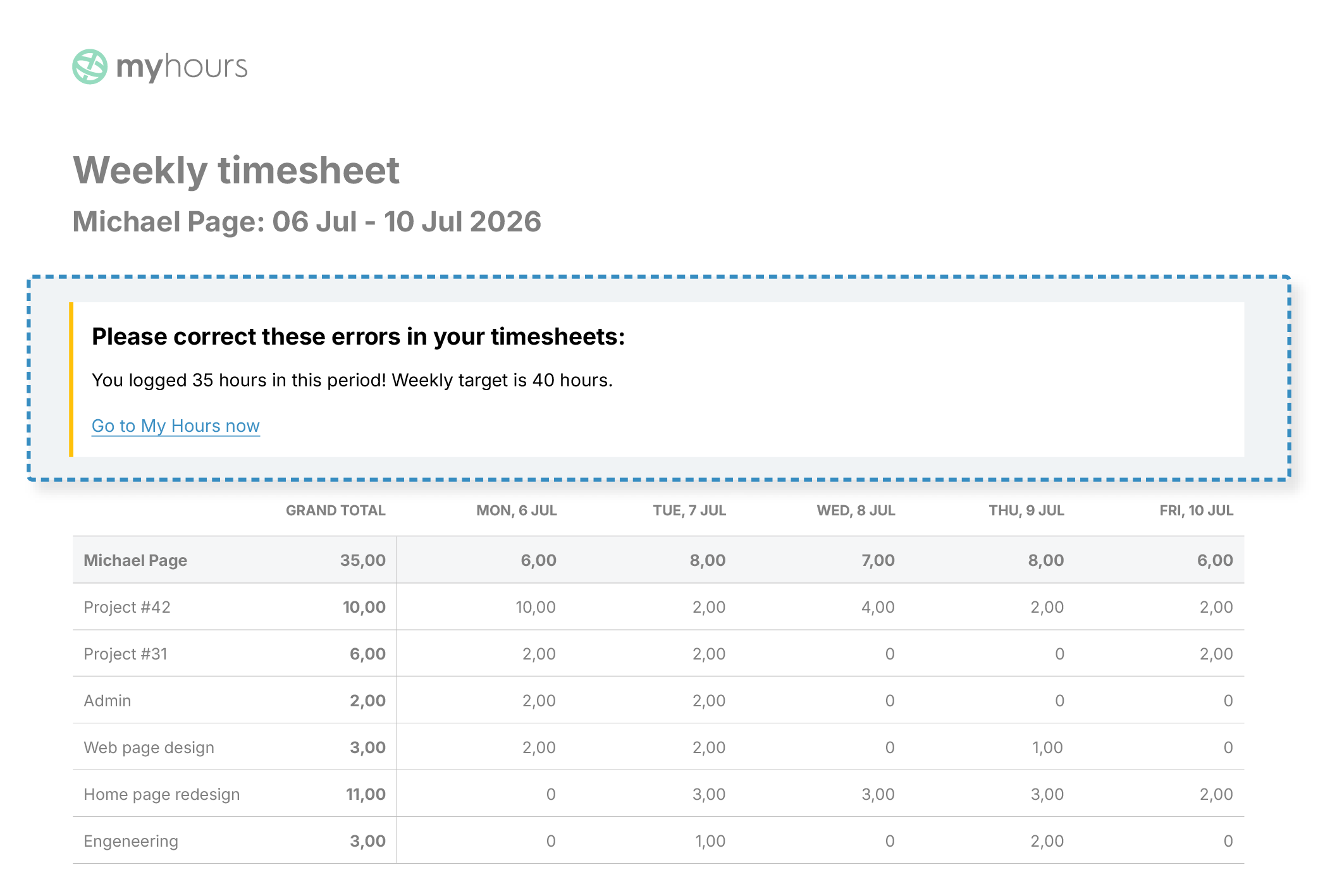
That said, you can set target hours for each user, which is really helpful for ensuring daily quotas are met and for controlling overtime. Automated alerts tell each user when they have logged under or over their target hours.
For recording breaks and time off, you can easily set up a project for this purpose. Then, create tasks for each type of leave. When users are absent, they simply create a time entry for the duration and assign it to the relevant leave type.
Everhour
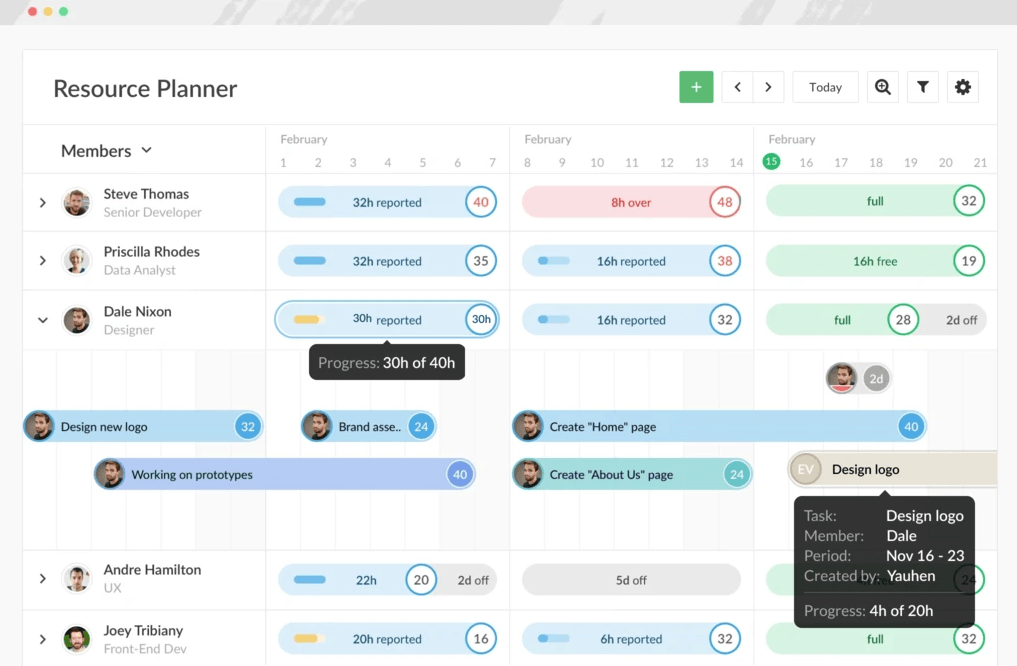
Everhour includes a built-in resource planning tool, which is useful for mapping out where your team members will be on any given date. For example, if you have several sites, you can assign resources to each one, ensuring no job is left understaffed.
Everhour also features a dedicated tool for tracking time off. It works a bit like a time entry: you define the period, the reason for absence, and whether the time off is paid or not. What’s more, public holidays can be imported for pretty much any country, saving you from doing it manually.
On top of that, Everhour supports leave accruals for each user. These are recorded automatically, ensuring each worker knows how much time off they are entitled to.
Team planning verdict
Overall, Everhour is the stronger platform for team planning and scheduling because it carries specific tools for managing time off and resources. It works well for large or multiple teams, since it’s harder to keep on top of these things when there are more workers.
That said, if you care more about workers fulfilling their daily quotas, then the My Hours targets are a useful feature to have (and are something that Everhour does not provide).
5. Custom Data Capture
My Hours
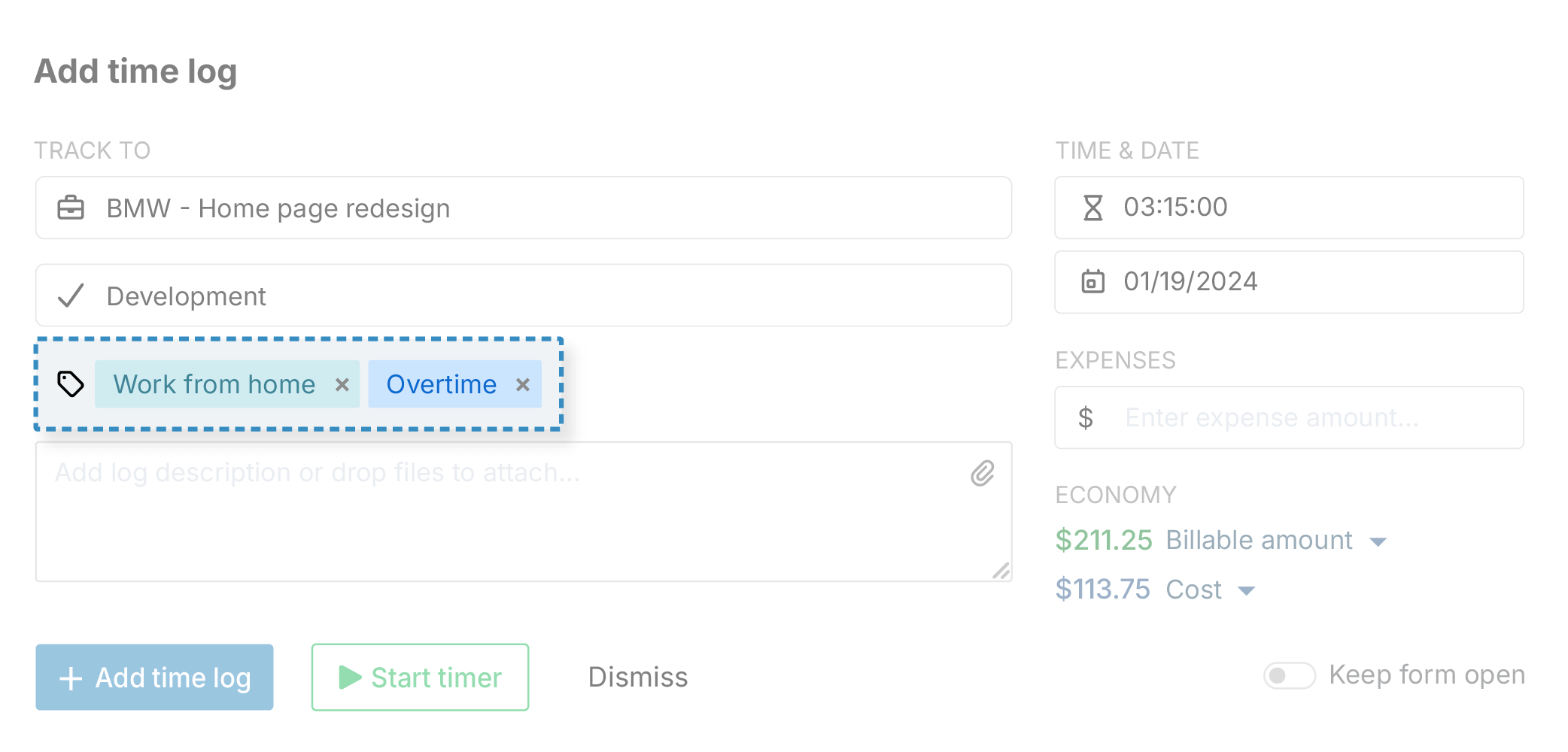
With My Hours, you can create an unlimited number of custom tags, which can then be assigned to time and expense entries as needed.
These are useful for categorizing entries by work type, location, vehicle used, equipment used, priority, or any other criteria that matter to your business.
Additionally, on the Pro plan, up to two custom fields can be added to clients, projects, tasks, users, and time and expense entries. The Enterprise plan, however, allows for unlimited custom fields. Field choices are text, dropdown, and numerical.
Custom fields are useful for capturing more specific data, like mileage, for example. They are also the best way to capture job codes, site codes, etc.
Everhour
At present, Everhour doesn’t offer custom tagging or field features on its platform.
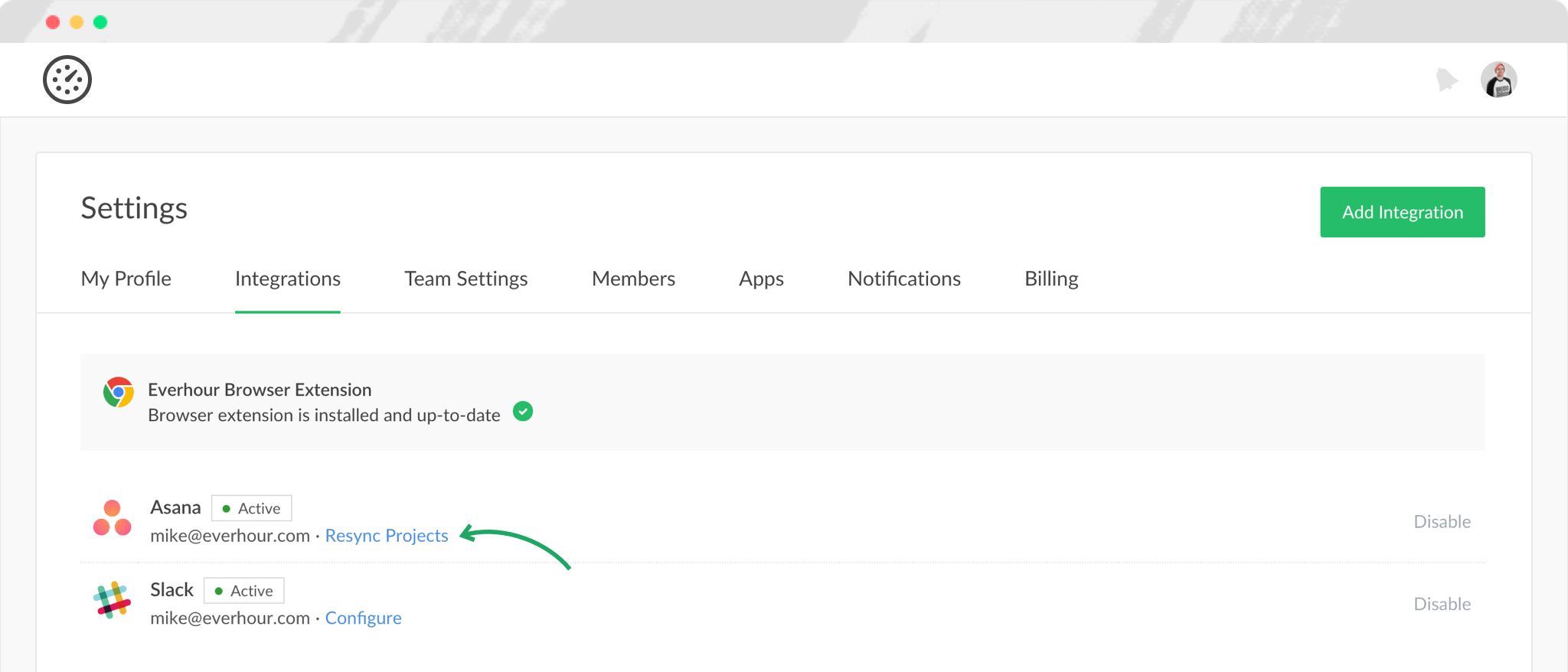
However, it integrates with a lot of project management tools and will pull in issues or items from those systems and covert them into tasks. As a result, if you need to capture custom data, the easiest way to do so is within your chosen project management platform and sync that information into Everhour.
Custom data verdict
My Hours offers a high level of flexibility in the type of data you can capture, making it easy to tailor the platform to how your team works and the information it needs to record.
Everhour is pretty limited in this respect, yet it’s still an option if you already heavily rely on project management tools.
6. Budget Tracking
My Hours
Whether you need to keep a firm hold of time spent on jobs, total costs, or billable amounts, My Hours allows you to set and track budgets for each purpose.
Budgets can be applied at either the project or task level and can be one-off or recurring monthly budgets. Visual progress bars make it easy to immediately see how much of the budget has been used and how much remains.
For even greater control, you can set up automated alerts that will notify you when a certain percentage of the budget has been reached.
Monetary budgets are particularly helpful, since they include expenses as well as labor rates and/or billable time, giving you a complete expenditure picture in real time.

Everhour
Everhour also has comprehensive budgeting options, including total costs, billable amount, and total hours. However, you can only set a budget at the project level - not at the task level.
Like My Hours, Everhour alerts you when a certain budget percentage is spent. It also has an extra mechanism that prevents users from tracking time against a project if the budget expenditure has reached 100%.
Additionally, you get more choices for recurring budgets. Everhour allows you to choose from daily, weekly, monthly, and even quarterly and yearly recurrences.

Budget tracking verdict
Each platform is great for budget management, just in slightly different ways. My Hours is particularly good if you want granular budget tracking at the task level, while Everhour excels in recurring budgets and budget expenditure control.
7. Reporting
My Hours
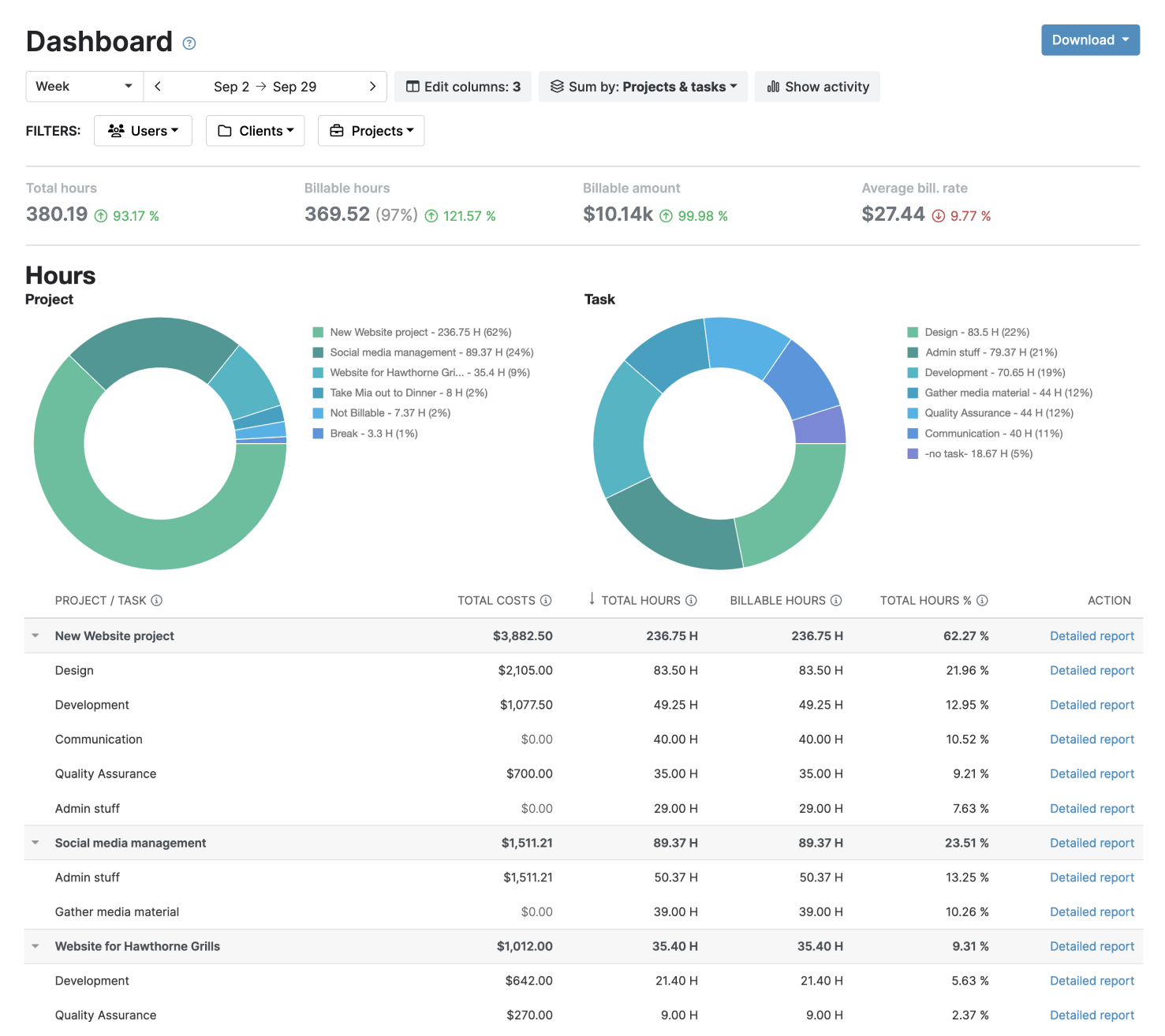
My Hours offers different reporting types, depending on how you like to present your data.
The Dashboard report is the one to go for if you want a visual overview of time, costs, and profitability. The Detailed report is good if you want to dive into specifics or perform a deep analysis.
Reports can be exported in PDF or XLS format and emailed directly to stakeholders from within My Hours. Additionally, there is an auto-scheduling tool, which will send out reports on your behalf.
As mentioned, the My Hours mobile app is also capable of running reports. So, you can check the data no matter where you are working.
Everhour
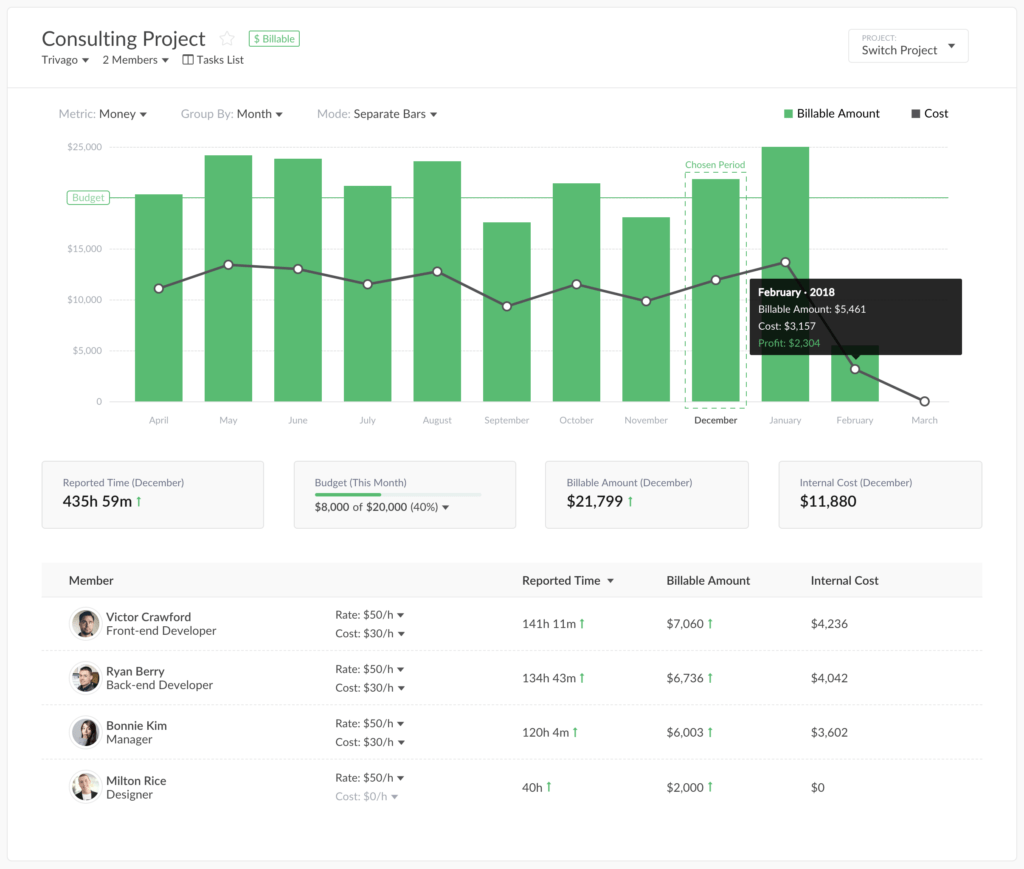
Everhour offers several report types, including Team Timesheet for detailed time entries, Member Summary for individual productivity, Project Summary for project profitability and progress, and a real-time Dashboard that shows who’s working now. If these don’t quite fit, then you can customize your own report with flexible filters and columns.
Save your report settings and email them to stakeholders or download them in CSV, XLS, and PDF formats. Unfortunately, you can’t access reports on the mobile apps.
Reporting verdict
Both platforms have really comprehensive reporting options, allowing you to organize the right data for analysis.
That said, My Hours gives you more functionality away from the desk. With the ability to view data on the mobile app, it’s a closer fit for field-based teams.
My Hours vs. Everhour: Pricing Comparison
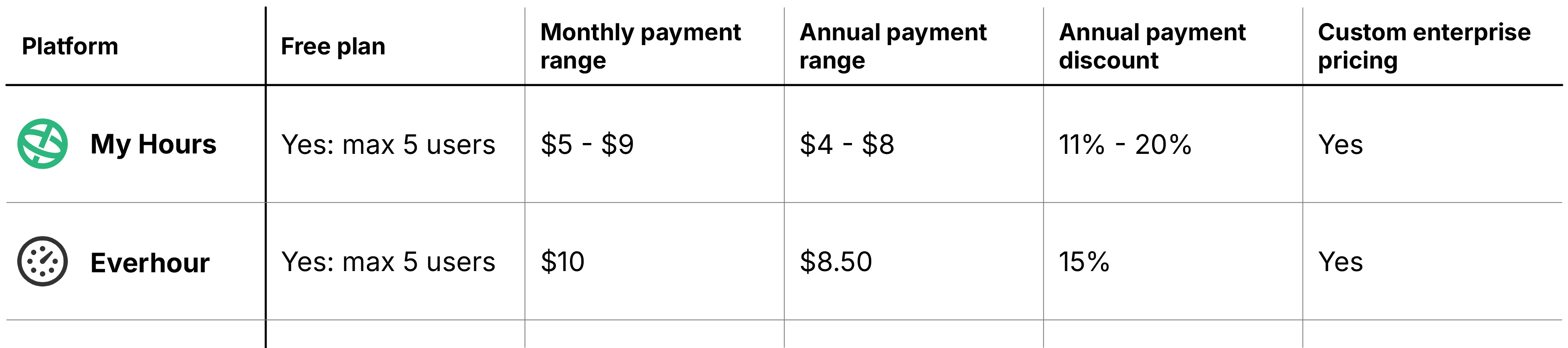
Quick overview
My Hours pricing
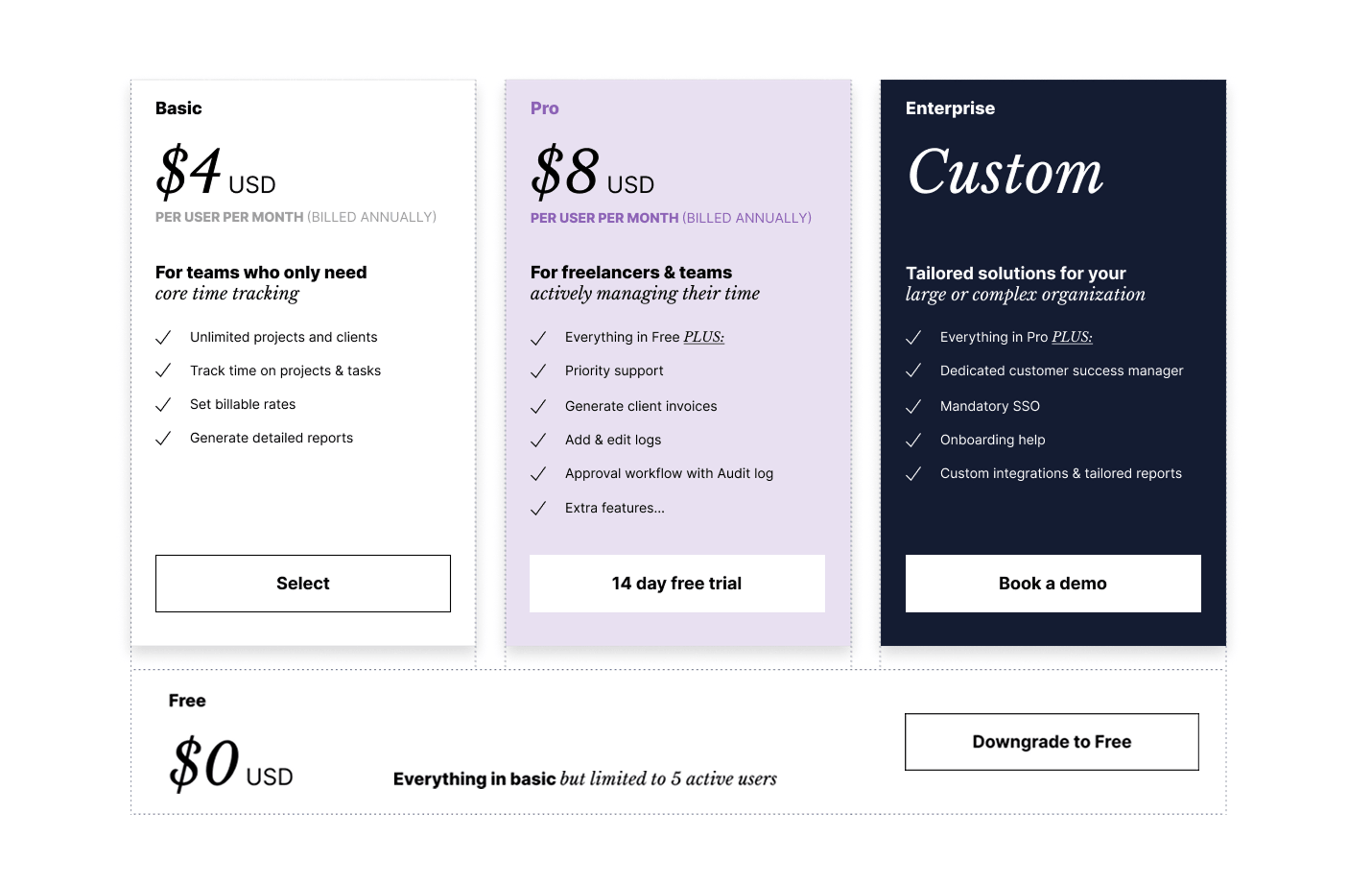
My Hours offers a streamlined free plan for up to five users and two straightforward paid plans. Upgrading to a paid plan unlocks additional features, like billing options, budgets, tracking reminders, and more.
The free or Basic plan suits smaller teams with simple tracking needs, while the Pro plan is best for teams with client billing requirements.
There are no minimum user counts for paid plans, so they work for solo field workers as much as they do for teams.
Everhour pricing
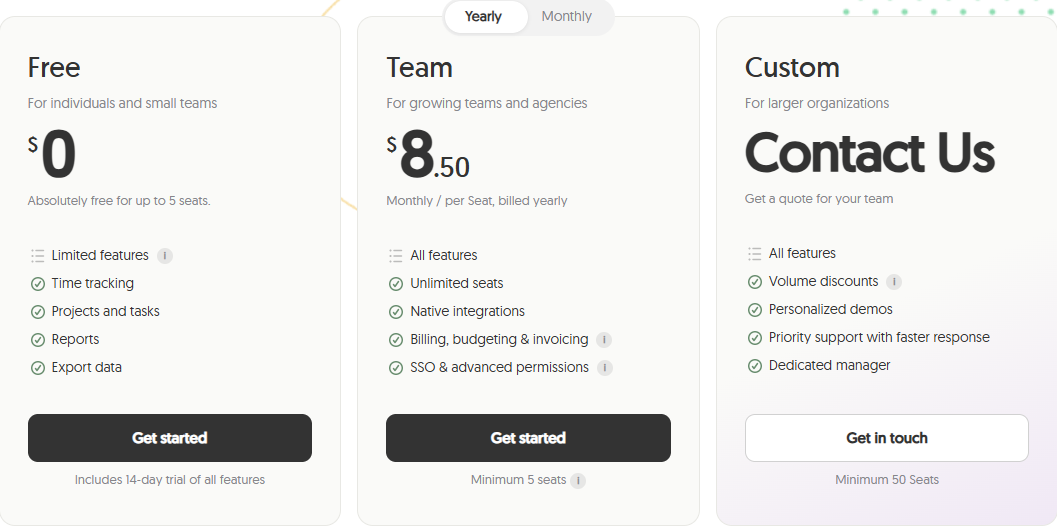
Everhour keeps it even simpler with a free plan and one paid plan. However, the free plan offers fewer features compared to My Hours. For example, it does not include expenses, whereas the My Hours free plan does.
Of course, the paid plan unlocks all features, but there’s a major barrier that isn’t immediately obvious: Everhour requires you to pay for at least five users, regardless of your team size.
If you’re a team of fewer than five, that means you’ll pay over the odds just to access all of Everhour’s tools.
Overall, this makes Everhour only worth the money if you are a larger team or if you’re planning to expand in the very near future.
Pros and Cons of Each Tool
My Hours
Pros
 Fully featured mobile apps
- Link expenses to projects and tasks
- Powerful tagging and custom fields
- Task-level budget tracking
- Report auto-scheduling and sending
- No minimum paid user requirement
Cons
 No dedicated resource planning or staff scheduling tools
- Limited recurring budget options
- No built-in leave management or auto-accrual
Everhour
Pros
- Resource and capacity planning tools
- Time off management with automatic leave accrual
- Apple Watch support
- Lock screen widget
- Flexible recurring budgets
- Multiple reporting types
Cons
- Basic mobile apps
- Cannot link expenses to tasks
- No custom tags or fields
- Paid plan requires a minimum of five users
Bottom Line
My Hours is the stronger choice for off-site workers and remote teams thanks to its fully featured mobile app and flexible project tracking. Users can log time and costs wherever they work, while managers can review, approve, and analyze the data with ease. With no minimum user requirements, My Hours also scales easily, making it suitable for both small and large teams.
For teams focused on accurate time tracking, cost visibility, and project profitability in a straightforward interface, My Hours offers the more complete solution overall.
Everhour stands out with its resource planning and workload management tools, which can be valuable for teams coordinating work across multiple projects or locations.

Waste no more time,
jump right in!

All rights reserved.