

My Hours helps product managers track time and costs across features, epics, and initiatives, so you know exactly where engineering effort is going and where it counts most.
With detailed breakdowns across teams and sprints, you can compare, resolve, and improve processes.
Capturing time at this level also supports R&D tax credit documentation, distinguishing innovation from operational tasks.
“Ease of use. Simplicity in design. Reliability. Overall, My Hours is great at time tracking, expenses, auditing, and reporting.”
- Ariel T., Outsourcing/Offshoring
Define Product Initiatives
My Hours provides a clear structure to track time across roadmap items and development cycles. By organizing work into the following hierarchy, you can mirror how your product initiatives are planned:
- Clients: These are separate workspaces that you can use to distinguish product development work from operational tasks.
- Projects: Create a project for each epic and assign the relevant users.
- Tasks: Break each project down into specific, actionable pieces of work.
- Task lists: Use these to group multiple tasks into sprints.
Cross-Team Time and Cost Tracking
Gain visibility across departments that work on the same initiative. Cross-team tracking helps you understand the true delivery cost and coordinate resources more effectively.
To achieve this, you can:
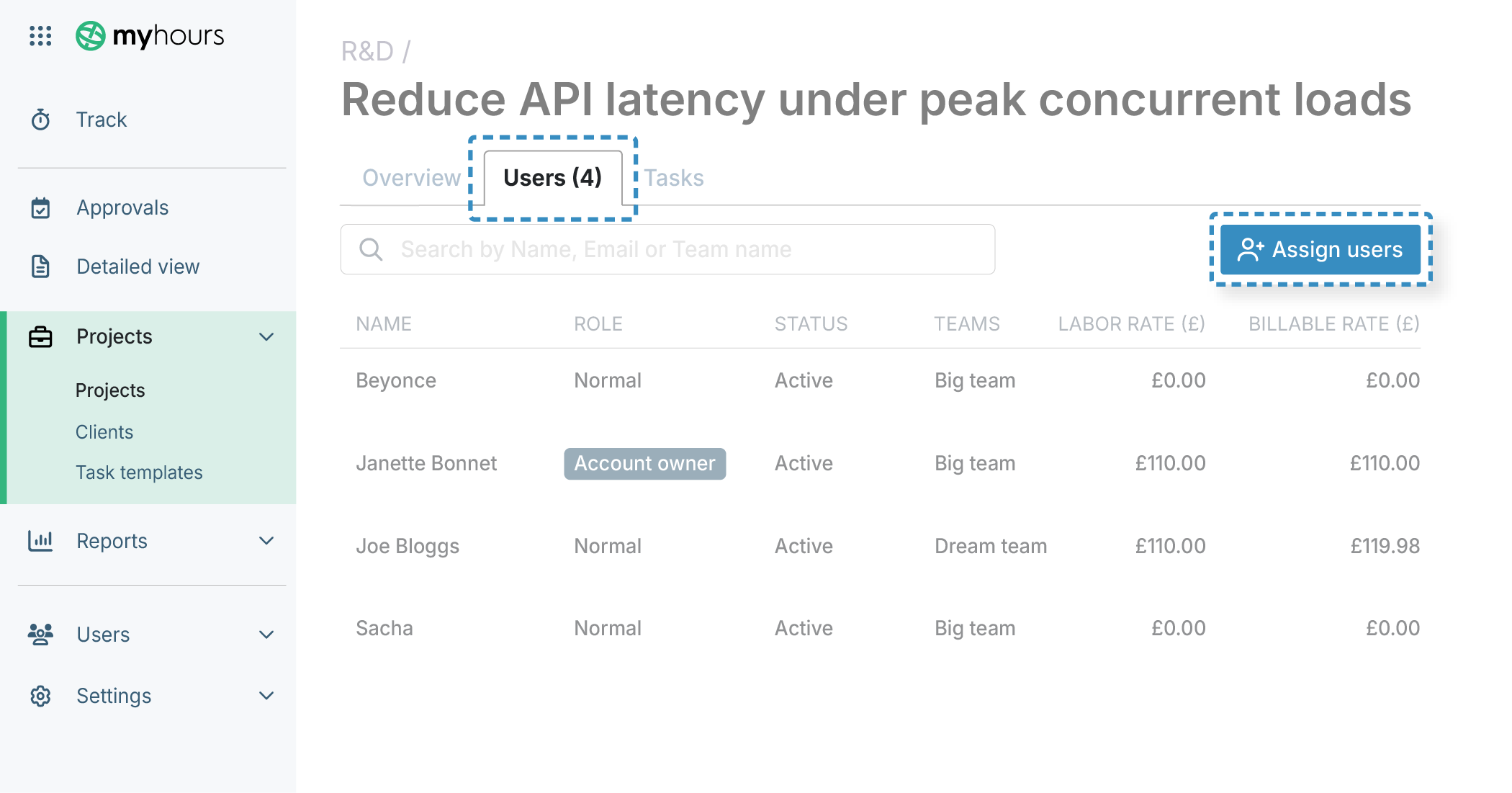
- Set up teams in My Hours for engineering, design, QA, and so on.
- Assign relevant users to each team, along with their respective manager.
- Assign individuals who contribute to multiple departments to multiple teams.
- Assign an hourly labor rate to each user so you can track costs.
Once you have your teams set up, you can assign users to projects and tasks. Users can only track time against the deliverables to which they’ve been assigned, preventing them from tracking the wrong items.
As time is tracked, so is the hourly labor rate. Therefore, you get true costs split by department and deliverables.
Control Spending with Budgets
Use the budget tool to understand how much investment each epic requires.
Budgets can be set at the project or task level. Task budgets are particularly useful because you can quickly compare roadmap items and pinpoint any overspending on low-impact work.
There are several different budget options in My Hours:
- Total hours: Define a time-based budget that tracks progress based on the number of hours your team records.
- Costs: Monitor a budget calculated from tracked time, applied labor rates, and any uploaded expenses.
- Billable amount: Set a fixed monetary budget that decreases as billable time is logged. This option works if you perform product development for clients.
- Rolling budget: Configure billable, hourly, or cost-based budgets to reset each month automatically.
My Hours provides progress bars that let you view expenditure at a glance. Additionally, set up automated alerts that ping you when a certain percentage of the budget is spent (you can pick between 50% and 90%)
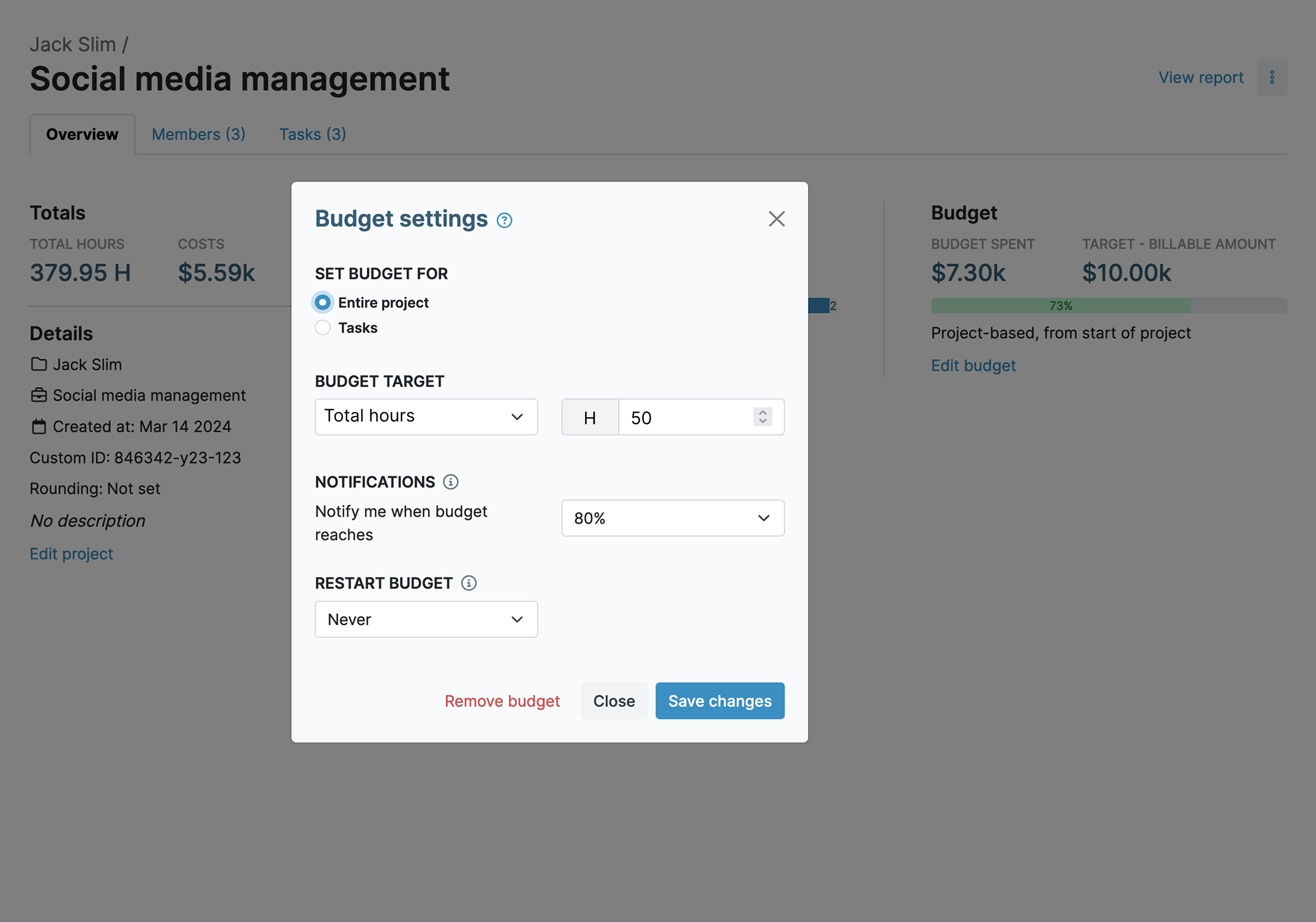
Tip: Budgets can also be used to keep track of the R&D tax credit claim threshold.
Tools for R&D Tax Credit Claims
My Hours supports R&D tax credit claims, allowing you to document eligible activities without reconstructing data after the fact.
The following tools make it simple to comply with R&D claim requirements:
- Contemporaneous time tracking is possible by using the start/stop timer on any device.
- Mandatory assignment of a project and task on time entries ensures they are linked to specific R&D initiatives.
- The system can also enforce time entry descriptors to detail the type of work carried out and input links to supporting documentation.
- Custom tags and fields enable clear time entry classification and categorization.
- Use the validation workflows to ensure timesheet accuracy and completeness.
- The audit log maintains transparency by documenting and timestamping all actions, changes, and adjustments that take place within the platform.
Categorize with Custom Tags and Fields
Work categorization (allowable vs. non-allowable) is a big part of the R&D tax credit claim, and you can use custom tags and fields to distinguish work types. Using this feature is also useful for classifying time according to job code, charge code, CapEx vs. OpEx, and more.
Custom fields can be added to the following entities:
- Time entries
- Clients
- Projects
- Tasks
- Users
You can add up to two custom fields per entity, and choose between:
- Dropdown
- Multi-select dropdown
- Text
- Date
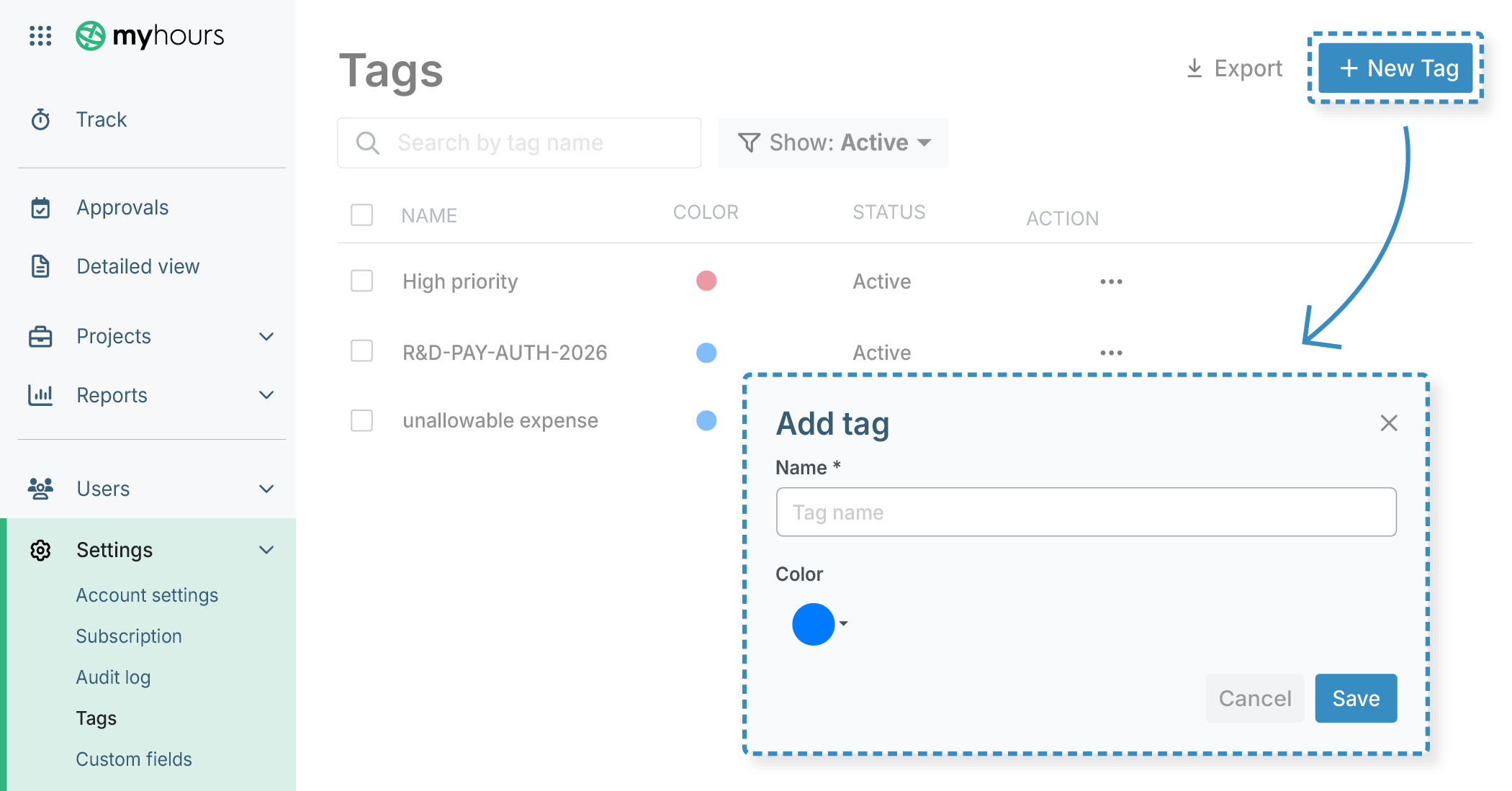
Moreover, every project and task has a default custom ID field that you can use to input job codes.
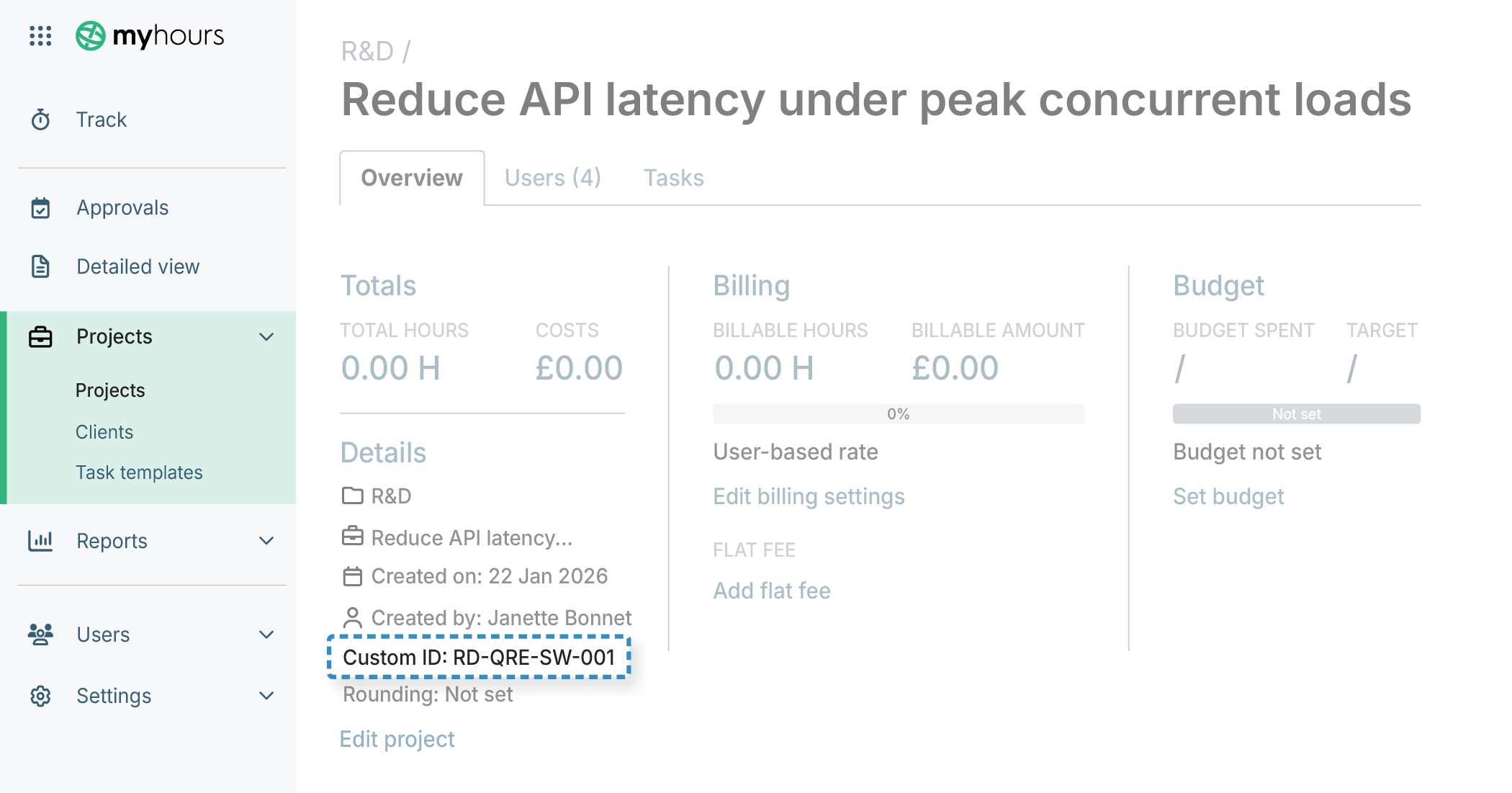
Custom tags are great for defining work types. You can create an unlimited number and organize them into color-coded lists. Users then assign tags to their time entries.
For example, you might use tags to define research, experimental, development, and so on. You could also use them to note the priority or status of tasks, and to capture whether work relates to a specific feature, sprint, or product initiative.
Note: Custom tags and fields can be filtered in the reporting tool to give you specific insights.
“Flexibility and often improvements are available. I love the ability to export the reports; it is really helpful when preparing the invoices and reporting on actual work hours. Recording actual hours spent and a description of activities is made easy with My Hours. The reporting capabilities are great.”
- Sahira Z., Information Technology and Service
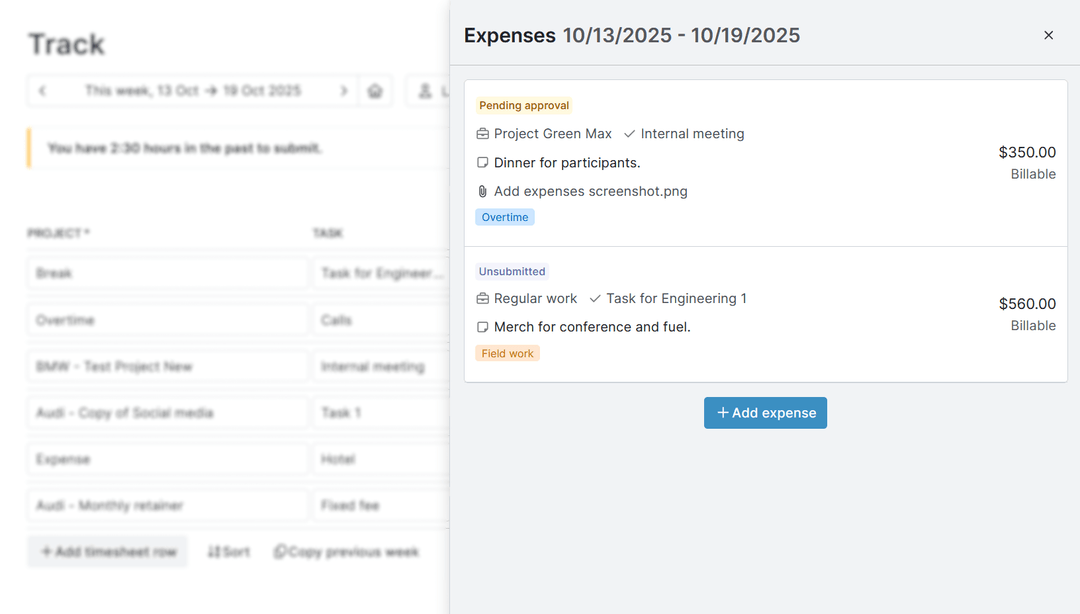
Expense Capture
Aside from labor, additional product development costs, like equipment purchases, software purchases, and external contractors, can be neatly captured within My Hours.
This way, everything remains within the same system, providing you with a single source of truth for cost:
- Users can log expenses by selecting the project and task they relate to.
- Add the date, the expense amount, and a description of what the expenditure was for.
- To back up the expense, upload copies or photos of receipts and invoices.
- If you have set a budget, the expense amount will count towards it.
Approval Workflows for Data Integrity
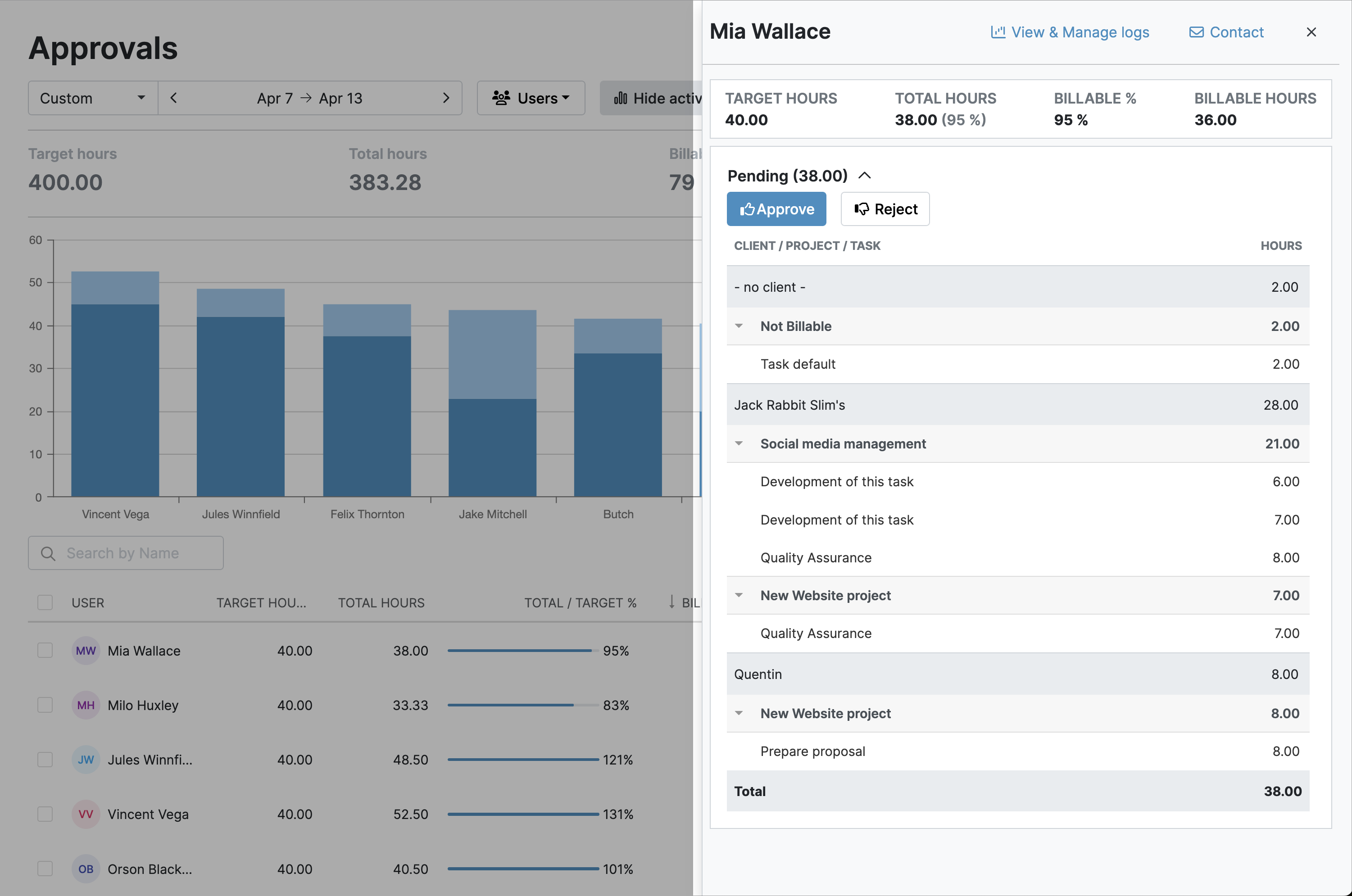
Accurate time data is essential for roadmap planning and reporting. The My Hours approval workflows are a way to ensure that logged time is reviewed and validated for accuracy and completeness.
- Once a timesheet is submitted, the relevant manager is notified via email.
- Managers can approve or deny timesheets or individual time logs in one click. If corrections need to be made, My Hours documents the reason why and timestamps it.
- After timesheet approval, the data can be locked, preventing further edits or adjustments.
If required, the approvals report is exportable in XLS format. Just pick the date range, the users or teams, and click to export.
Detailed Stakeholder Reporting
You likely have to regularly report to stakeholders to justify roadmap decisions, budgets, extensions, and so on. In this case, the My Hours reporting tool is indispensable.
You have several report types to pick from:
- Project report: View the metrics across all projects or for individual projects and tasks.
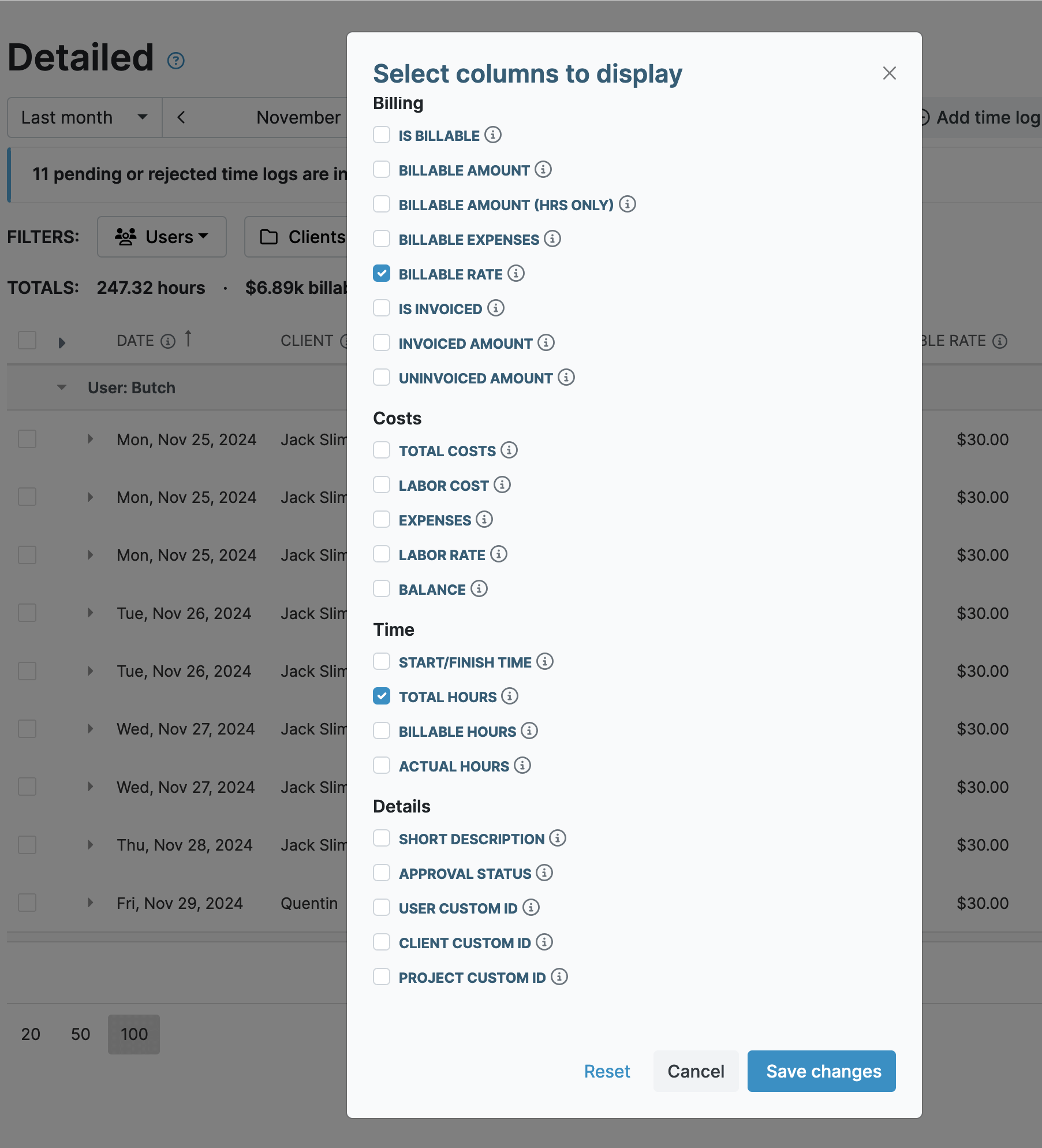
- Detailed report: A comprehensive number of data columns and filters that can be configured as needed for granular insights.
- Dashboard report: A high-level, visual overview of key metrics (useful for regular updates).
- Timesheet report: Check out time spent across users and/or teams to understand workload balances and resource allocation.
Once you have generated your report, you can then:
- Save the report settings to generate future reports in one click.
- Export the data in PDF or XLS format.
Schedule reports to be automatically emailed to stakeholders at regular intervals.
Historical Comparisons for Future Estimates
The more you use My Hours, the more you will accumulate historical data. This is extremely valuable for comparing costs, resources, and time across similar initiatives.
By understanding past performance, you can create more realistic delivery estimates for upcoming roadmap items.
Additionally, when you need to approach stakeholders to justify or request additional resources, budgets, or deadline extensions, you have the hard data to back up your case.
Integrations to Sync Issues and Work Logs
Since product teams often work in tools like Jira or other issue trackers, My Hours provides seamless integrations with the most popular tools.
In addition to integrating with Jira, the platform connects with:
- Microsoft Projects
- Asana
- Basecamp
- Monday
- ClickUp
- Azure DevOps
- BI systems, CRMs, and ERPs
Zapier extends integration capabilities to 100+ additional tools, allowing data to flow between platforms.
Try My Hours for Free
My Hours balances powerful tools with a user-friendly design that’s simple for workers to use.
Compliant with R&D tax claim requirements, the platform features enterprise-grade security and 24/7 live customer service.
To date, the platform is trusted by over 100k clients, including product teams from all industries. Try My Hours’ most powerful features by signing up for a 14-day free trial.
“So easy to set up and use, much better than manually tracking my time in spreadsheets, and the reporting is fantastic, even in the free version. There really isn't anything I don't like.”
- Kevin D., Support Engineer

