

My Hours gives project managers a live view of project health, showing exactly where time and money are being spent. With detailed breakdowns, workload insights, and strong budget tracking, you can make adjustments before they impact delivery.
You can also track billable hours and project-related expenses in one place, ensuring accurate client billing and that project profitability is maintained.
“My Hours changed my business. Using My Hours allows me to not only count hours for each project for my clients but also allows me to learn about my business in terms of time slots for each task and project, which allows me to price projects more accurately. Through My Hours, I also learn about the efficiency of my team in real-time.”
- Racheli B., Designer
Clear Project and Task Hierarchy
Organizing project deliverables is easy in My Hours thanks to a clear structural hierarchy:
- Clients: These act as separate workspaces for each of your clients, keeping data organized. You can also use these to isolate non-project work, such as admin.
- Projects: Create a project for each deliverable and assign the users who will be working on them.
- Tasks: Break projects down into defined tasks, assign users, and choose if they are billable to the project or not.
- Task lists: Organize multiple tasks into groups. Handy for large projects that involve multiple teams.
Both projects and tasks have fields to input ID numbers and descriptions, and you can also create custom fields to include additional project info.
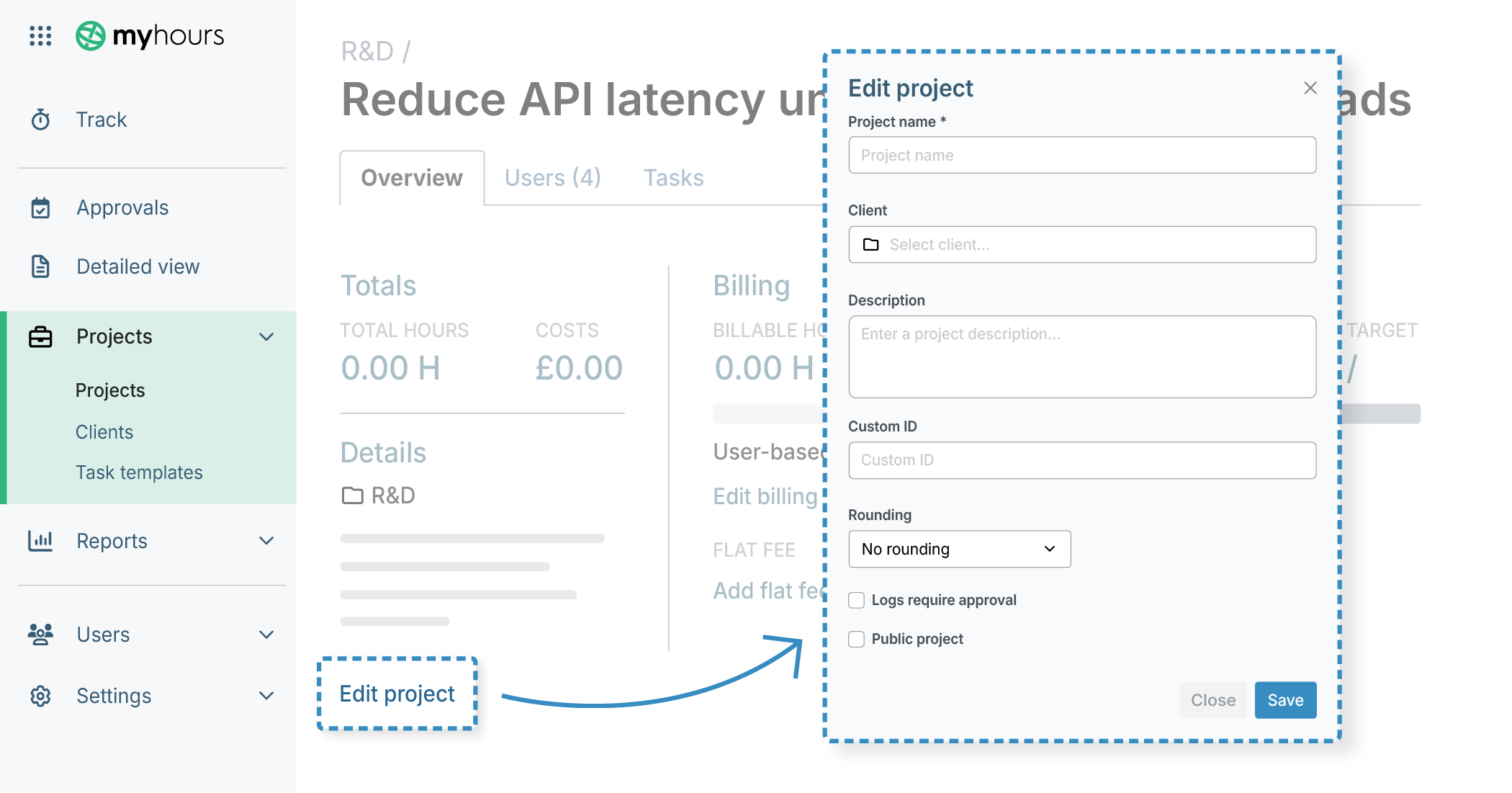
Set Estimates and Track Actuals
My Hours offers two key ways to set project estimates:
- Task description field: Use the freestyle text box to add in estimated figures.
- Custom field: Create a custom dropdown or text box. You can add up to two fields for tasks, so you can have one for estimates and one for actuals.
Both text and custom fields can be viewed in the reporting feature, so you are able to analyze estimates vs. actuals side-by-side.

Budget Tracking with Automated Alerts
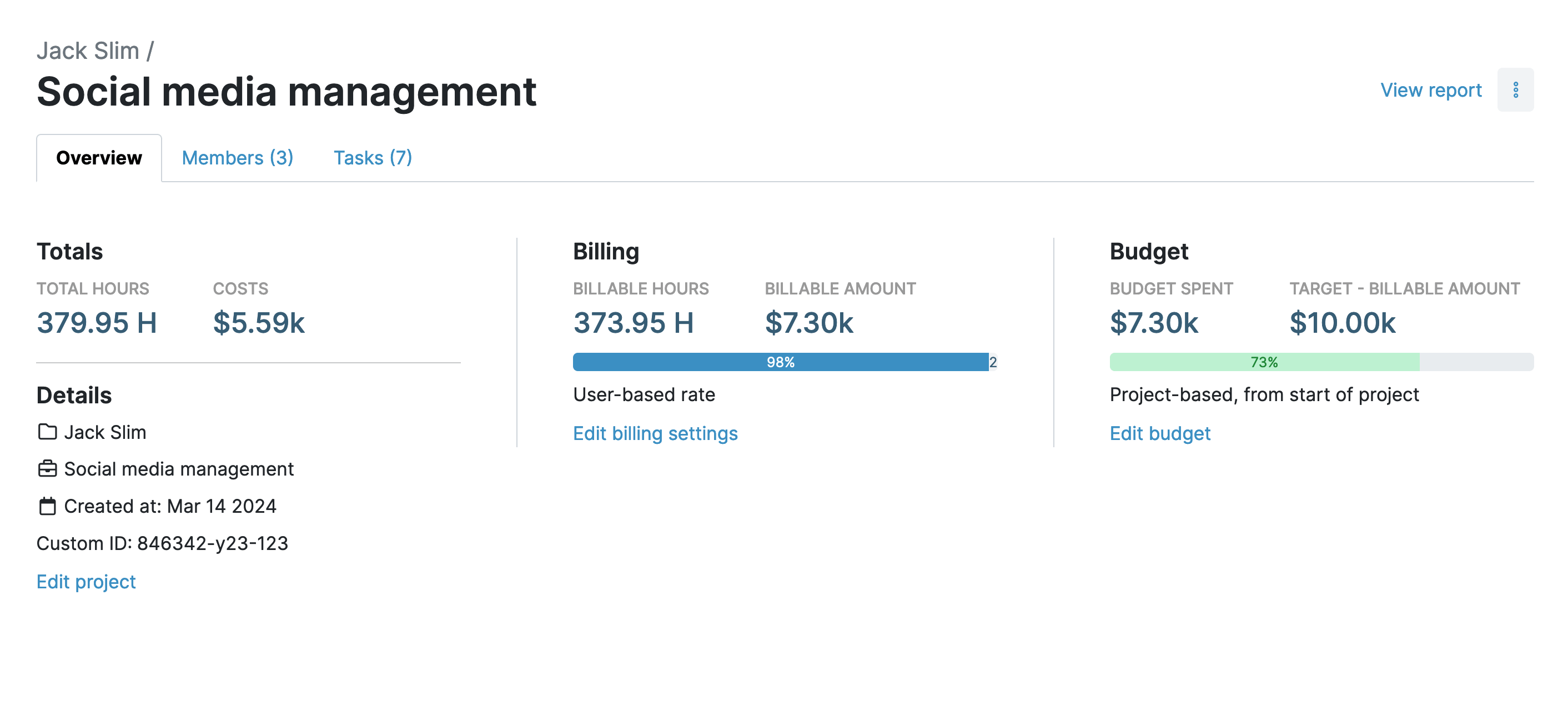
Keep on top of project costs by setting a budget at the project or task level. There are several flexible budget structures to pick from:
- Billable amount: Set a monetary amount for the budget. As billable time is tracked, the budget updates. Ideal for projects that work on a fixed amount.
- Total hours: A time-based budget calculated by the number of hours your team logs.
- Costs: A budget calculated from tracked time, labor rates, and uploaded expenses.
- Rolling budget: Billable, total hours, and costs budgets can be set to restart each month.
The budget progress bars let you view expenditure at a glance and in real-time. As soon as a time entry is created, the budget updates to reflect the amount spent.
Keep better control over expenditure by setting up an automated alert for when budgets reach a certain threshold. My Hours flags project managers when anywhere from 50% to 90% of a budget is spent (you choose the percentage).
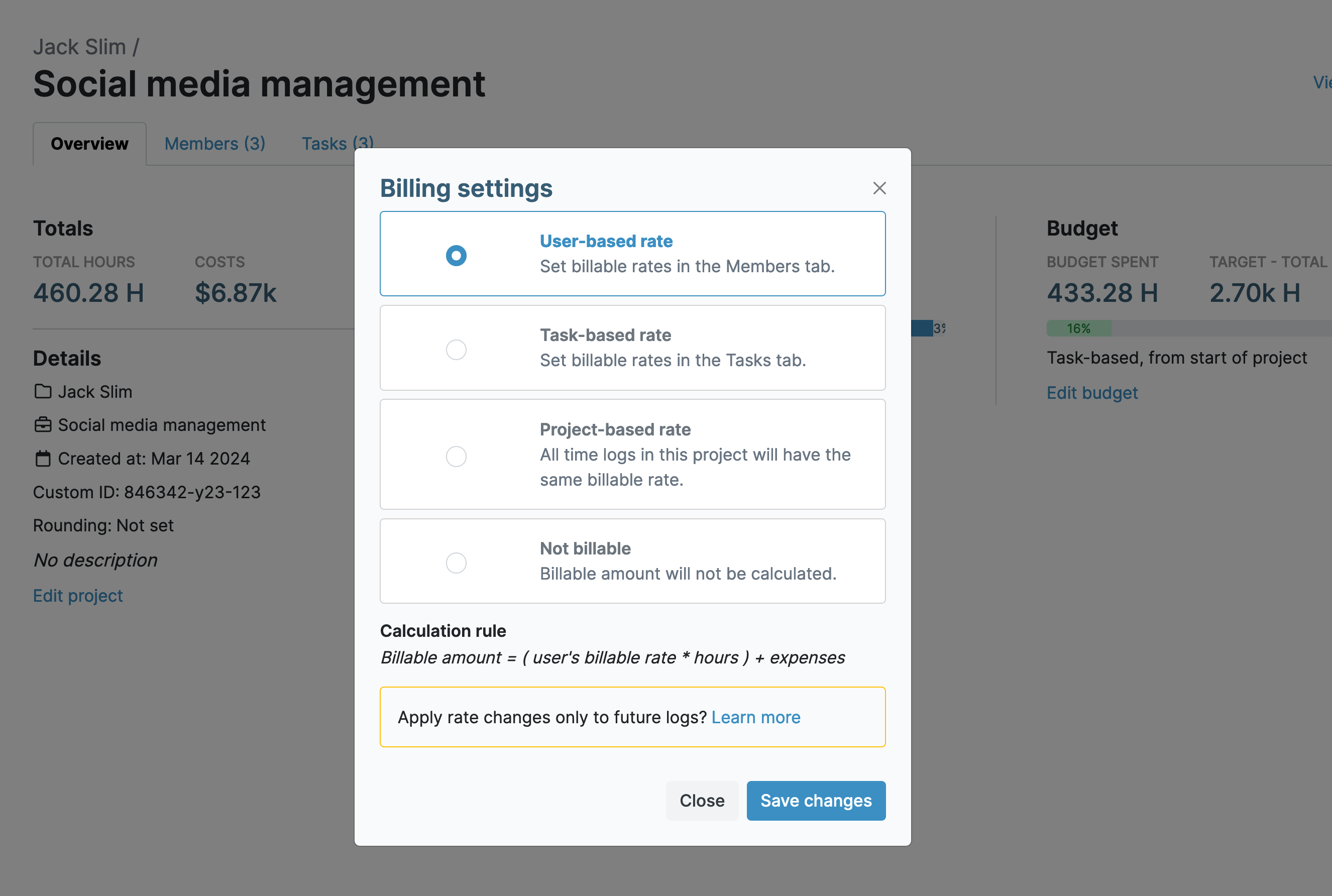
Multiple Project Billing Options
You can set up billing structures in My Hours to match how you invoice your clients. Each project gives you the following options:
- User-based rate: Set hourly billable rates per user. As time is tracked on a project, so is the rate, saving you from performing manual calculations.
- Task-based rate: Set billable rates at the task level. For instance, product development might have a higher rate than marketing tasks.
- Project-based rate: All time logs are assigned the same billable rate, regardless of the user and tasks worked on.
- Not billable: Billable rates will not be calculated. This is useful for internal projects that are not billed to clients.
- Flat fee: Use this when a project has a fixed fee billed to the client, regardless of time spent working on it.
Time rounding: If you round time, select this option. Time can be automatically rounded up, down, or to the nearest 1 to 60 minutes.
Seamless Project Expense Capture
Although labor costs make up the bulk of project expenditure, there are other expenses to consider. Equipment purchases, travel, external vendors, and the rest all need to be tracked and recorded.
You can log expenses directly within My Hours. Select the project and task an expense relates to, choose the date, input the amount, and add a description.
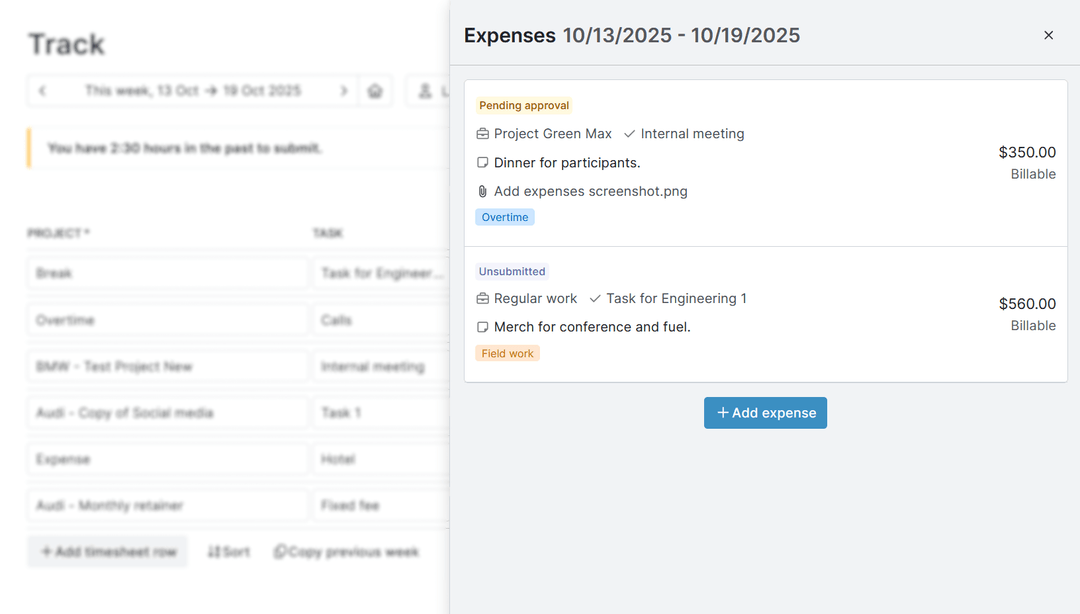
Conveniently, you can upload copies of receipts and invoices directly to the log, maintaining a paper trail and proof.
Additionally, you can choose to bill the expense to the project or not.
Note: All billable expenses count towards any monetary budget that you have set.
“It's simple, made by people who understand what is really useful, easy to teach, can be used at the individual and team level, for project or recurring tasks, with invoices or not. Reports are good-looking and easy to export. Best value for money!”
- Jean-Louis D., Managing Director
Track Project Profitability
Use the project reporting feature to keep tabs on the profitability of your projects and keep stakeholders updated.
Select the necessary data columns and filters: estimates, budgets, billable rates, labor rates, total costs, etc., and gain a clear view of how things are progressing.
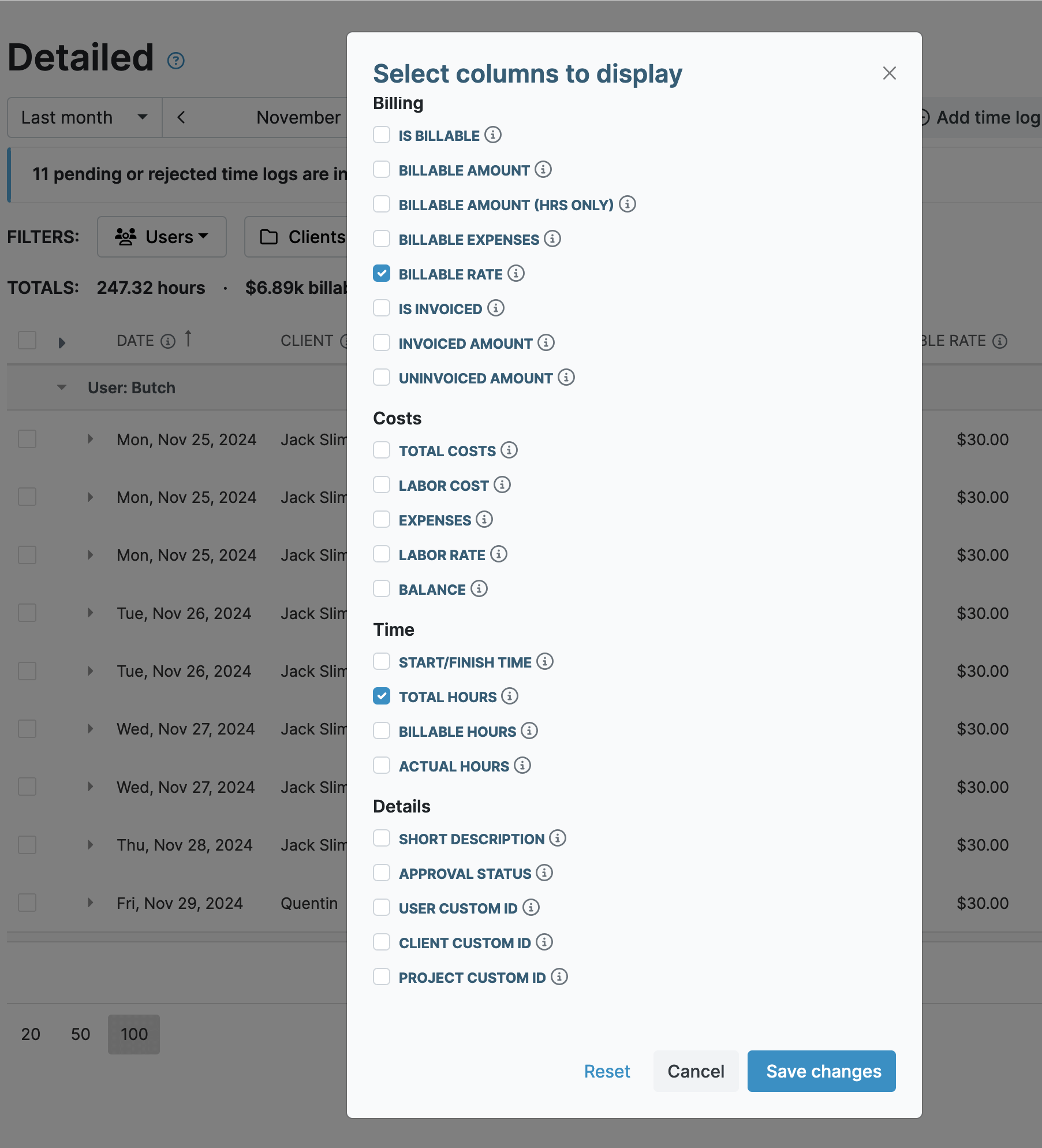
Because all figures are updated as soon as time is logged, you gain the ability to make real-time adjustments and spot issues like scope creep before they get out of hand.
Tip: You can save report settings in My Hours, allowing you to generate profitability data in one click. Reports are also viewable in the mobile app.
Reporting for Project Decision Making
Reporting doesn’t just stop at maintaining profitability. You can use them to make other important decisions for your projects.
For example, filter reports by client, project, task, or team to see where the bulk of time is actually going.
Using this information, you can better balance workloads and resources, justify deadline extensions, and show stakeholders the effort spent per project phase.
Depending on which metrics you want to view, My Hours has several reporting options (including the project report detailed above):
- Detailed view: The full set of data columns and filters for generating granular datasets.
- Dashboard report: View top-level data in a visual format.
- Timesheet report: Analyze time by teams and users to understand workloads and resource allocation.
Reports can be downloaded in XLS or PDF format. Additionally, the automatic scheduling feature enables you to email regular reports from My Hours directly to stakeholders.

Inbuilt Client Invoicing
My Hours features a streamlined invoicing tool that automatically calculates all billable time and expenses for a defined period.
Generate each invoice in a couple of clicks and email it straight to the client from within the platform.
Invoices are customizable to display your company info, logo, and any discounts and taxes.
Try My Hours for Free
My Hours is a user-friendly project management system that doesn’t overwhelm you with bloated features. Trusted by over 100k clients, it has become the go-to solution for project teams of all sizes.
Featuring enterprise-grade security (including ISO 27001) and 24/7 live customer support, My Hours gives your team a reliable, scalable platform that you can use with confidence.
Try My Hours for free by signing up for a 14-day free trial.
“Easy tracking of billable hours across various projects. Makes time tracking for different tasks simple.”
- Paul H., Business Owner

