

What Is an Audit Log in a Time Tracker?
An audit log records actions and changes in your time tracker app. Depending on the software, it can show when someone creates, edits, submits, approves, or rejects a time entry.
For example, an employee logs 2.5 hours on a client’s website redesign. Before the invoice goes out, a project manager reviews the entry and cuts it to 1.5 hours because one hour was an internal team meeting the client doesn’t pay for.
A useful audit log keeps both figures, along with details about the employee who logged the time, the manager who edited it, and when each action happened. That way, you can investigate the difference without relying on anyone’s memory.
Some time trackers also log activity beyond time entries, such as changes to projects, tasks, users, or account settings. What’s included varies from tool to tool.
An audit log shows you that a record changed, but there’s a lot it can’t tell you on its own, such as:
- Whether the work was done or whether the hours are accurate.
- Why the change was made, unless your tool asks for a reason or the editor adds a note.
- Whether the edit was appropriate. A change can be recorded and still be wrong.
For those details, you’ll still need supporting information, such as work descriptions, approvals, and project records.
Audit Log vs. Timesheet and Other Time-Tracking Features
Time tracker apps generate a lot of history, and an audit log is one of several features that record what happens to your time data. The table below highlights how it compares with other features.
An audit log is useful but can’t do the job on its own. It tells you what changed after the fact, but won’t stop team leads from approving wrong entries, and it won’t catch a mistake before it reaches an invoice.
These features don’t compete with the audit log. They all complement each other and help you achieve the same goal: having time data you can trust when you bill a client or run payroll.
In a real-life workflow, you’ll likely need all of these at one stage or another:
- Timesheets show who worked on what, when, and for how long.
- Timesheet approvals add a human check. This review step confirms that the hours are accurate and logged to the right client and project before they’re signed off.
- Time entry notes let people explain the reason behind a correction. In some tools, managers can also add a message when they reject an entry.
- Period locking stops most users from editing past or approved hours, so your reports and invoices match what was signed off.
- Role-based permissions limit who can edit or approve hours in the first place, which narrows down who could have changed an entry.
Problems a Time Tracker Audit Log Helps Solve
An audit log helps you trace changes to time records and identify who made them. Below are some situations where that history comes in handy.
Hours changed, and nobody knows who did it
If several people can edit time entries, the final numbers aren't as reliable. An employee, their manager, and an admin could all have touched the same entry.
The audit log shows which user made each change and when. You can follow up with the right person instead of asking around, and spot whether editing permissions are wider than they should be.
A client questions the hours on an invoice
When a client pushes back on billed time, you need to show how you arrived at the final number on the invoice.
The audit log shows whether an entry changed before it was billed. Pair that with project notes and the agreed scope, and you can walk the client through what happened. Clear descriptions on each time log make that conversation much easier, and they're a big part of accurate client billing.
An employee says their hours were cut
If pay is based on logged hours, an employee may notice their timesheet shows less time than they entered.
If your tool keeps previous values, the audit log shows the original hours, the edit, and who made it. That gives you facts to work from, whether the change was a valid correction or a mistake to fix before payroll.
You need to review a record after approval
Sometimes an entry needs fixing after it's been approved. Say a designer logs 3 hours to the wrong client project, and nobody notices until the invoices are being prepared.
How you fix it depends on your time tracker. In some tools, administrators can edit the hours on an approved entry directly. In others, approval has to be withdrawn, or the entry rejected first, so it can be corrected and resubmitted.
Either way, the approved record has changed. The audit log shows who reopened or edited the entry and when, so there's a record of the correction alongside what was initially signed off.
What Should a Time-Tracking Audit Log Record?
Audit logs vary from tool to tool, but a useful one shows enough to trace an entry's full history. Below are key details that audit logs should capture.
- Who made the change, and whose entry it was. If a project manager edits an employee's hours, you want both names.
- What happened to the entry, such as whether it was created, edited, deleted, restored, archived, submitted, approved, or rejected.
- When each action took place, so you can put events in order.
- Which record was affected. That's the time entry itself, along with its project, task, and user.
- The before and after values. Without the original values (hours, date, etc.) next to the new ones, you only know that something changed.
- Changes that affect billing, such as an entry switched to non-billable or an updated billing rate.
- How the entry was added. Some tools note whether time came from a timer, was entered manually, or was imported.
- Why it changed. Some platforms let you add a message when you reject an entry.
Not every time tracker records all of this. The more it does record, the less guesswork you're left with.
How Different Time Trackers Handle Audit Logs
Audit logs differ a lot between time trackers, from how long they keep history to what they record, and who can view that data. Here’s how some platforms handle audit logs.
Questions to Ask When Evaluating a Time Tracker’s Audit Log
You visit a time tracker’s pricing or features page and see that an audit log is available, but that alone doesn’t tell you much. These questions help you find out how much history you’ll be able to access.
- Which plan includes it? Audit logs often sit on higher-priced plans, so a tool you’re considering may only offer one on a tier your team isn’t on.
- Is it switched on by default? Some logs only start recording once an admin turns them on, and anything that happened before that won’t be there.
- How long does it keep history? Depending on the tool, that can be anywhere from 90 days to two years.
- Does it record every edit? Some logs skip certain changes. For example, some platforms only show time entries edited by someone other than the entry’s owner, so changes people make to their own time don’t appear.
- Who can open it? Access is usually limited to admins, and sometimes managers and administrators.
- Can you search and export it? Filters for date, user, or action type make a specific change easier to find. An export lets you keep a copy beyond the retention window, and not every tool offers one.
Manage Audit Logs and Time Records With My Hours
My Hours brings the audit log and the controls around it into one workflow. As hours move from logged to submitted to approved, each change is recorded, so you can always see how an entry got to where it is.
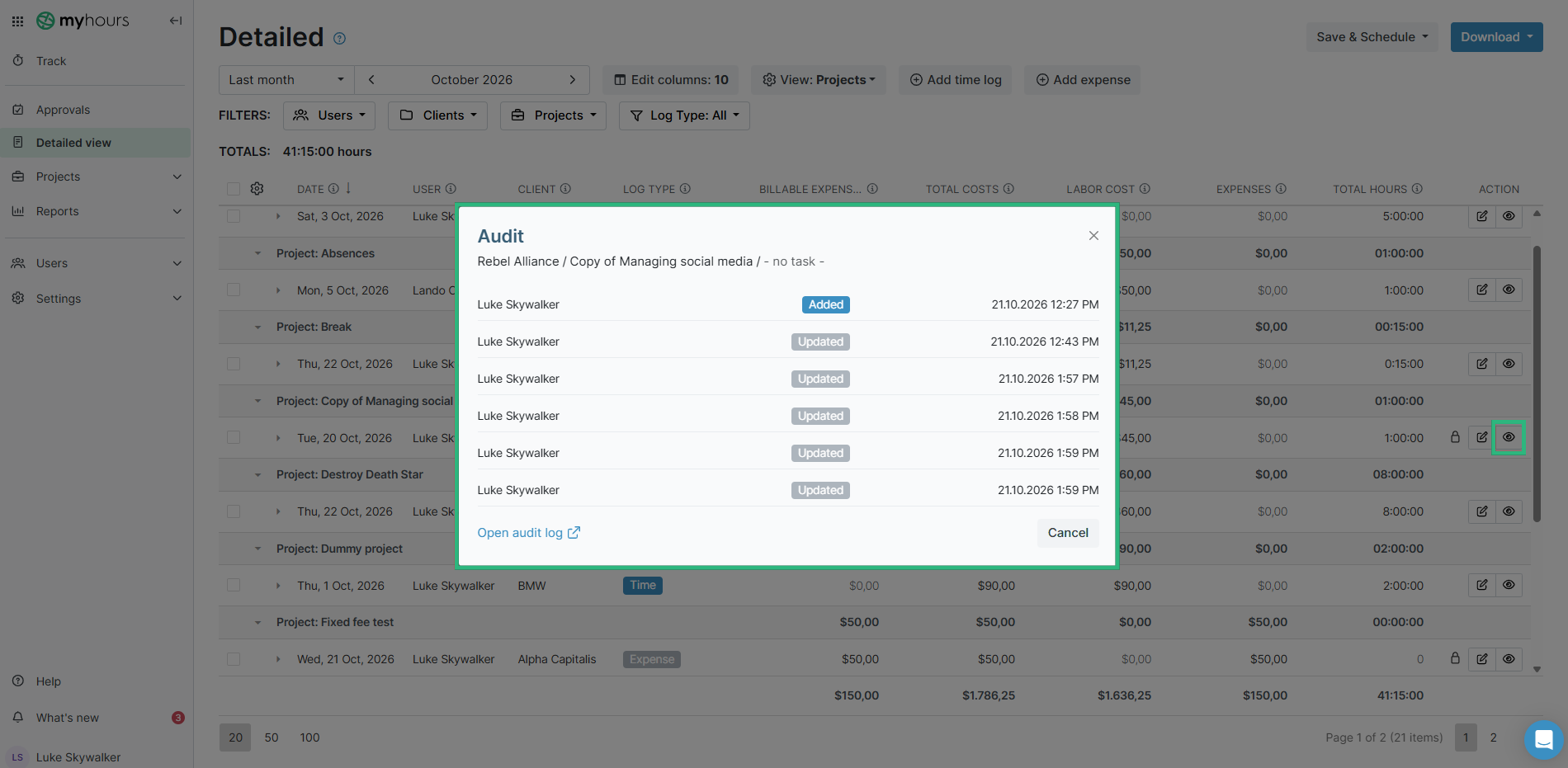
A record of what changed and who changed it
The audit log shows when time logs were entered, submitted, and edited, along with who approved or rejected them. It also tracks changes to projects, tasks, users, and account settings, including the previous and current state and who made each change.
When you only need a quick overview of a single entry’s history, you can click the eye icon next to the log in the Detailed view instead of looking at the full report. You can also search the report, filter it by entity type, and export it.
Approvals and locking that keep hours in place
When users submit a timesheet, they can leave a comment for the approver. My Hours won't accept the submission while a log is missing a project or a timer is still active.
Managers with approval rights can then review logs one at a time or in bulk. Once a log is approved, the person who submitted it can no longer edit it. If something needs fixing, a manager can reject the log so it can be corrected, or an admin can edit it directly. Either way, the change shows up in the audit log.
The platform can lock past periods automatically: daily, weekly, monthly, or a set number of days after the timesheet period ends. Only admins can add or edit logs in a locked period, and invoiced logs stay locked until the invoice is deleted.
Permissions that match each role
The fewer people who can edit time, the fewer changes there are to trace. Normal users in My Hours only see their own data, while project and team managers only get the permissions you give them, such as approving time logs or editing and deleting other users' logs. You can also stop normal users from switching logs between billable and non-billable.
My Hours only records the time people choose to log, with no screenshots, GPS, or keystroke tracking. That keeps the audit log focused on what happens to your time records.
To see how it all works together, sign up for a 14-day free trial of My Hours.
Final Thoughts
In a time tracker, an audit log is the history behind your hours.
A timesheet shows the hours currently recorded, while an audit log can show who changed an entry and, where supported, what it contained before the change.
That history matters when you’re answering a client’s questions or running internal checks and balances.
An audit log works alongside timesheet approvals and locking. Approvals can catch mistakes before hours are final, and the audit log records any post-approval changes. Together, they give you time data you can explain with confidence.
Before you choose a time tracker, make the audit log part of your evaluation. Use a free trial to log sample entries, edit them, and see how much detail the history keeps. It’s also a good chance to check whether you can export the log when you need to.


