


My Hours vs TimeCamp for Small and Growing Teams
Choosing the right tool as your team scales
Time tracking can be simple when you’re working with a small team. But as the headcount grows, you’ll need more effective ways to manage billing, approvals, permissions, reporting, and more.
While My Hours and TimeCamp both scale as your team grows, they take different approaches. My Hours combines project-based time tracking with billing, expenses, and approvals, while TimeCamp emphasizes automation and AI-assisted time tracking.
*Last updated: September 2026*
My Hours vs. TimeCamp: At a Glance
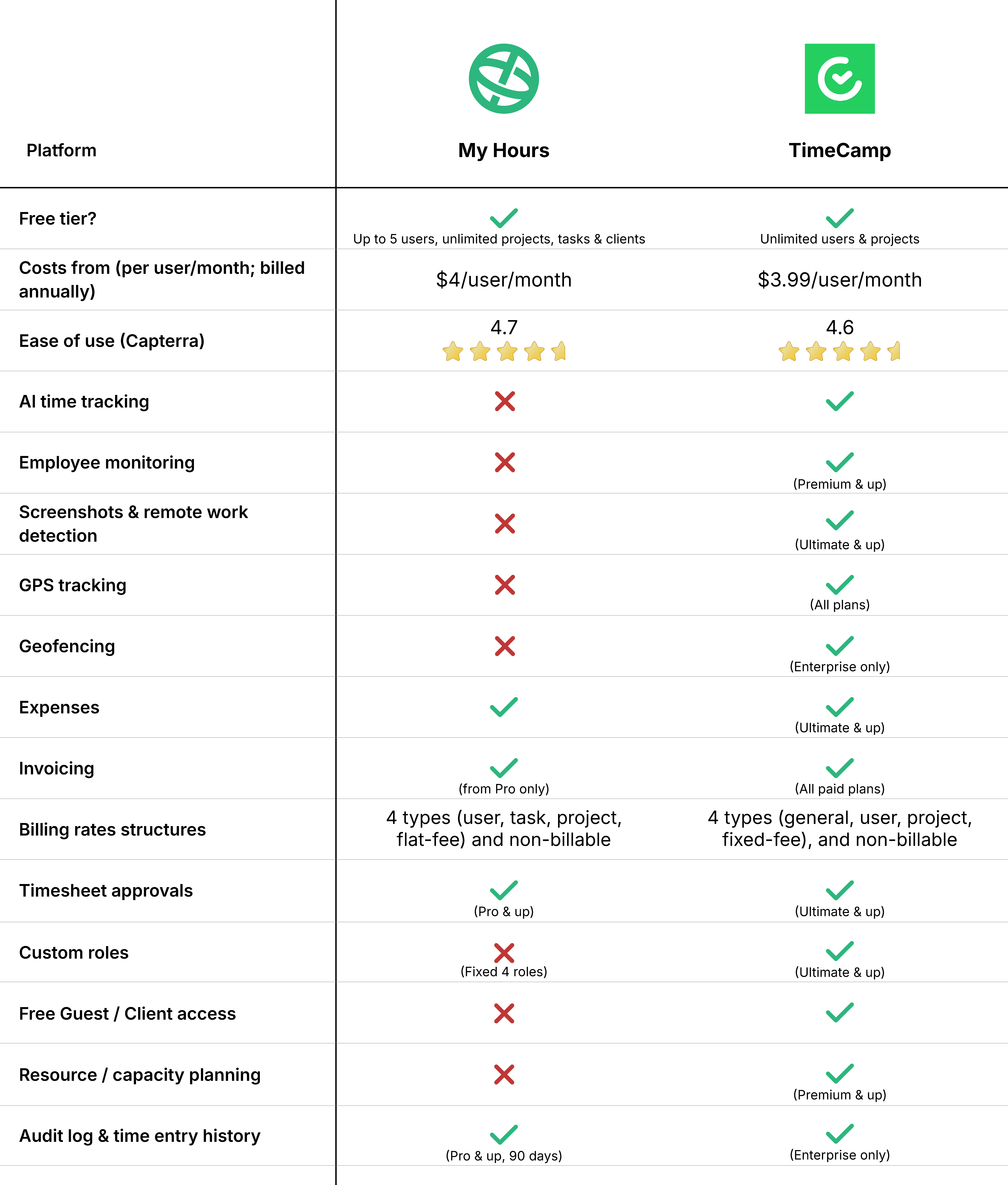
My Hours vs. TimeCamp: Pricing Comparison
My Hours
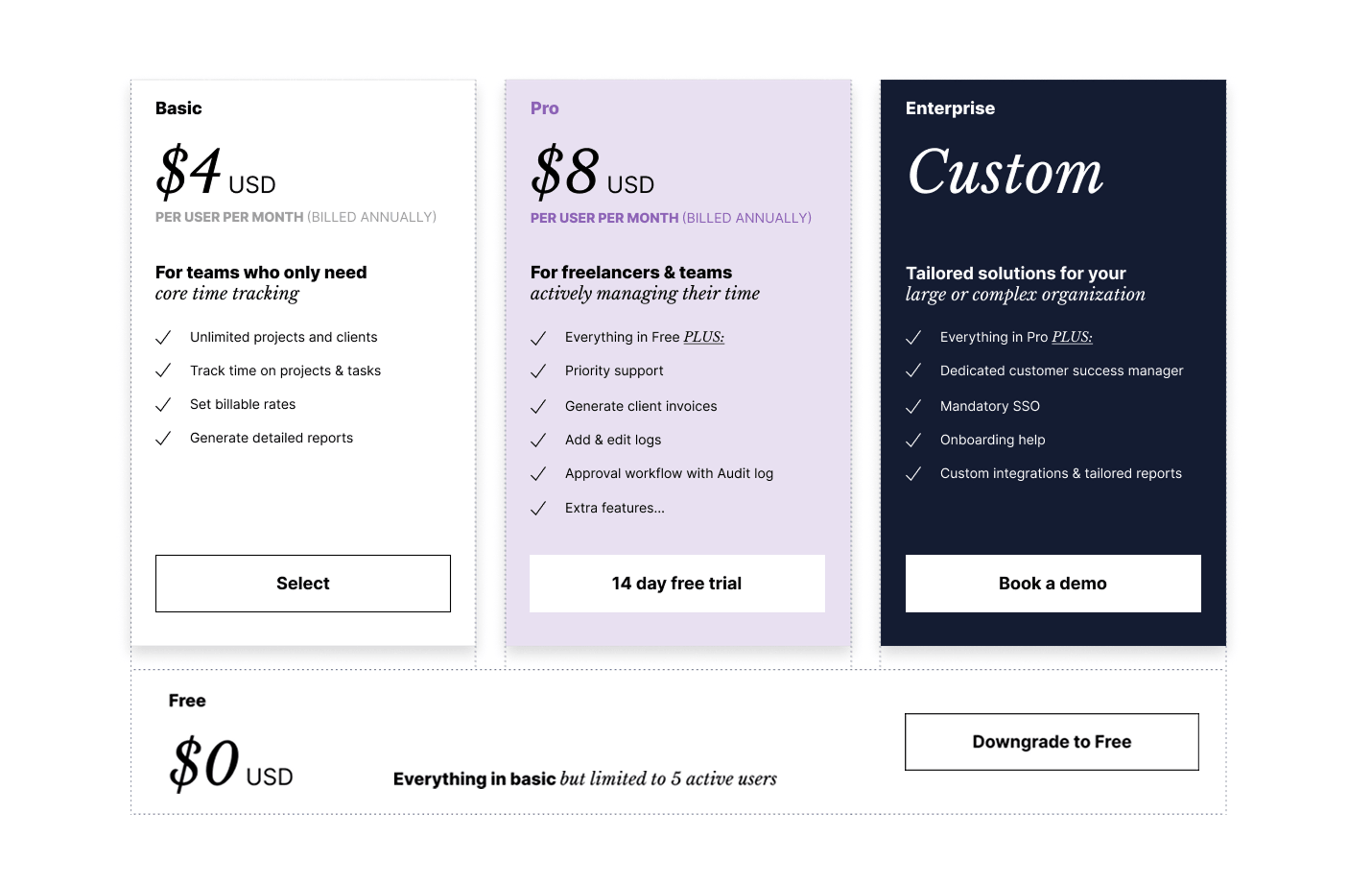
My Hours has a generous free plan that gives you unlimited projects, tasks, and clients, and allows up to 5 users. A small team can use that to test the platform and start tracking time.
The platform offers two paid pricing plans: Basic at $4 per user per month (billed annually) and Pro at $8 per user per month (billed annually).
The Basic plan includes unlimited projects and clients, project and task time tracking, basic billable rates, and detailed reports. Pro adds rate and budget calculations, granular user permissions, and approval workflows with an audit log.
The pricing model is straightforward, and costs stay predictable as a team grows. If you hire 10 more people, you’re only paying for 10 more seats. No add-ons or usage-based charges to catch you by surprise.
 Get My Hours Free
TimeCamp
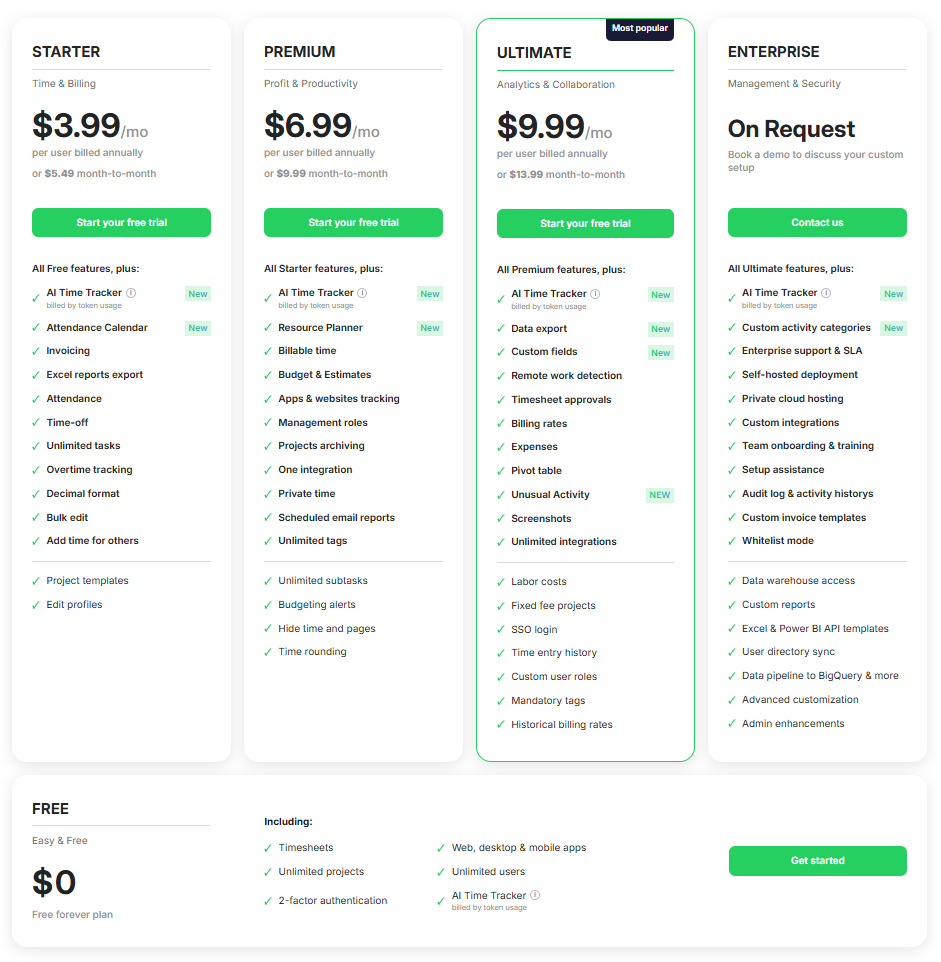
TimeCamp’s pricing is also ideal for small and growing teams, as the free plan allows for unlimited users and projects.
There are three paid plans: Starter at $3.99, Premium at $6.99, and Ultimate at $9.99, all per user per month when billed annually.
You can start tracking attendance, overtime, and using invoices from the Starter plan. Switch to the Premium plan, and you get app and website tracking, billable time, and resource planning. Screenshots, timesheet approvals, billable rates, and labor costs are only accessible on the Ultimate plan.
1. AI-Powered Time Tracking vs. Manual Simplicity
My Hours
Logging time is manual in the My Hours platform. Start and stop a timer, enter time by hand, or copy existing entries when you have repeat work.
Time is organized around clients, projects, and tasks so you can choose what to record and where it belongs.
You can also save frequently used logs as favorites. A task someone logs every day gets added in one click or through a keyboard shortcut.
You don't have to type things out from scratch, which makes time tracking faster.
If someone forgets to log their hours, or falls under or over their weekly targets, My Hours can be configured to send them reminders directly, by email or a mobile notification at the start and end of the workday.

TimeCamp
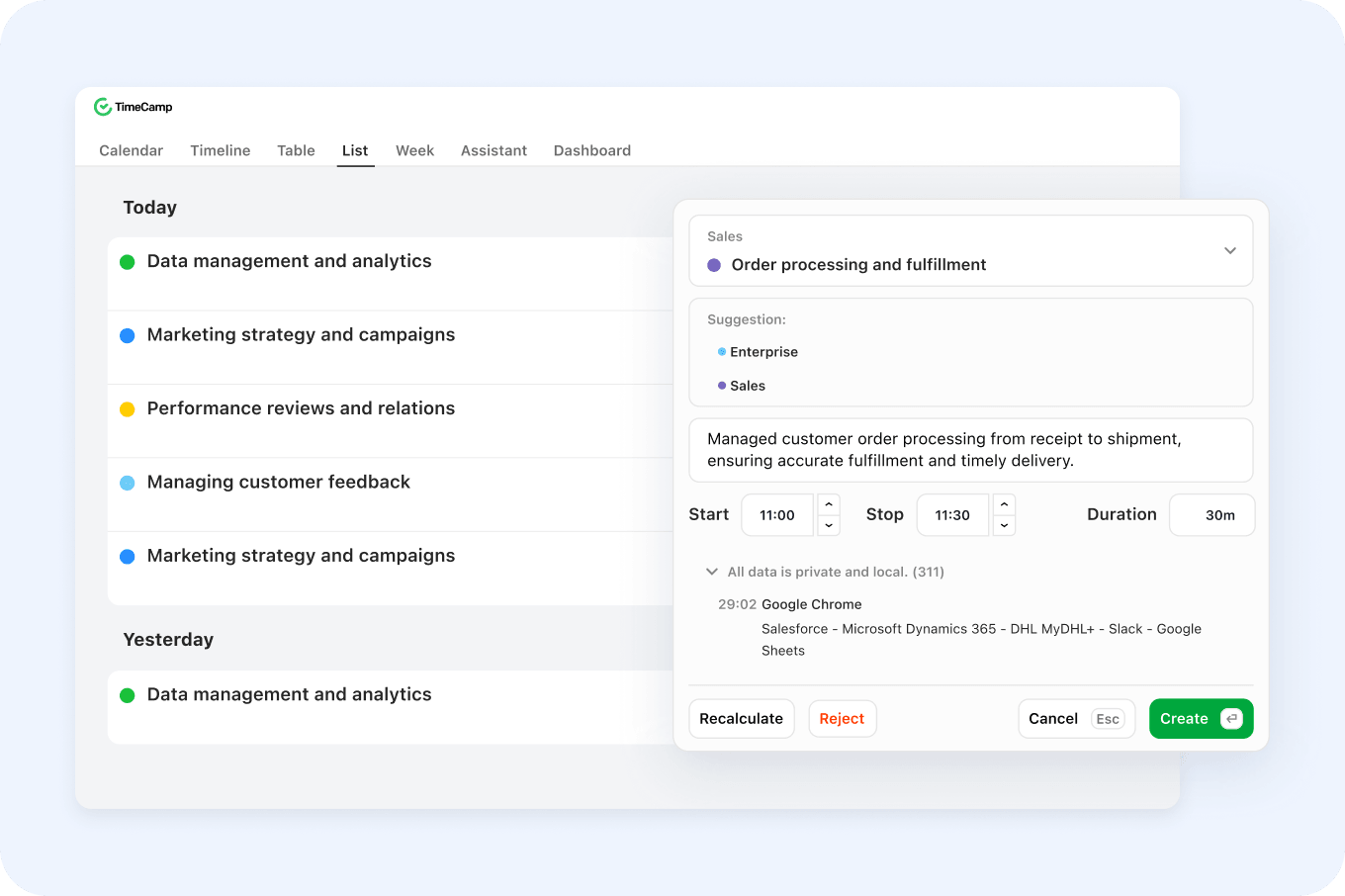
TimeCamp has an AI Time Tracker that runs in the background. It uses your calendar events, apps, websites, project history, and past corrections to figure out where a block of time belongs.
The AI time tracker costs roughly $6 per user per month for time entry suggestions and is billed per token usage.
Nothing enters your timesheet until you review it. You can approve, edit, split, merge, or reject any suggestion before it's submitted.
The AI gets better as you correct it. And if you connect it to your calendar, TimeCamp pulls your meetings in automatically. This means that a 25-minute client meeting gets logged as time on whichever project the AI matches it to.
The tracker also works offline and syncs everything once you're back online.
AI vs. manual simplicity verdict
TimeCamp reduces the effort of manually logging time through automation, while My Hours gives users direct control over what gets recorded.
TimeCamp is the better choice if reducing manual time entry is the priority. Its AI can observe work activity and suggest entries in the background, which is useful for teams dealing with forgotten or incomplete timesheets.
My Hours is better suited to teams that want direct control over time tracking. Users decide what to record without AI categorization or background work monitoring.
2. Employee Monitoring, Screenshots and GPS
My Hours
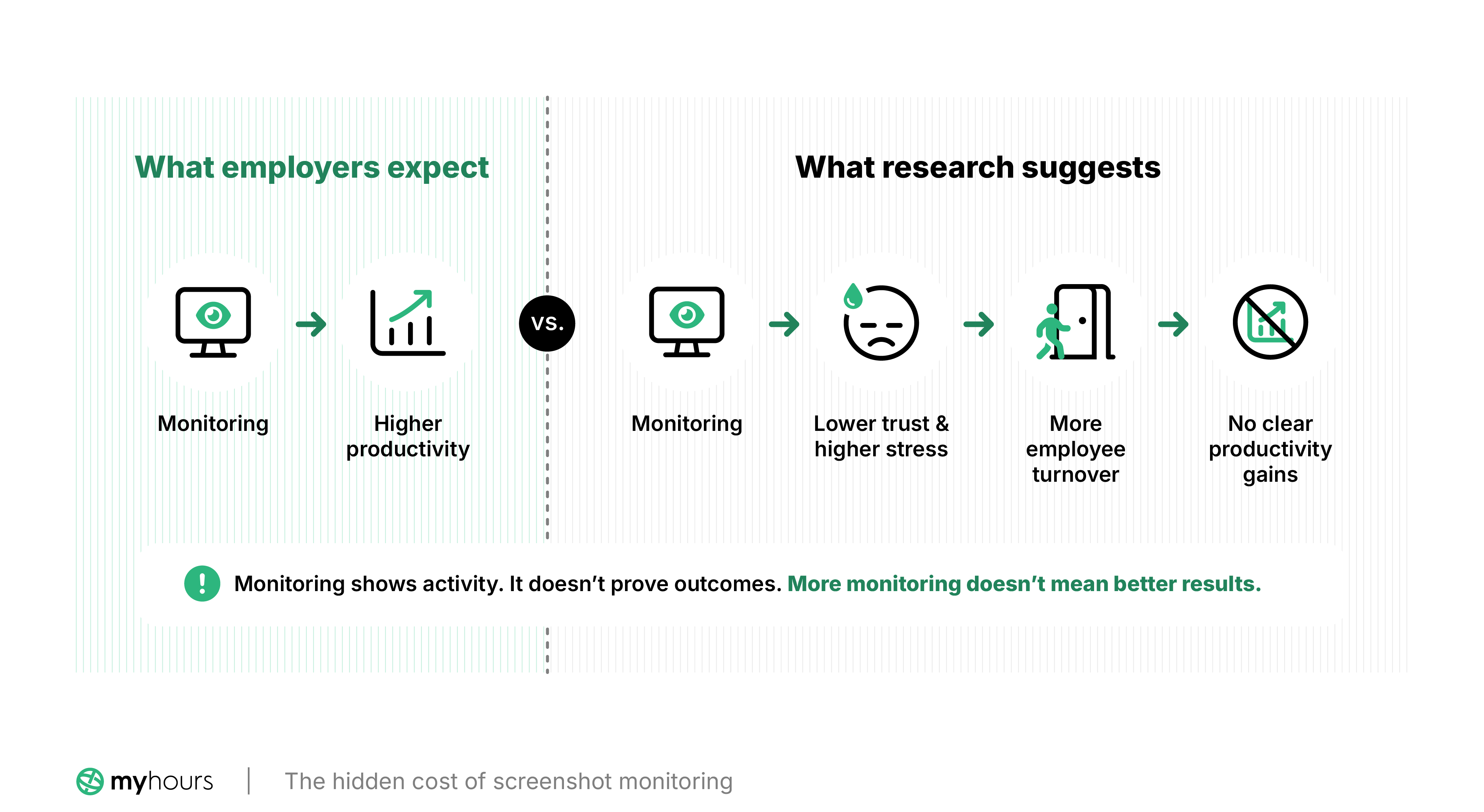
You won't find any employee surveillance capabilities on the My Hours platform, and you never will. This means no screenshots, app and website tracking, activity monitoring, GPS tracking, or geofencing.
Managers can still see the time employees log, along with the projects and tasks attached to those entries. But they don’t get visibility into what employees are doing on their devices.
This makes My Hours a good fit for remote and field teams that need accurate time records without device-level monitoring.
TimeCamp
TimeCamp offers employee-monitoring tools and can track apps, websites, window titles, and activity levels.
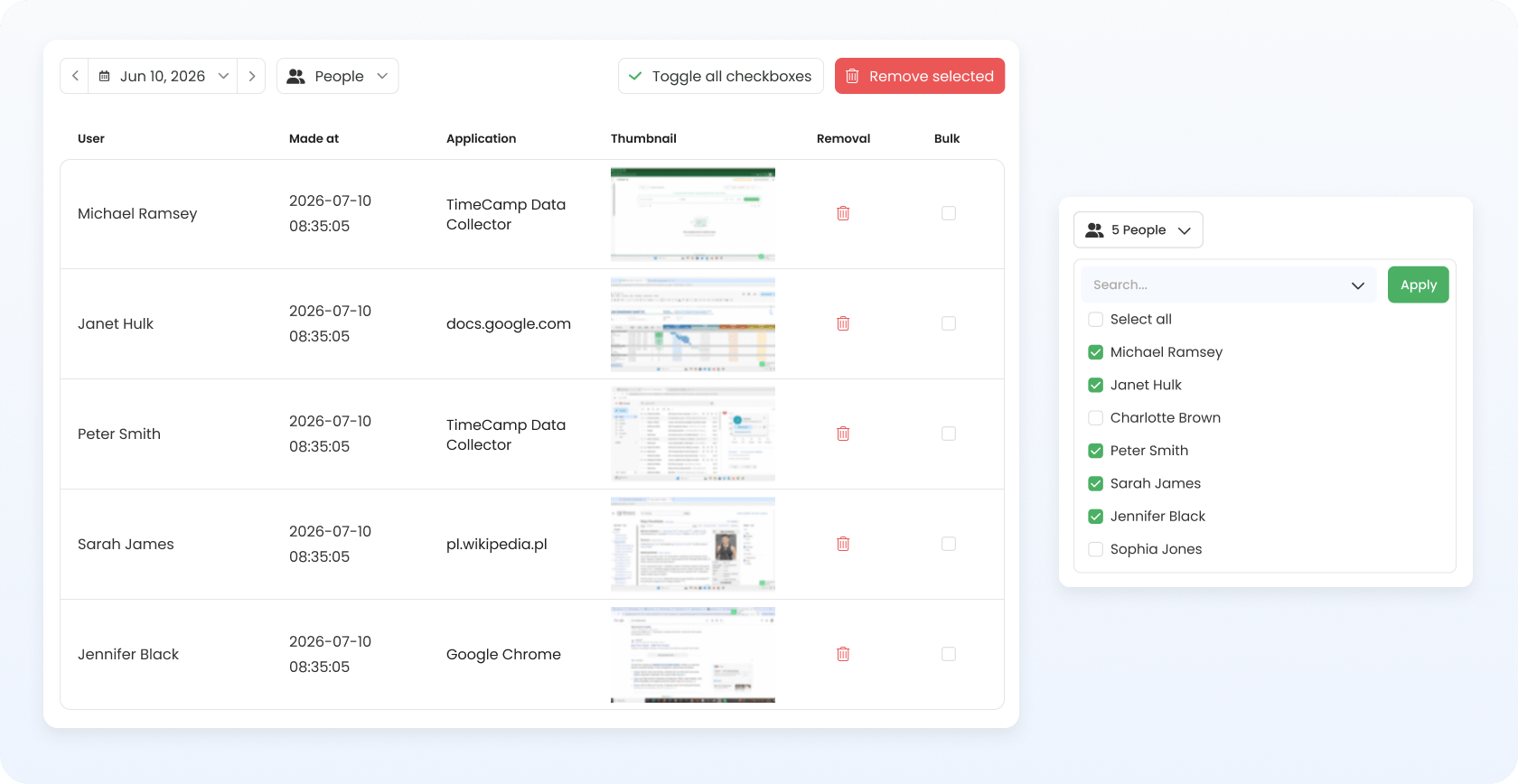
This is available from the Premium plan, but screenshots require Ultimate. When enabled, TimeCamp also takes screenshots and captures them every 10 minutes.
Administrators and supervisors can view the screenshots of the users they manage. The images are stored for 60 days, then deleted.
Its location tracking features include GPS for recording where you are while you work, and geofencing, which automatically starts or stops the timer when employees enter or leave a job site, up to 1,000 meters wide.
Employee monitoring, screenshots, and GPS verdict
The choice depends on what you want the tracking to accomplish.
TimeCamp suits teams that want time tracker apps with built-in employee monitoring solutions, GPS, and geofencing. It's a fit for anyone who needs to see how work gets done and where it happens.
My Hours is great if you want accurate time records built on trust rather than oversight. Managers see logged hours and project activity without having to monitor their employees’ screens, devices, or physical location.
3. Billing, Invoicing, and Rates
My Hours
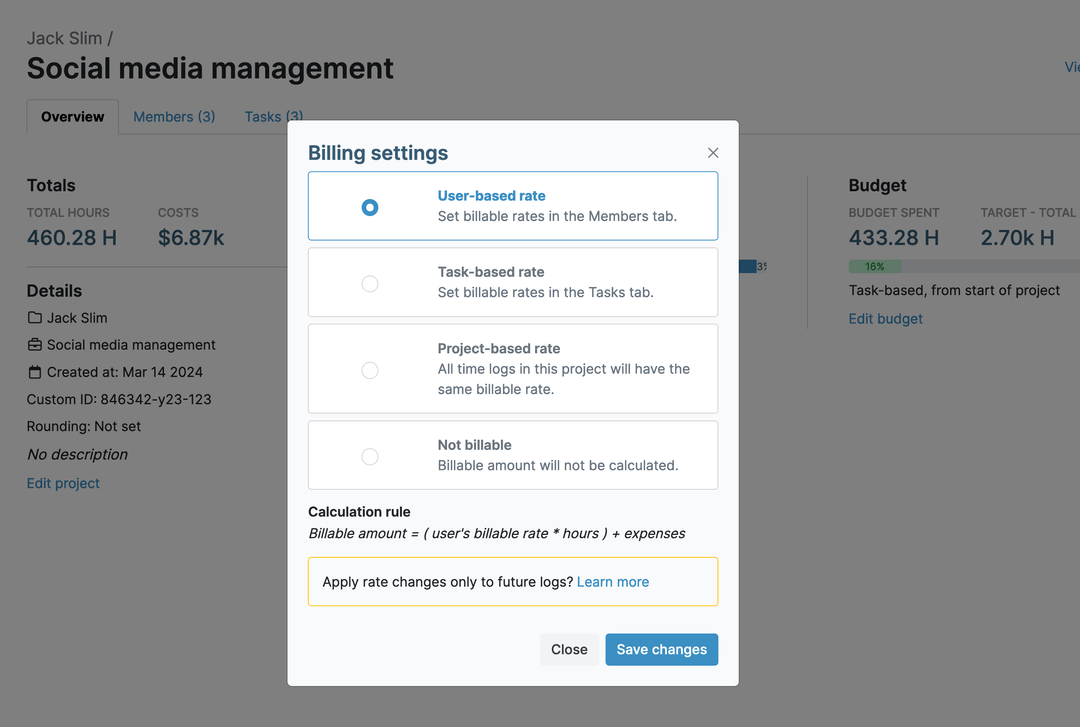
My Hours lets you bill clients in four ways. You can set billable rates by user, task, project, or charge a flat fee. Then, there's also the option of marking work as non-billable.
Each user gets a default billable rate and a default labor rate on their profile, and you can override either one for a specific project if someone's paid or billed differently there.
Labor rates can be tracked separately, so you can see what a project actually costs versus what it is billed.
Expenses can be linked to projects and tasks, with receipts attached directly to the expense. You can mark expenses as billable or non-billable, so only the billable ones make it to the client's invoice.
My Hours turns the time and expenses your team has tracked into invoices. No separate tool needed. You can add taxes, discounts, and due dates, then download the invoice as a PDF or XLS file, or email it to the client.
My Hours has native integrations with QuickBooks and Xero, so you can sync your invoices and client data automatically instead of re-entering them by hand.
TimeCamp
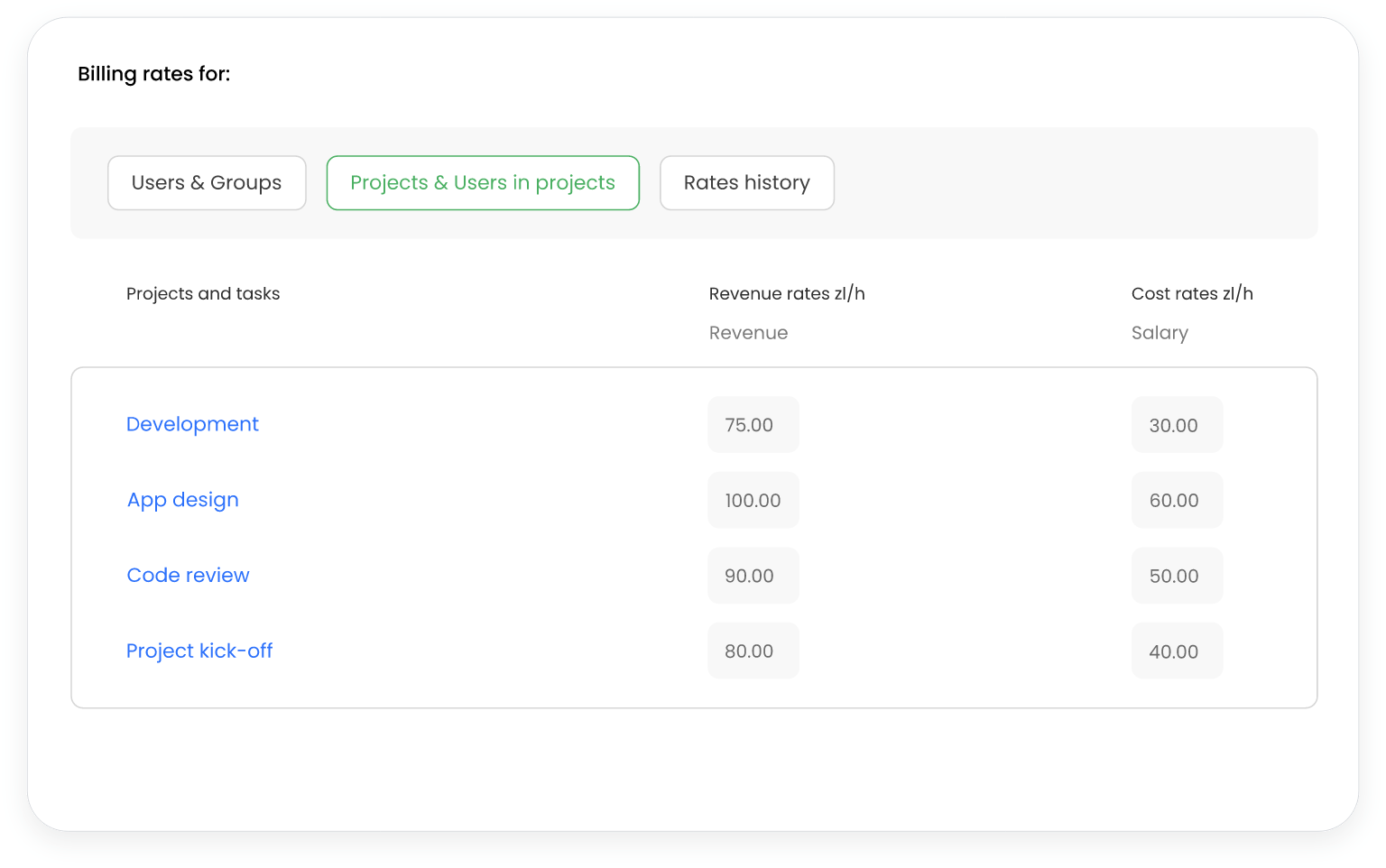
There are four billing methods in TimeCamp. The first is a general default rate that applies to everyone unless something more specific overrides it.
The Ultimate plan adds per-project and per-user rates, which take precedence over the general rate once set, as well as a fixed fee, a separate option for charging a flat price on a project.
The three rates are hourly, while the fixed fee is a flat project price.
The platform can generate invoices from the time you've tracked, and then download or email them to clients. You can also attach a PayPal link so clients pay straight from the invoice.
The platform supports expense tracking, so you can assign expenses to projects, categorize them, and mark them as billable or non-billable.
TimeCamp also has integrations with tools like QuickBooks Online and Xero.
Billing, invoicing, and rates verdict
Both platforms let you bill by user or project, track expenses separately, and turn everything into an invoice without a second tool.
The only difference is which plan you can access different billing capabilities.
With TimeCamp, you can only access the billing module and its general default rate from the Premium plan. Specific rates (User, Project, or User-in-Project) and expenses are Ultimate-only, but invoicing is available from the Starter plan.
With My Hours, expense tracking is already available on the Free plan, with the Basic plan giving you project-based billing. Per-user, per-task billable rates and invoicing are Pro plan only.
4. Team Management and Permissions
My Hours
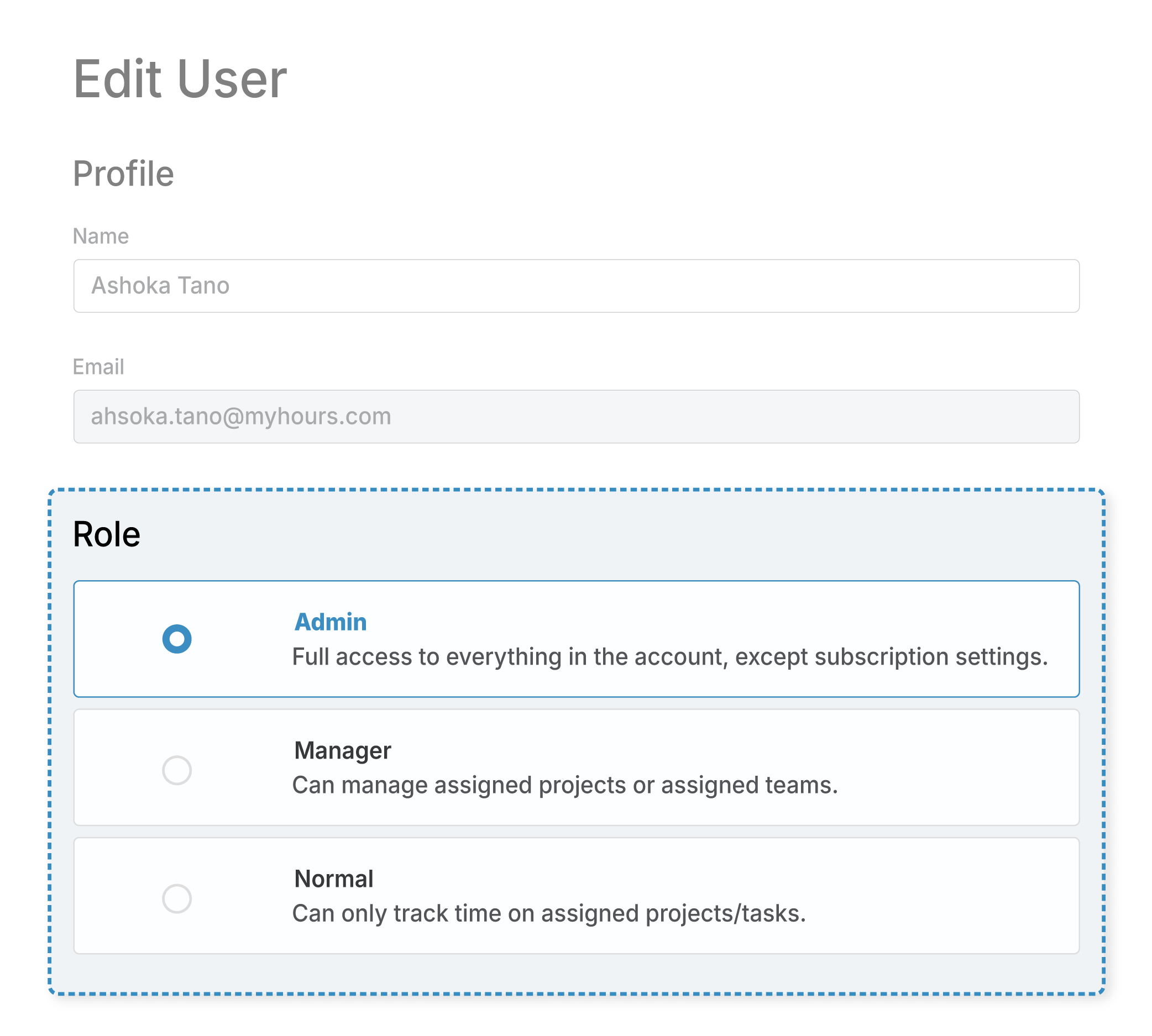
My Hours gives you four team management options: normal user, Team manager, Project manager, and Administrator. Team and Project managers are only available from the Pro plan, which costs $8 per user per month (annual billing).
Each role gets the exact access it needs. For example, managers can oversee their team members and assigned projects without seeing account settings, other people's rates, or projects they're not part of.
Users can also belong to multiple teams, and each team can have more than one manager. This works well for growing organizations where employees contribute across different departments or projects.
You can set up timesheet approvals in two ways:
- Team Manager: Approves entries for everyone on their team, no matter which projects they work on.
- Project Manager: Approves entries only for the specific projects they're assigned to.
Administrators can always approve anyone's entries, regardless of team or project. They’re also the only ones that can edit the permissions and rights different roles have.
TimeCamp
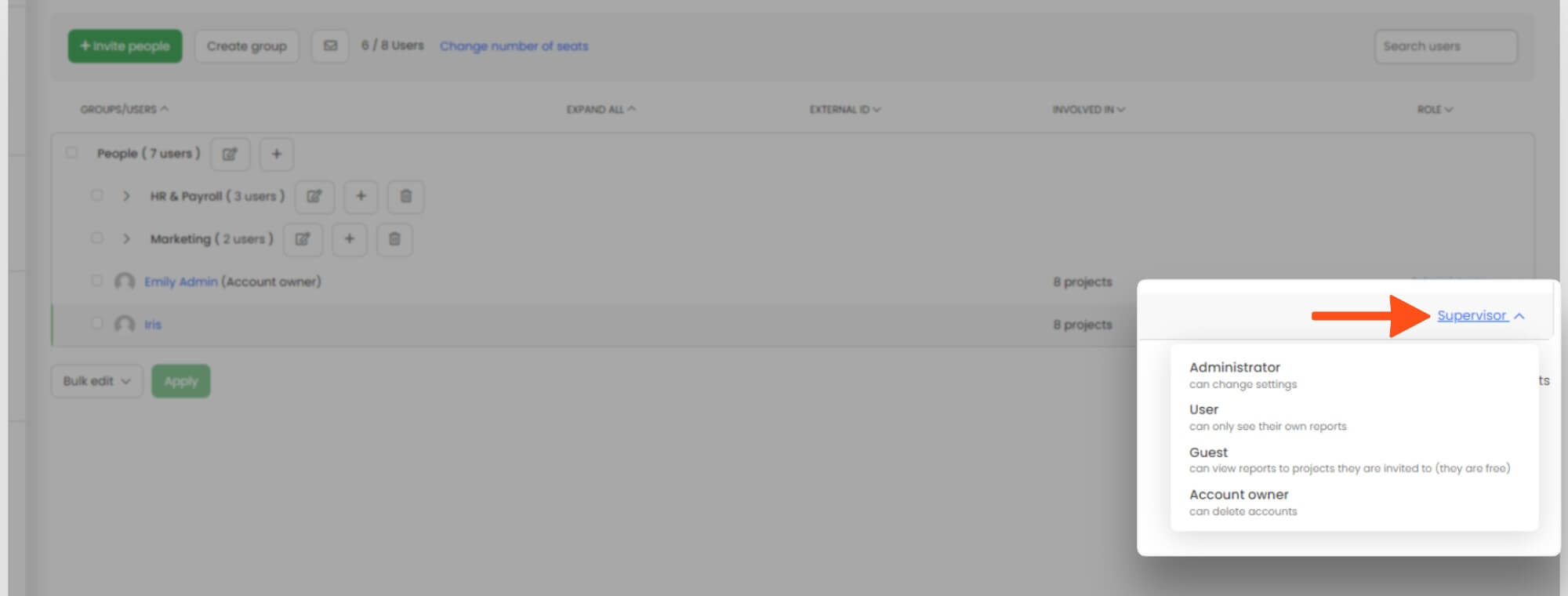
TimeCamp has two permission levels: account roles and project roles.
Account roles include Owner (one per account), Administrator, Supervisor, User, and a free Guest role for anyone who just needs to view reports without tracking their own time. The roles for projects are Project Manager and regular user.
Management roles are available from the Premium plan ($6.99/user/month, billed annually). The platform also lets you create custom user roles, but that's only available from Ultimate ($9.99/user/month, billed annually).
Team management and permissions verdict
Both platforms provide different roles, so you can configure who has access to what.
One advantage with TimeCamp is that you can create custom roles beyond the default ones available, though you have to get the Ultimate plan. The Guest role is particularly useful if you need to give a client or contractor visibility into reports without paying for a seat.
Right from My Hours’ free plan, you get unlimited clients, which is a huge cost saver. That means you can add as many clients to your account as you need to track work for, without paying an extra dime.
This is especially beneficial for small and growing teams that have many clients, since the cost of scaling stays tied to your headcount, not how many clients you're serving.
5. Capacity Planning and Workload Management
My Hours
My Hours handles capacity planning through target hours and budgets. You can set a universal daily target that applies to everyone by default, or override it per person.
Once a target's set, My Hours tracks logged hours against it automatically and sends an alert when someone goes over or under.
Projects and tasks work on the same principle, but applied to the task itself rather than a person’s day. Set a budget for how long a task should take, and My Hours flags it once that budget's been used up, catching the overrun while there's still time to fix it.
Those same target and budget alerts can point to why, not just who. A pattern of tasks going over budget could mean you have a slow process or that there's scope creep somewhere.

TimeCamp
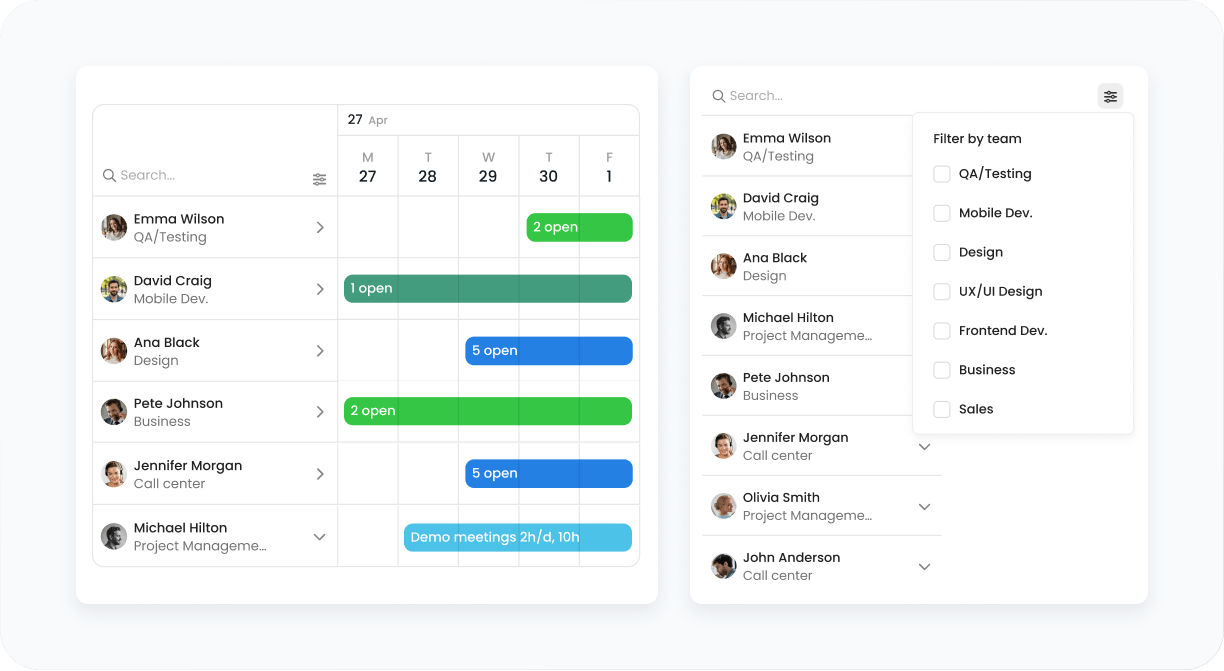
TimeCamp handles capacity planning through its Resource Planner, which shows you who's free or busy, based on tracked time. The planner is available from the Premium plan.
You can compare a project's timeline against the team's actual workload to spot when you're under-resourced before it affects the project's scope.
Managers can open any team member's profile to see every project that person is assigned to, making it easier to catch conflicts where one person is booked on multiple projects, but each manager assumes there’s exclusivity.
Capacity planning and workload management verdict
TimeCamp is the stronger option here. My Hours monitors capacity well through target hours, budgets, and alerts, but it mainly shows whether logged time is above or below plan.
TimeCamp's Resource Planner goes further. Managers see team availability, assign people to projects, and compare scheduled work against what's actually been tracked, with People and Project views to spot conflicts early.
If you're monitoring capacity after work is assigned, My Hours does the job. If you want to plan and allocate capacity before it becomes a problem, consider TimeCamp.
6. Attendance and Time Off
My Hours
My Hours doesn’t have a dedicated attendance or leave management feature. Instead, it takes a project-based approach to absence tracking.
You can create an "Absences" project with separate tasks for different types of leave such as vacation, sick leave, or personal leave. Users then log their time off against the relevant task, the same way they'd log any other hour.
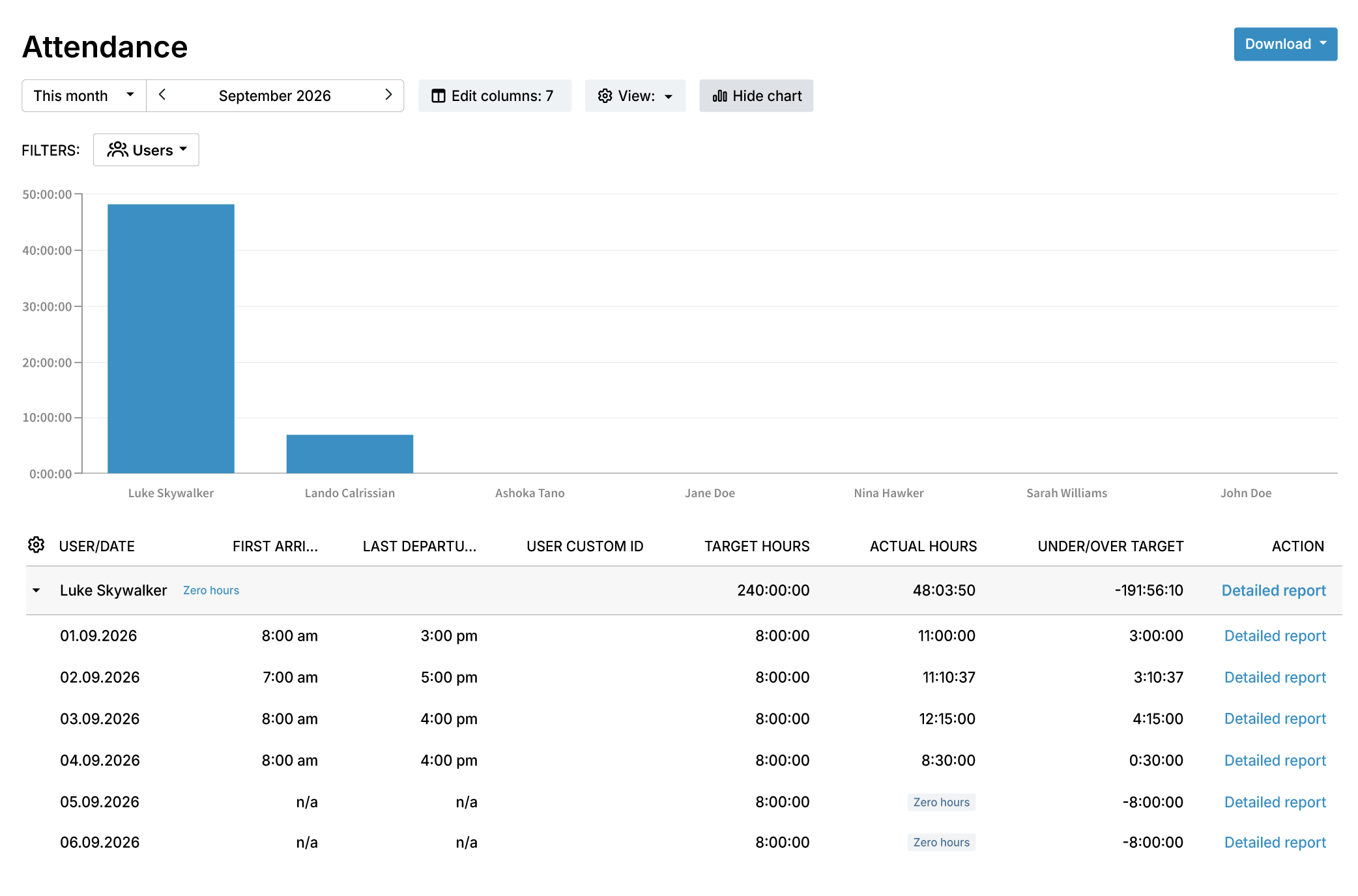
For actual attendance, though, My Hours does have a real, purpose-built report. The Attendance report shows exact actual hours worked per day (never rounded) and can double as a First Arrival/Last Departure record where that's legally required.
With this, you don't need a separate system just to stay compliant with labor laws that mandate this kind of recordkeeping.
The report also tracks target hours against actual time to flag overtime or under-tracking, and shows a running timer live if someone's currently clocked in.
TimeCamp
TimeCamp has dedicated attendance and time off systems, some of which are available from the Starter plan.
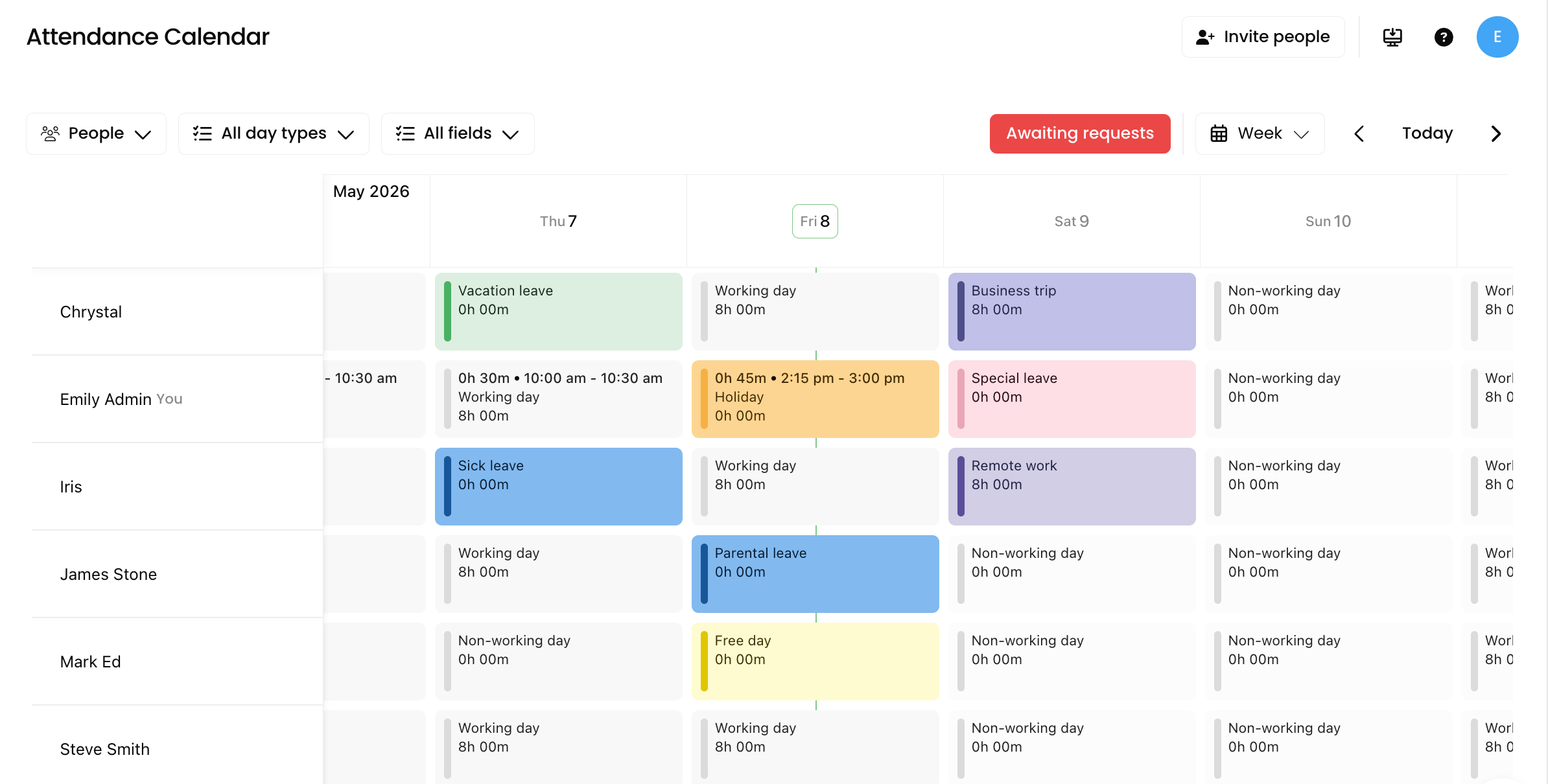
You can track working days, vacations, sick leave, remote work, and other types of absences. Employees can also submit time-off requests for manager approval.
The Starter plan includes an attendance calendar showing the whole team's status at a glance, whether someone's in the office, remote, or on leave.
Upgrading to Enterprise lets you access a Kiosk mode that allows people to clock in from one shared tablet using a personal PIN. There’s also geofencing, which confirms someone was actually at the job site the moment they clocked in, without tracking their location continuously.
TimeCamp also has overtime tracking, allowing you to see when someone's about to cross their weekly limit before it happens. Set your expected work hours, and you'll get an alert the moment that limit's reached.
Attendance and time off verdict
TimeCamp has a more developed option for structured leave and attendance management. It's the right option if you want a solution with built-in approval workflows and a formal leave process. However, you'd have to get the Starter plan ($3.99 per user per month, billed annually) for that.
However, if you're a small or growing team that wants a simple setup, then My Hours' project and task setup would suffice. And you can create this workflow even from the free plan, since unlimited projects and tasks come with it at no extra cost.
7. Client Reporting and Data Export
My Hours
My Hours keeps its reporting structure simple, with four main types of reports: Dashboard, Detailed, Timesheet, and Attendance.
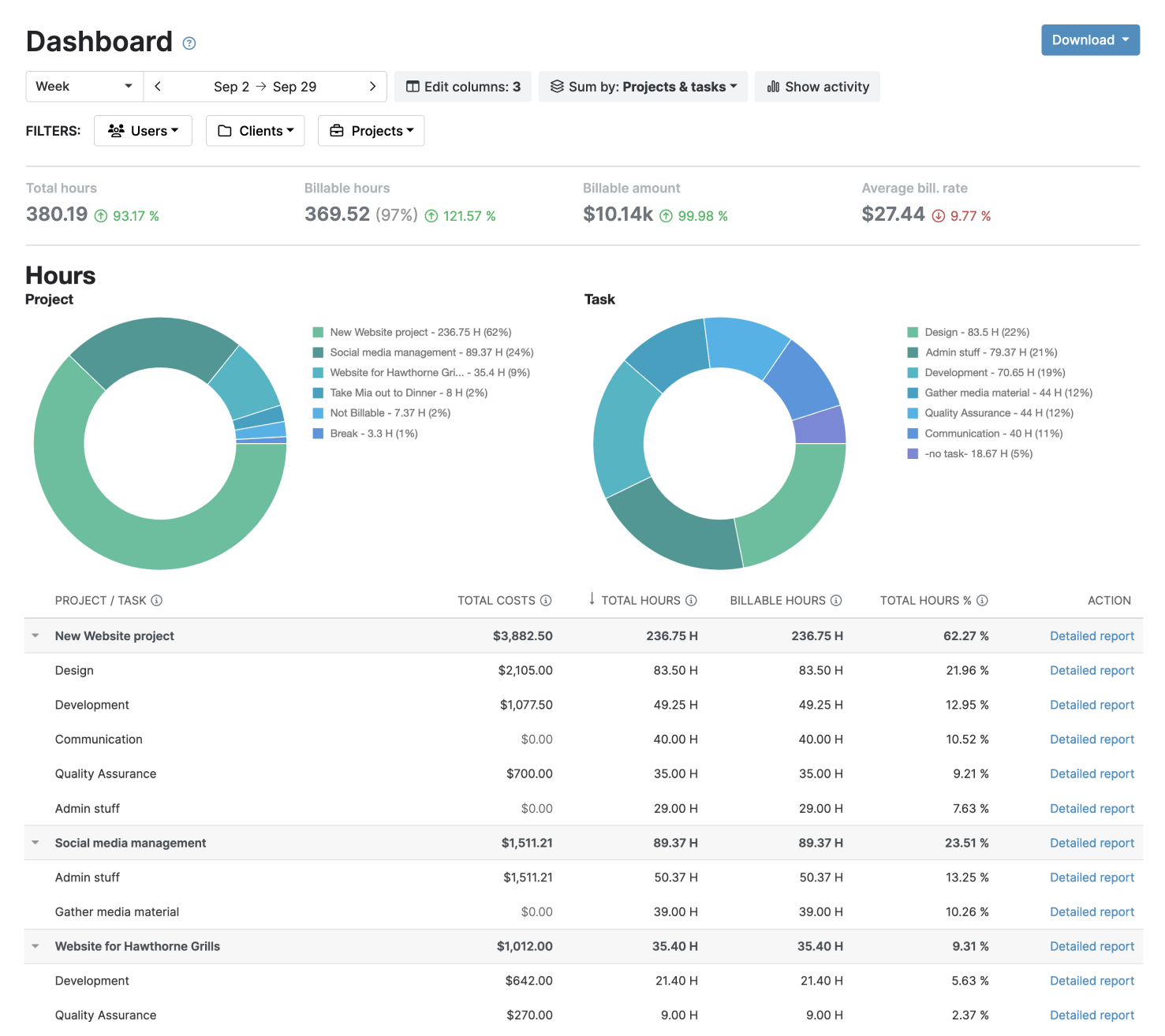
The Dashboard gives you a visual overview of time, costs, and project activity, and clicking the "Detailed report" link within it jumps straight into the Detailed report for that specific client, project, or task.
The Detailed report offers more granular analysis with 35+ data columns, adjustable levels of detail, and filters you can save per client so you're not rebuilding the same setup every time.
The Timesheet report strips things down to a weekly view of how each team's time and cost break down across projects and tasks.
You can download Dashboard and Detailed reports as PDF, a formatted XLS, or a raw XLS, depending on whether a client wants the polished version or the raw numbers. The Timesheet and Attendance report exports as XLS only.
From the Pro plan, you can save and schedule reports to email, download and customize reports in Excel, and add your own logo to PDF reports.
TimeCamp
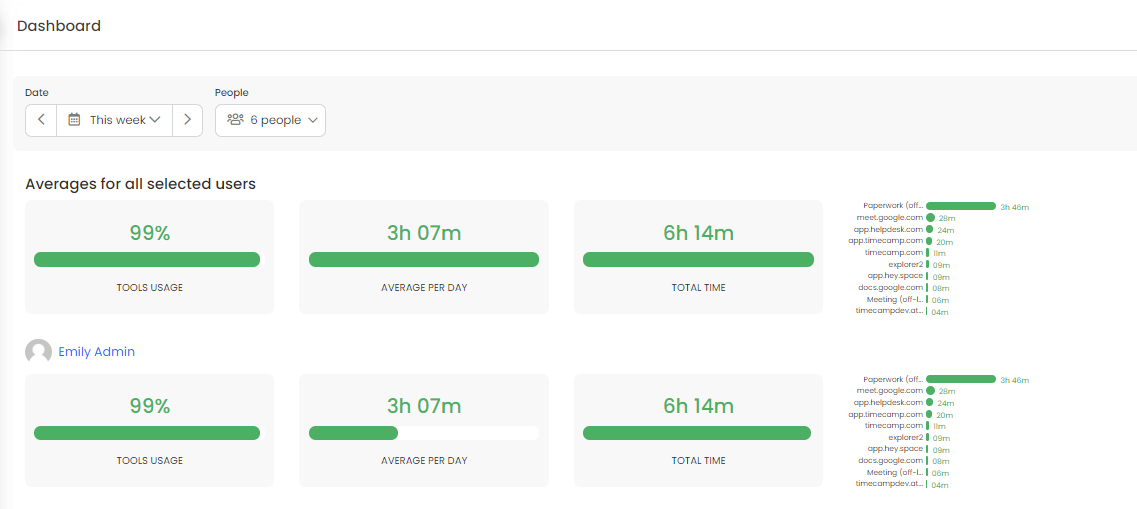
TimeCamp offers over 20+ report types, covering time, attendance, finance, productivity, and location. It also has a Pivot Table (available on the Ultimate plan) that lets you build custom reports by adjusting rows and columns.
Export options depend on the plan you're on.
Free users get PDF only. Paid plans add Excel, CSV, Google Sheets, and there’s a separate raw Data export option on Ultimate for anyone who needs the raw data instead of a formatted report.
From the Premium plan, you can share reports by link and send them at scheduled intervals.
Client reporting and data export verdict
My Hours is the stronger option for client-facing reporting because it gives users more control over how reports are customized and exported, while also offering PDF exports on its free plan.
TimeCamp is ideal for teams that need a wider range of specialized reports to monitor different aspects of their operations. Its 20+ report types cover areas such as time, attendance, finance, productivity, and location.
Both platforms restrict some of their exporting capabilities to paid plans.
- My Hours: Saving and scheduling reports to email, downloading and customizing reports in Excel, and adding your own logo to PDF reports are all Pro-only.
- TimeCamp: The Free plan gets you 10+ time reports and PDF exports. Starter adds attendance and time-off reports, plus Excel and Google Sheets exports. Premium adds scheduled email reports and sharing by link. The Pivot Table is Ultimate only, and custom reports require Enterprise pricing.
Pros and Cons of Each Tool
My Hours
Pros
 Free plan includes unlimited projects, tasks, and clients for up to five users
- Simple two-tier paid pricing, no seat minimums, no usage-based add-ons
- Four billing rate types (user, task, project, flat-fee) and non-billable marking
- Expenses linked directly to projects and tasks, with billable/non-billable control
- Native QuickBooks and Xero integrations
- Unlimited clients on every plan, so cost scales with headcount, not client count
- Built-in approval hierarchy (Team Manager, Project Manager, Administrator) with adjustable permissions
Cons
 No AI-assisted or automatic time categorization
- No dedicated attendance or leave management module, only a project-based workaround
- No forward-looking resource planning tool; capacity tracking is after-the-fact only
- Team Manager, Project Manager roles, approvals, custom fields, and audit log all require Pro plan
TimeCamp
Pros
- Free plan supports unlimited users
- AI Time Tracker with calendar integration and offline sync
- Employee monitoring capabilities
- Dedicated attendance, time-off, and overtime management
- PayPal payment link on invoices
- Free Guest role for clients or contractors who just need report access
- Over 20+ report types available
Cons
- Billing rates, expenses, labor costs, and timesheet approvals require the Ultimate plan
- More paid tiers to navigate as needs and team size grow
- AI Time Tracking Agent has separate usage considerations
Bottom Line
My Hours and TimeCamp both offer solid time-tracking tools for small and growing teams, but the better fit depends on what you need your tracking system to do as your team grows.
TimeCamp stands out for automation, employee monitoring, attendance, and time-off management. Its higher tiers add resource planning, custom roles, and deeper billing controls, making it a stronger option for teams that want more visibility into how and where work gets done and don't mind paying up the tier ladder to get it.
My Hours takes a simpler, more focused approach. It brings time tracking, project management, billing, expenses, approvals, and reporting into one platform, without adding a monitoring layer.
For teams that primarily need accurate time records and a straightforward way to turn those hours into project and billing data, without climbing multiple tiers to get there, My Hours might be the better fit.
If that sounds like what your team needs, start your free 14-day trial and see how My Hours fits your workflow. No credit card required.

Waste no more time,
jump right in!

All rights reserved.