

My Hours gives team leads a clearer view of how their team's time is being spent across projects and tasks. Compare logged hours against targets, filter reports to uncover useful insights, monitor project budgets, review submitted timesheets, and support distributed teams, all in one place.
Capterra
"[...] My Hours is, by far, the best value of the bunch: Just the right amount of functionality without too many complications, and at a fair cost. [...]"
- Bob R., Owner, Writing and Editing
Add Your Team and Assign Their Work
Use My Hours to assign projects and tasks to each team member.
- Invite team members individually, or import a full list at once if you are bringing over an existing team.
- Each person receives an email with instructions to set their password and log in.
- Assign each person to the projects and tasks they will work on.
- Group team members into a Team and assign yourself as their Team Manager, so you can manage approvals and reports for the people you oversee.
- Set an hourly labor rate for each person or leave it blank if it is not relevant to your role.
- Select multiple people and update their rates or roles in bulk.
Give Team Members the Right Level of Access
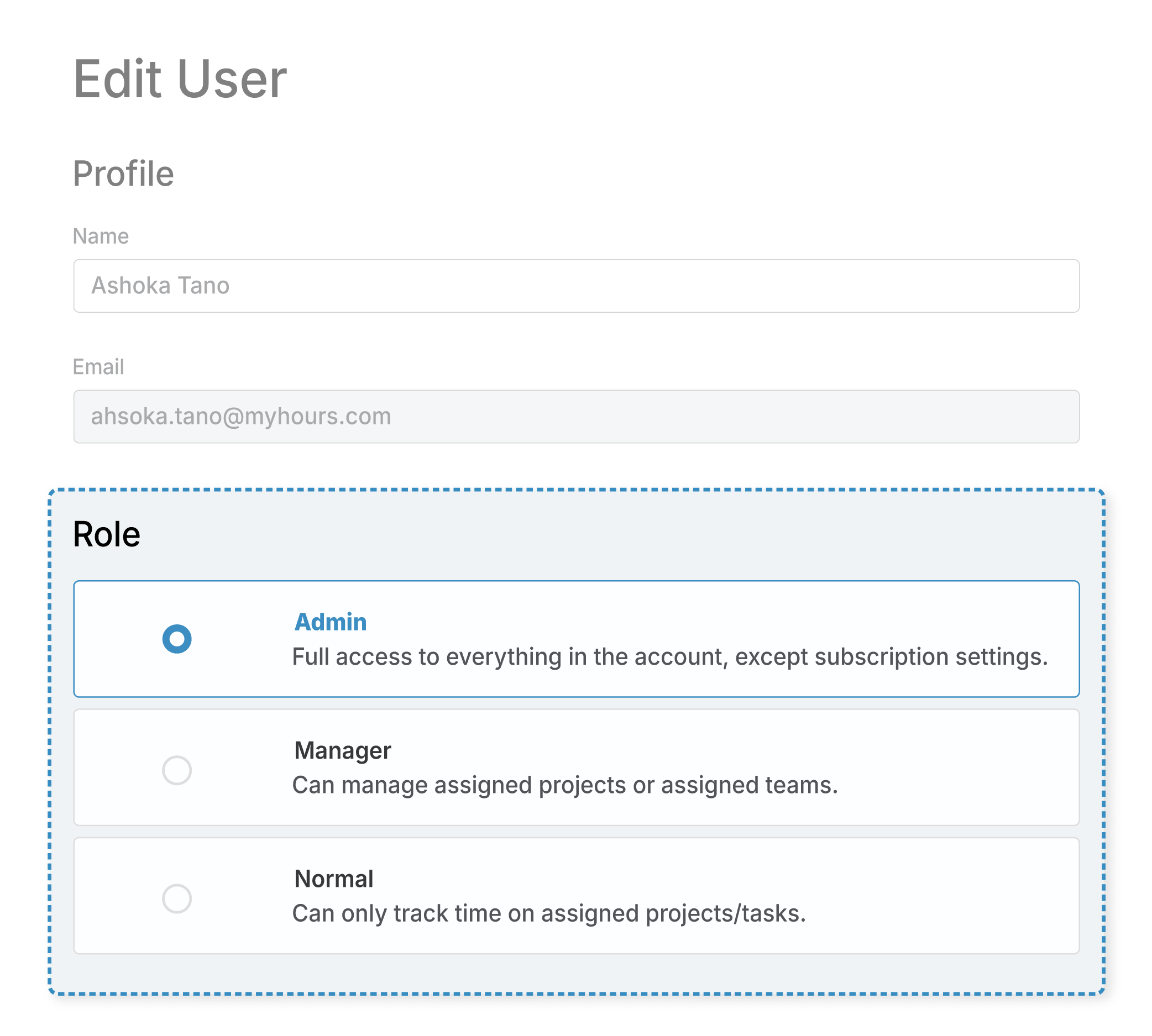
Not everyone on your team needs the same level of access to project or billing details.
My Hours lets you control what each person can see and do through four roles, each built for a different level of oversight.
These different roles are:
- Administrator: Full access to account reports, settings, configurations, and data.
- Team Manager: Can view, approve, and reject the time logs of people they manage.
- Project Manager: Can view and manage data for their assigned projects, regardless of which team the people working on them belong to.
- Normal User: Can only track time against their own assigned projects and tasks.
Different team members may have different roles and responsibilities within My Hours.
Administrators can use granular permissions to control what Team and Project Managers can view and manage, including whether managers can approve time logs, edit projects, or edit other users' time entries.
To maintain confidentiality, administrators can also hide labor rates and costs from normal users and managers. Billing rates can also be hidden when needed.
The controls My Hours offers help you match access with each person's responsibilities while keeping sensitive workforce and project data restricted to the people who need it.
Connect the Tools Your Team Already Uses
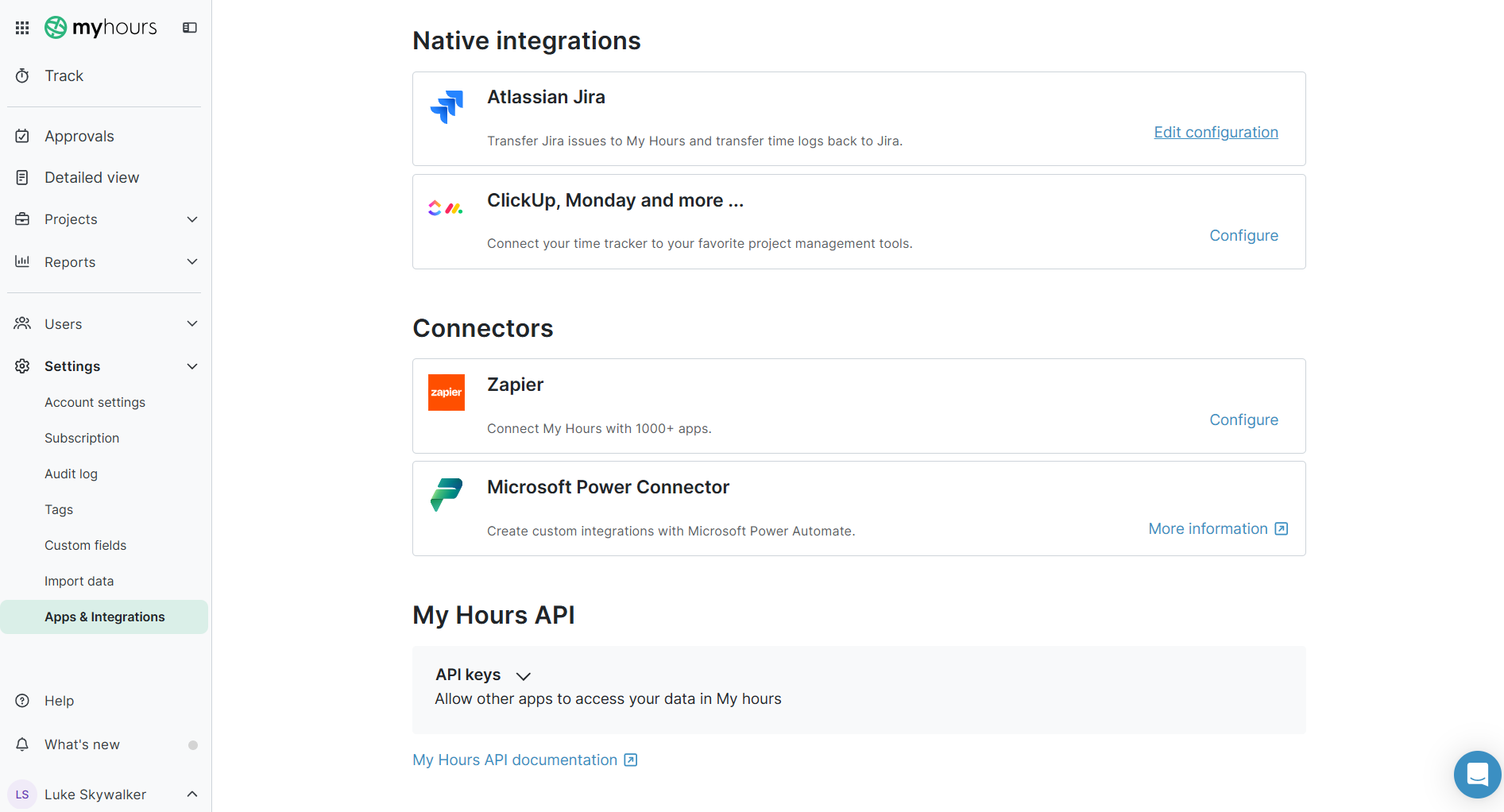
Your team may already use platforms like Jira, Asana, ClickUp, Monday, and Basecamp to plan and manage projects and tasks.
My Hours integrates with several project management platforms so you can bring in existing projects and tasks instead of rebuilding from scratch.
- Choose a one-time import or ongoing sync for Asana, Basecamp, Monday, or ClickUp, and My Hours automatically pulls in new or updated items from there on; no manual upkeep required.
- Sync Jira issues into My Hours as tasks and send tracked time back to Jira work logs. Useful for teams that still use Jira for their day-to-day activities and planning.
- QuickBooks and Xero auto-import customers into My Hours as projects, and send invoices back once they're created.
- Import Salesforce accounts and tasks as projects and tasks, with a one-time import or real-time sync of new items.
- Import customers or opportunities as projects via HubSpot and Dynamics CRM. SAP ERP and Dynamics ERP are also available on demand so you can sync data back and forth.
- Azure DevOps and Microsoft Project integrations are available on demand for teams already using either one.
- Use Zapier to further extend your reach by connecting My Hours with 1,000+ other tools.
If your team needs something else, custom integrations are available on the Enterprise plan.
See Where Your Team’s Time Goes
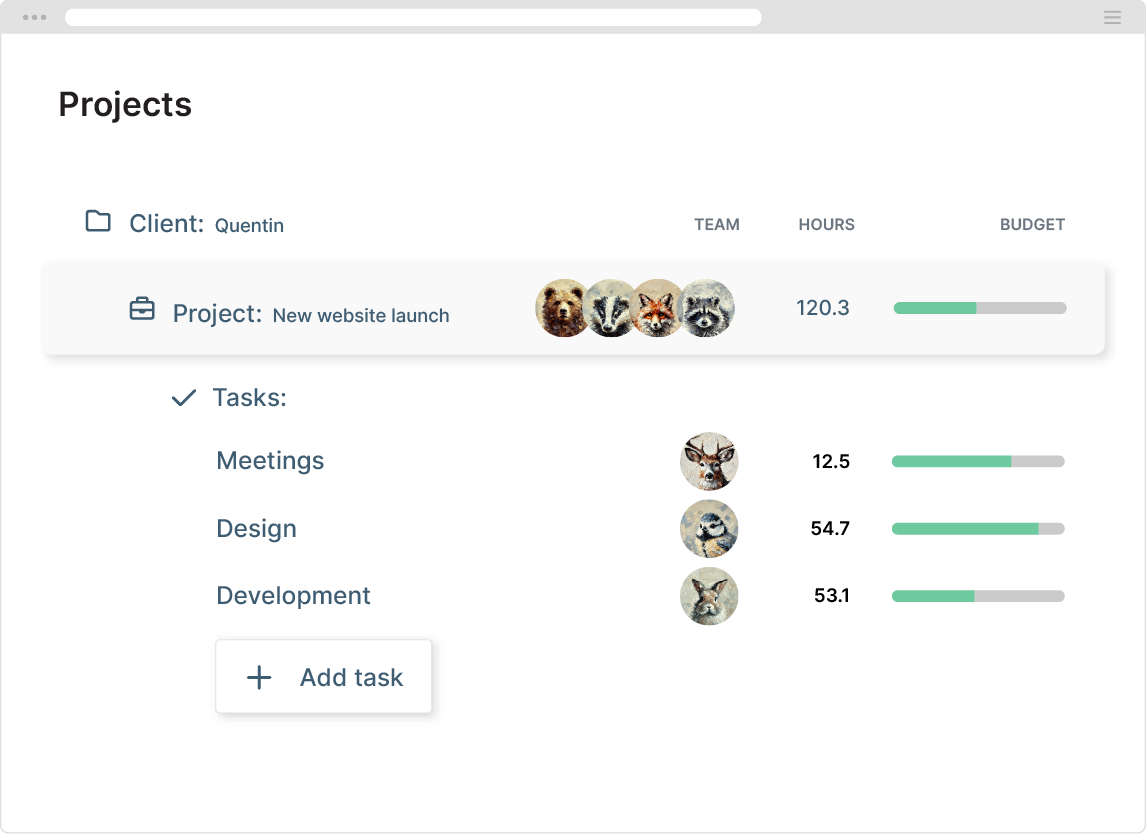
My Hours gives you four ways of organizing your team’s work: clients, projects, task lists, and tasks.
Once your team starts logging time entries, that structure shows you where the hours are going.
- Time by project and task: See how much time goes into specific projects and tasks, instead of one lump total for the day.
- Time by team member: See how each person is spending their hours across everything they’re assigned to.
- Billable vs non-billable: Separates client work from internal or administrative hours.
You get a full picture of your team's time, and none of this requires collecting separate timesheets from anyone; it's already there the moment someone logs time.
That includes your own hours too, since you can track your work the same way, in the same account, rather than using a separate tool.
Keep Projects and Tasks on Track With Budgets
My Hours lets you set budgets for the entire project or create separate budgets for individual tasks, and monitor how much of that allocation has been used.
You can choose the type of budget that fits the way you measure the work:
- Total hours: Set a limit on the number of hours your team can spend on a project or task. This works well when the work is planned or quoted in hours.
- Billable amount: Set a monetary limit based on the billable value of the project or task. This works for fixed-fee work where you want to monitor how much of the agreed amount has been used.
- Costs: Track project costs using logged time, labor rates, and additional expenses.
- Restart budget: For ongoing work with a recurring allocation, set the budget to restart each month instead of carrying the previous month’s allocation forward.
As your team logs time, My Hours updates the live progress bar so you can see how much of the budget has been used and what remains. Project budgets show overall progress, while task budgets show which individual tasks are using their allocation.
Administrators and Managers can get automatic email alerts once a budget crosses a set threshold. That gives you the chance to investigate the extra hours, adjust the workload, or raise a scope issue before the budget runs out.

Capterra
"[...] the feature that sold me on My Hours was the budgeting. I love being able to see at a glance where I am vs what the expectations are. You can budget by price or by time and get visual feedback in a glance. [...]"
- Carol G., Graphic Designer
Track Team Expenses
Labor costs are only part of a project's total cost. Travel, materials, software, and other project-related expenses can add to the total.
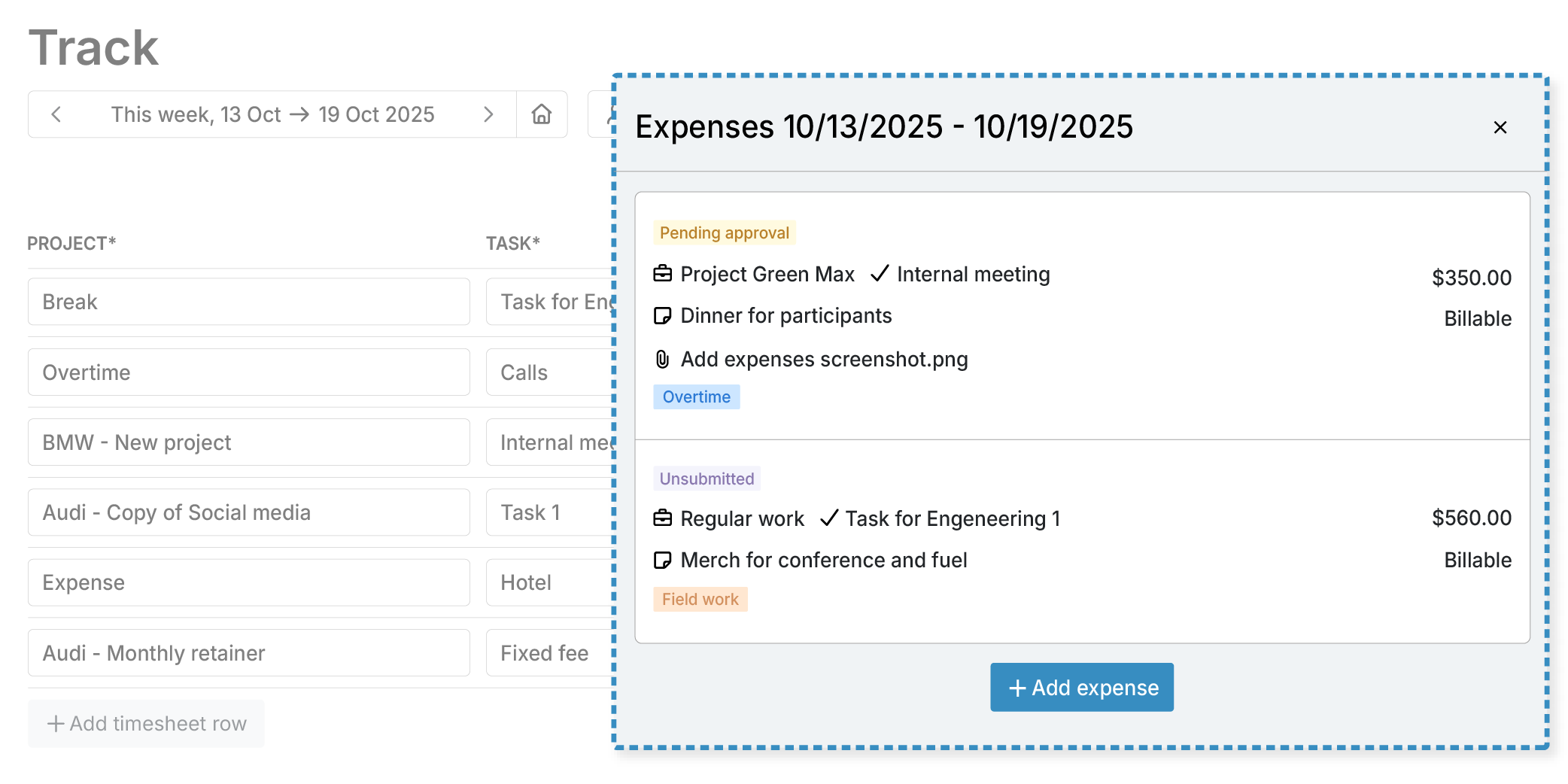
My Hours lets your team track these expenses alongside their logged time, giving you a more complete view of project costs.
- Team members can record expenses and assign them to the relevant project and task.
- Snap a photo of the receipt from the mobile app and log the expense.
- Add a description or tag for extra details like what the expense was for, useful when you're reviewing costs later and need the context.
- Every logged expense automatically counts toward a project's budget, whether that budget is set as a cost or a billable amount.
Support a Remote, Hybrid, or Distributed Team
Your team may work from the office, remotely, switch locations, or work between field sites. They still need a simple way to log time without changing how they already work.
My Hours gives your team several ways to track time, regardless of where and how they work.
- Web app: Track time from any browser and device.
- Mobile app: Track time from an iOS or Android phone or tablet.
- Browser extensions: Start, stop, or log time from a toolbar button in Chrome or Firefox, without opening a new tab or losing your place in whatever you're already working on.
- Automated reminders: Set daily or weekly target hours and send reminders when team members have not met their targets or submitted their timesheets.
- Remote approvals: Managers can review and approve submitted timesheets from the mobile app.
- Single sign-on (SSO): Enterprise users can sign in directly with their Microsoft account, while users on other plans must log in with their username and password.
- Custom fields and tags: Add details such as job sites, locations, or client visits to time entries, then use them to filter and organize reports.
My Hours is cloud-based, so time data is automatically synchronized across the platform.
The platform does not use GPS tracking, screenshots, or other surveillance systems as part of its time tracking approach.
Balance Workloads and Capacity to Catch Overloads Early
My Hours lets you compare target hours with tracked time, helping you spot if some team members may be carrying more workload than others.
- Set target hours: Set daily target hours, with custom targets for those who work part-time or have different schedules. These are calculated on a weekly basis.
- Compare target with actual time: Weigh tracked hours against target hours to identify people working above or below their expected hours. Detailed reports give you a breakdown of time logged by each team member.
- View workloads by team: Organize people into teams and filter reports by team to evaluate time across different groups.
- Identify recurring inefficiencies: Use time data to see which tasks consistently take longer than expected and where recurring work or process delays may be affecting capacity.
Review and Approve Timesheets
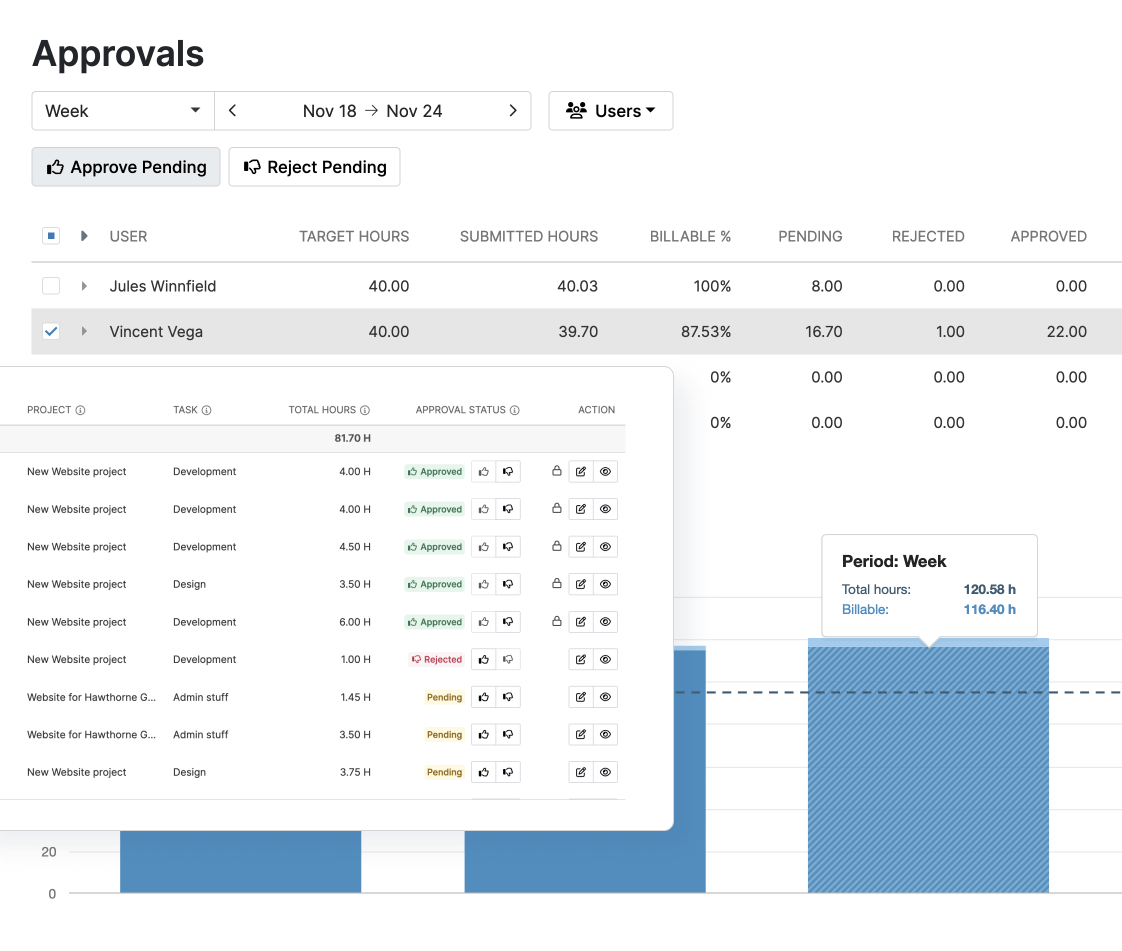
My Hours gives team leads and managers a central place to review, approve, and correct timesheets before they move into payroll, reporting, and billing.
- Check pending timesheets and the individual time entries behind them when you need more detail.
- Handle multiple entries at once from the Approvals view.
- Approve accurate time or reject an entire timesheet or individual entry that needs adjustments.
- Add notes explaining what needs to be changed when rejecting entries or timesheets.
- A weekly overview shows who has not logged or submitted their time, with a link to email them directly.
- Once a timesheet is approved, its entries are locked so the person who submitted them can’t make edits.
- My Hours records changes in time logs and approval activity in its audit log.
Reviewed time can then be used for payroll, reporting, or billing, giving you a clean record of the hours that have already gone through your approval process.
Turn Team Time Data into Useful Reports
Team leads must report to project sponsors or clients on how their team is spending its time, where the budget is going, and how projects are progressing.
My Hours gives you four main report types, each suited to a different level of detail.
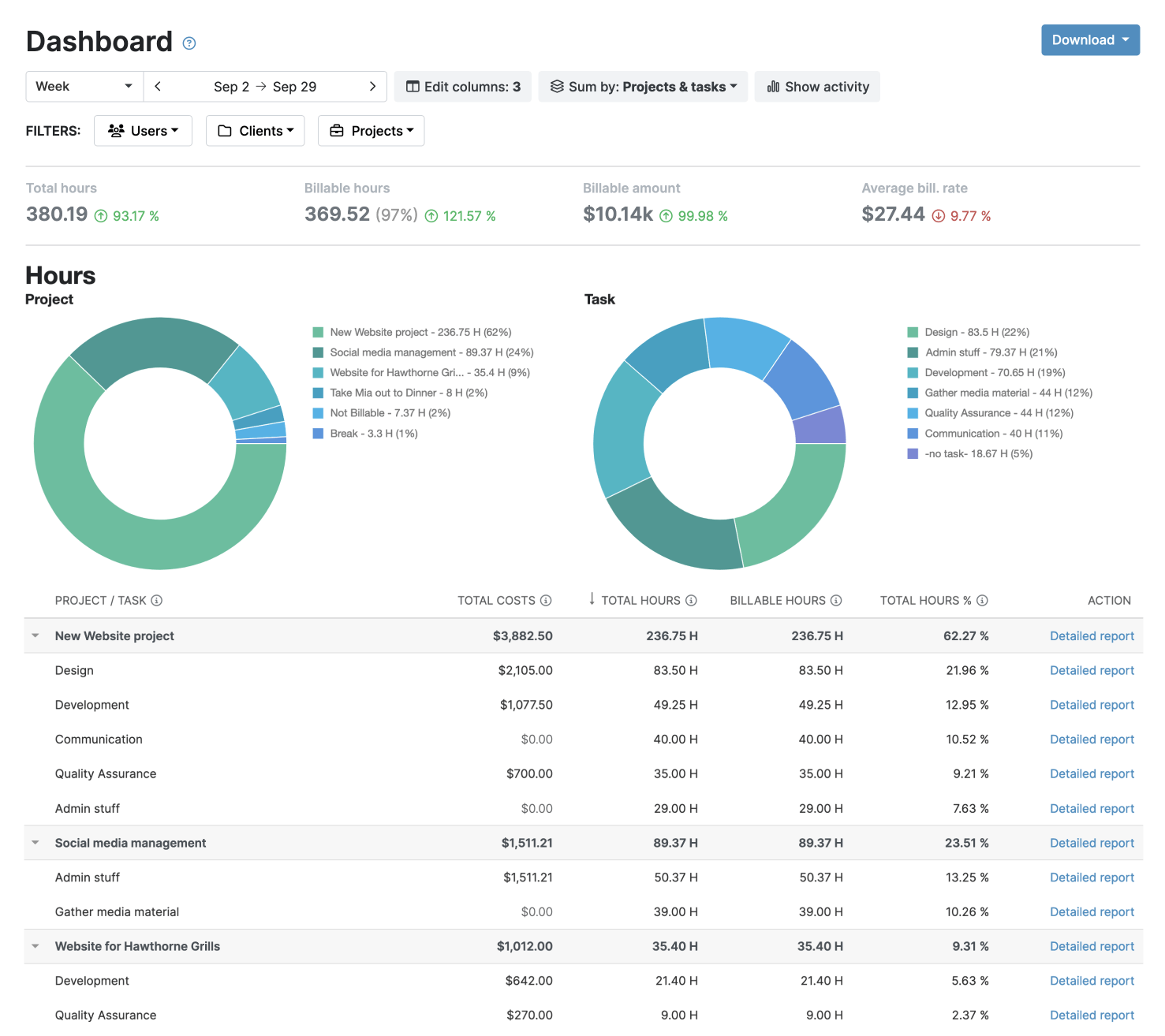
- The Dashboard report gives you a visual overview of time spent across clients, projects, and tasks, including billable amounts, costs, and activity. You can export as PDF or XLS files.
- The Detailed report lets you filter by team member, project, client, tasks, and custom tags and fields. You can schedule it to be sent on a daily, weekly, monthly, or yearly basis. Like the Dashboard report, it can be exported as either a PDF or XLS.
- The Timesheet report breaks down team hours by day, client, project, or tasks, with filters to focus on the data you need. Only exportable as XLS.
- The Attendance report shows every hour that workers track on a daily basis. The time logs are never rounded, which is great for payroll and compliance purposes, where tracked time matters more than time that’s billed.
You also get basic reporting access on the mobile app, which is useful if you need a number while you're out with a client or on-site, instead of waiting until you're back at a desk. For more in-depth breakdowns, though, you'll need to open the web app.
Try My Hours for Free
My Hours gives team leads a central place to track time, organize projects and tasks, set budgets, review timesheets, and report on team activity.
Trusted by over 100,000 clients, My Hours combines powerful time and cost tracking with a simple interface and 24/7 live customer support.
My Hours has a free plan for teams of up to 5 users for an unlimited time, but you can also try out the 14-day free Pro plan trial to see how it fits your team’s workflow.
Capterra
"Tracking time is an ongoing struggle for our company as we do billable hours and need to track everything, down to the minute. [...] Having the ability to track by the minute has ensured that we do not lose out on any possible billings."
- Melissa B., Business Information Consultant, Computer Software

