


My Hours vs Hubstaff for Remote and Distributed Teams
Choosing the right tool for trust-based remote work
Remote teams and agencies need accurate time records, fair client billing, and a system their staff will actually use rather than avoid.
My Hours and Hubstaff both help remote teams achieve these goals, but they take different approaches.
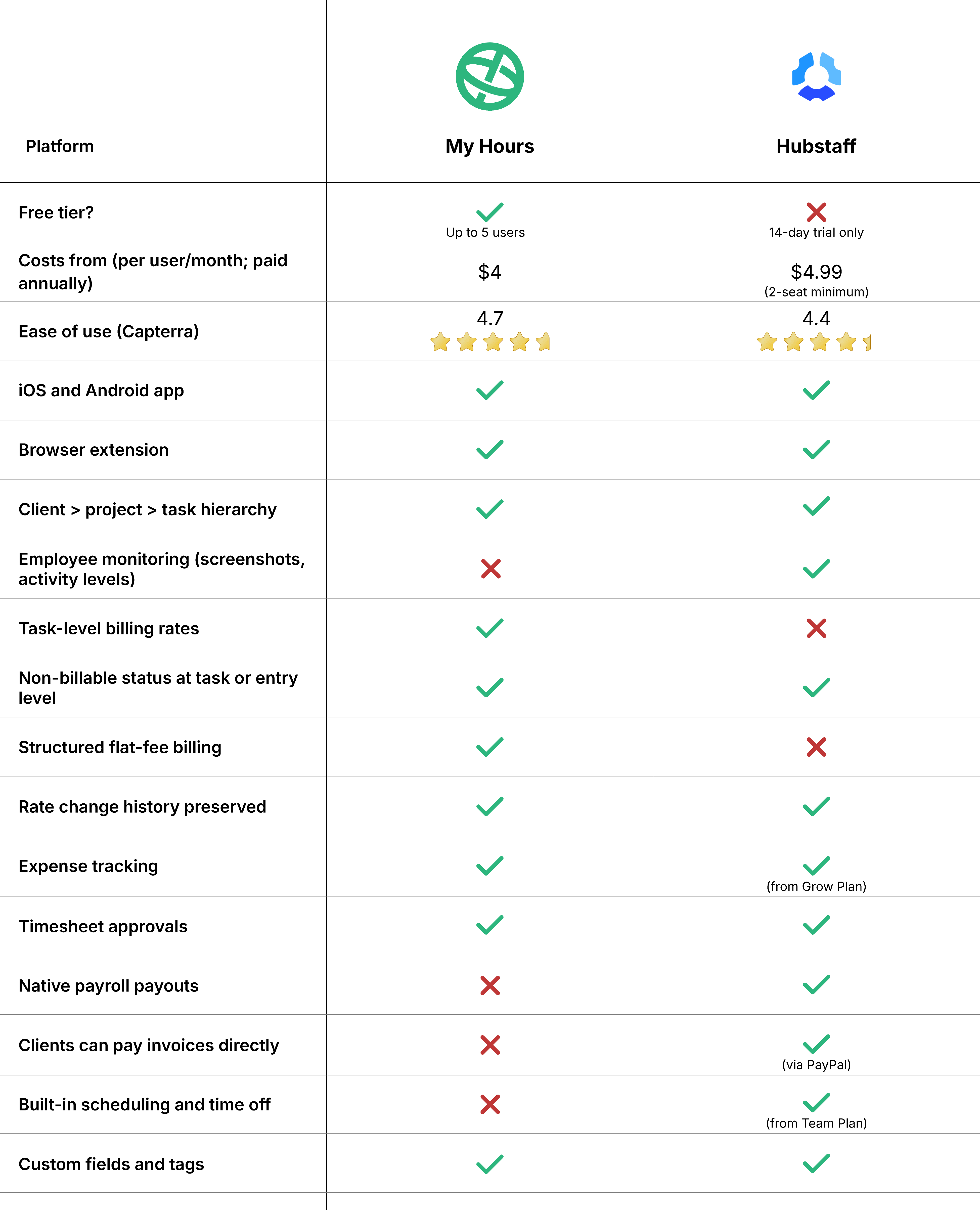
My Hours focuses on time tracking, project costs, billing, and approvals and doesn't include any employee monitoring systems. Hubstaff adds monitoring capabilities such as screenshots, activity levels, and app and URL tracking.
*Last updated: September 2026*
My Hours vs. Hubstaff: At a Glance
My Hours vs. Hubstaff: Pricing Comparison
My Hours
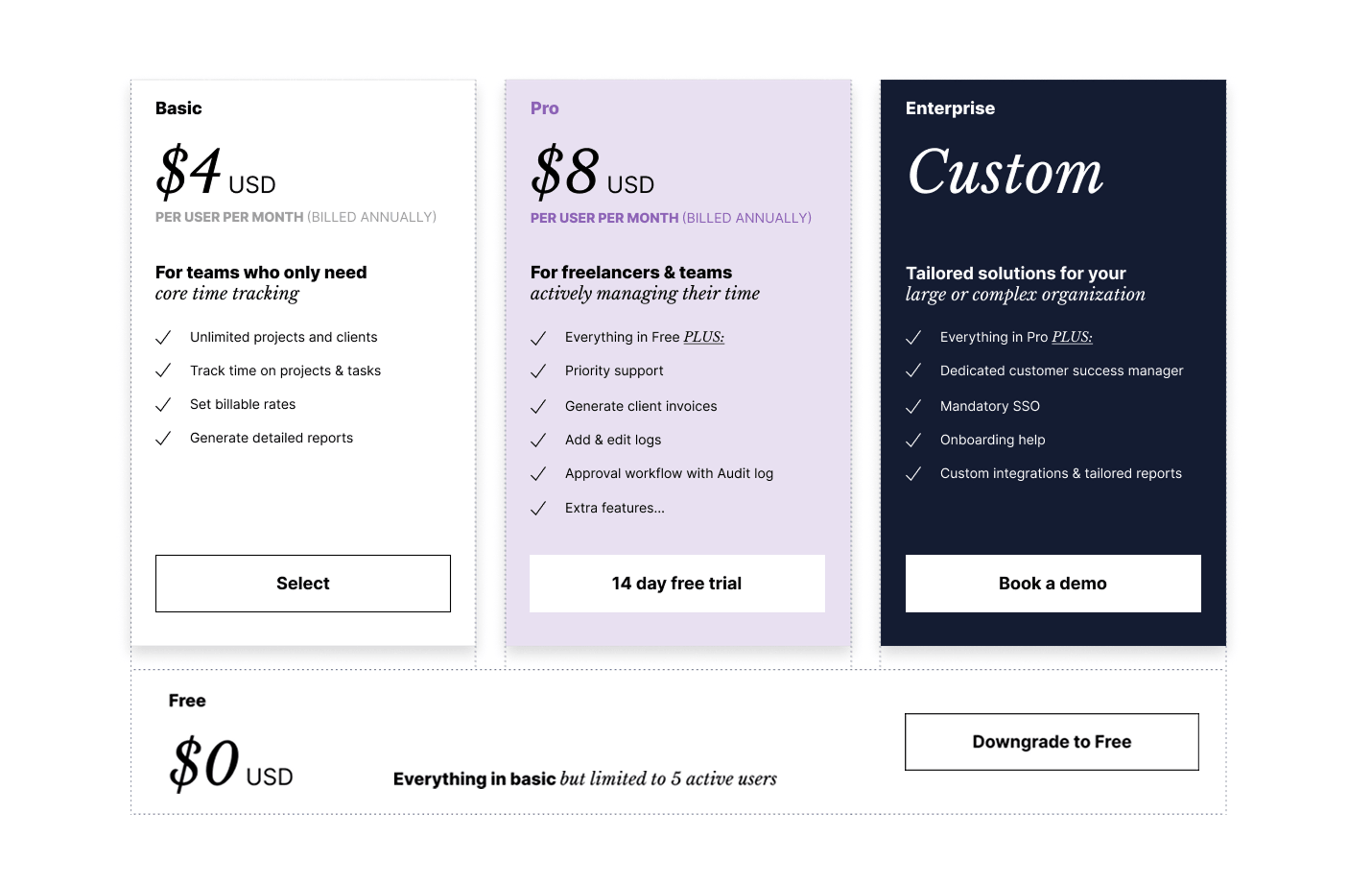
My Hours offers a free plan for up to five users and two straightforward paid plans: Basic and Pro.
There's no minimum seat count on either paid plan, so you only pay for as much as you need, nothing more.
The free plan includes basic billable rates, expense tracking, and weekly timesheet reports. The base paid plan (Basic: $4/user/month, paid annually) unlocks unlimited users, API access, and timer-only mode. The top-tier plan (Pro: $8/user/month, paid annually) adds approval workflows with audit logs, rate and budget calculations, priority support, as well as more advanced reporting.
An Enterprise plan is also available, with bespoke pricing for larger organizations.
My Hours is transparent about what it charges. There are no add-on costs stacked on top of the plan price, and no surprise increase waiting at renewal. What you see is what you pay.
 Get My Hours Free
Hubstaff
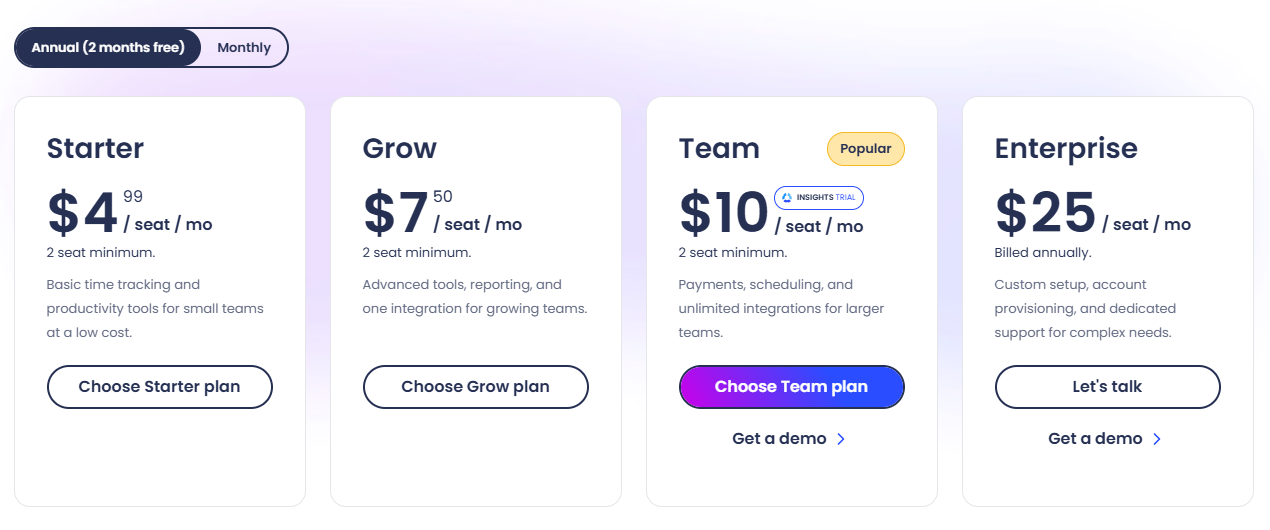
Hubstaff has 4 paid plans and no free one, only a 14-day trial. Also, there’s a 2-seat minimum on all plans.
So, even if you’re a solo founder or just testing the product, you’ll have to bear the extra cost.
Another issue with the pricing structure is the paid add-ons. Need more screenshots, unusual activity detection, Kanban & Timeline views, or the ability to track time and activity in the background? That’s an extra $2.50 per seat per month (billed annually).
Location tracking on mobile and job sites with geofencing costs an extra $3.33 per seat per month (billed annually). And more data retention for up to six years equals $1.67 per seat per month (billed annually).
So depending on what your team needs, the add-ons can increase how much you pay in the end.
1. Employee Monitoring and Trust-Based Tracking
My Hours
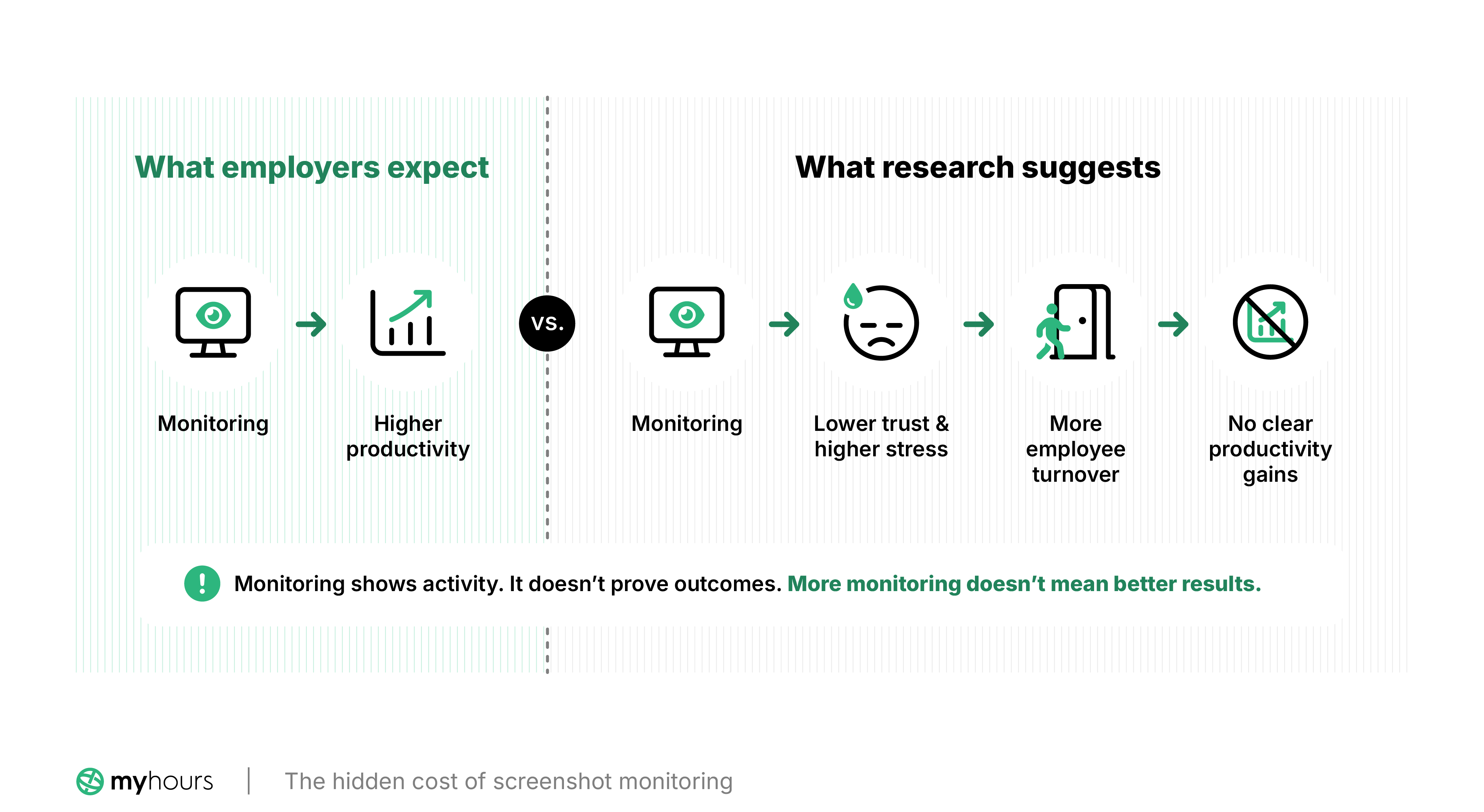
My Hours is a trust-based time tracking tool that doesn’t include any employee monitoring tools. There are no screenshots, no keystroke logging, and no mouse movement detection anywhere in the platform, and there never will be.
My Hours focuses on giving remote teams the time tracking tools they need to remain profitable, accountable, and productive, but without the intrusiveness that comes with surveillance systems.
- Use timesheets and target hours as proof of work instead of screenshots. You can see what work was completed without needing access to an employee's screen.
- Workload data shows how time is distributed across the team. You can see how much time each person is spending across projects and tasks.
- Set billable rates by user, project, or task, and labor rates by user or project, to see what your time costs and how much of it you can bill.
- Break down your hours by project, task, client, or team member to see where work is taking longer than expected and what changes to make.
Hubstaff
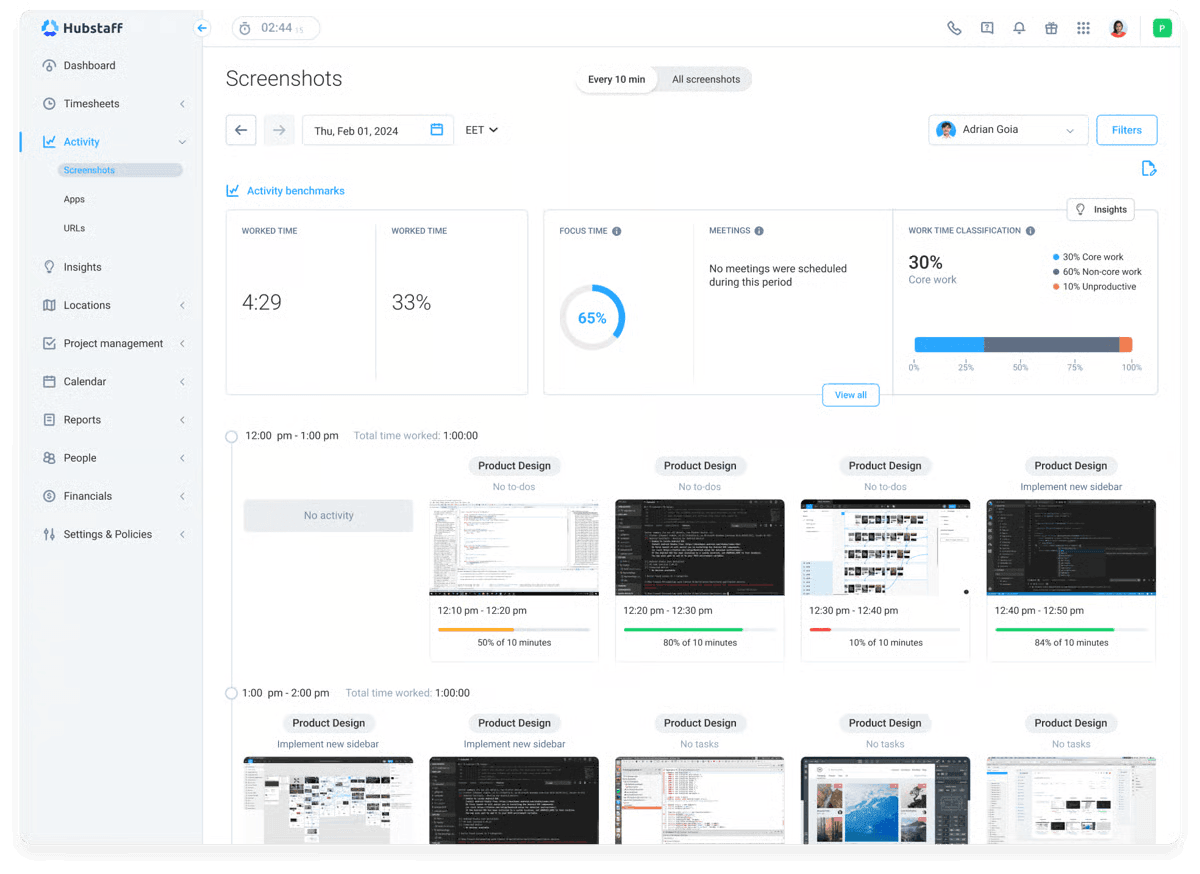
Monitoring is a central part of Hubstaff’s offerings. It allows you to see how much time employees spend on different websites and applications, track and manage idle time, and use optional screenshots to monitor activity levels.
Users know when a screenshot is taken, and they can see the same activity data their managers see.
You can control which monitoring features are enabled for each team or role, how often screenshots are taken, and whether screenshots are blurred or turned off entirely.
Hubstaff also includes an achievement badge feature. While this isn't part of its monitoring tools, it gives you a way to recognize employee effort and encourage productivity.
Despite these features, Hubstaff does not log keystrokes, read emails, or access cameras and webcams.
Employee monitoring verdict
There’s no one winner, as this depends on how your organization wants to get visibility into employee activity.
Hubstaff is a better fit if you want that visibility to include monitoring data, such as app and website usage and idle time. My Hours gives you that visibility through work data instead, without eroding trust. You can see how employees spend their time through timesheets, target hours, workload data, and detailed reports, without monitoring what employees do on their devices.
2. Timesheet Approvals
My Hours
My Hours gives you a simple timesheet approval hierarchy for reviewing team timesheets.
Administrators can approve any user's entries, Project Managers approve entries for the projects assigned to them, and Team Managers can approve entries for their team members.
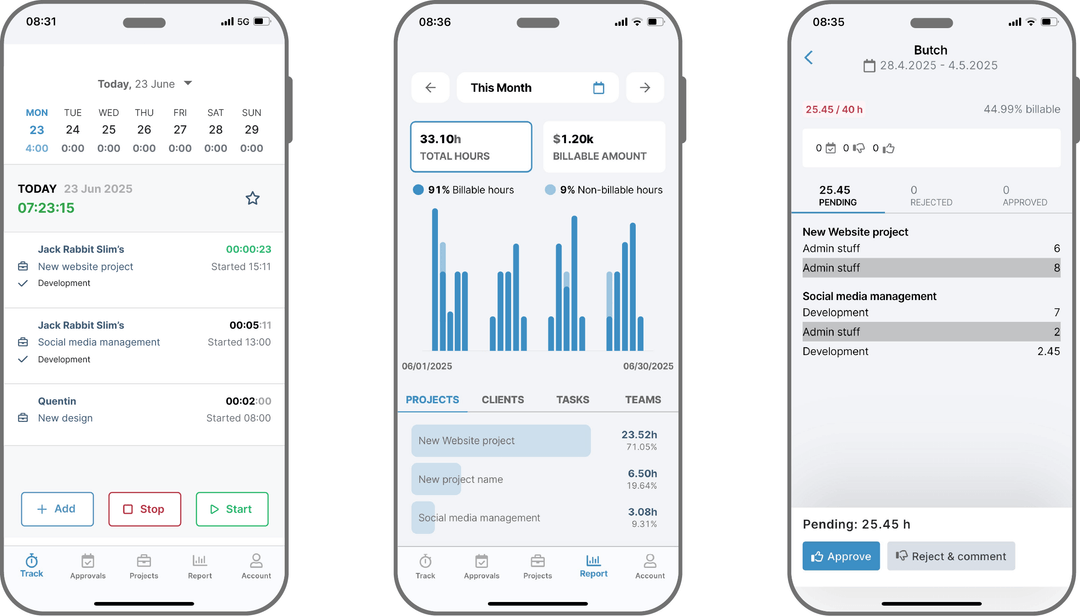
When someone submits a timesheet, the assigned manager gets an email notification and can approve or reject it in one click from the web or mobile app.
You can also reject individual time logs or the entire timesheet and add a note explaining what needs to be fixed. Then, employees can resubmit the timesheet after making the necessary changes.
Once a timesheet is approved, you can lock it on a daily, weekly, or monthly schedule. Once locked, only Administrators can make changes.
My Hours also has timesheet validation. You can set target hours for each user and prevent them from submitting a timesheet when they have logged too many or too few hours.
.png)
Hubstaff
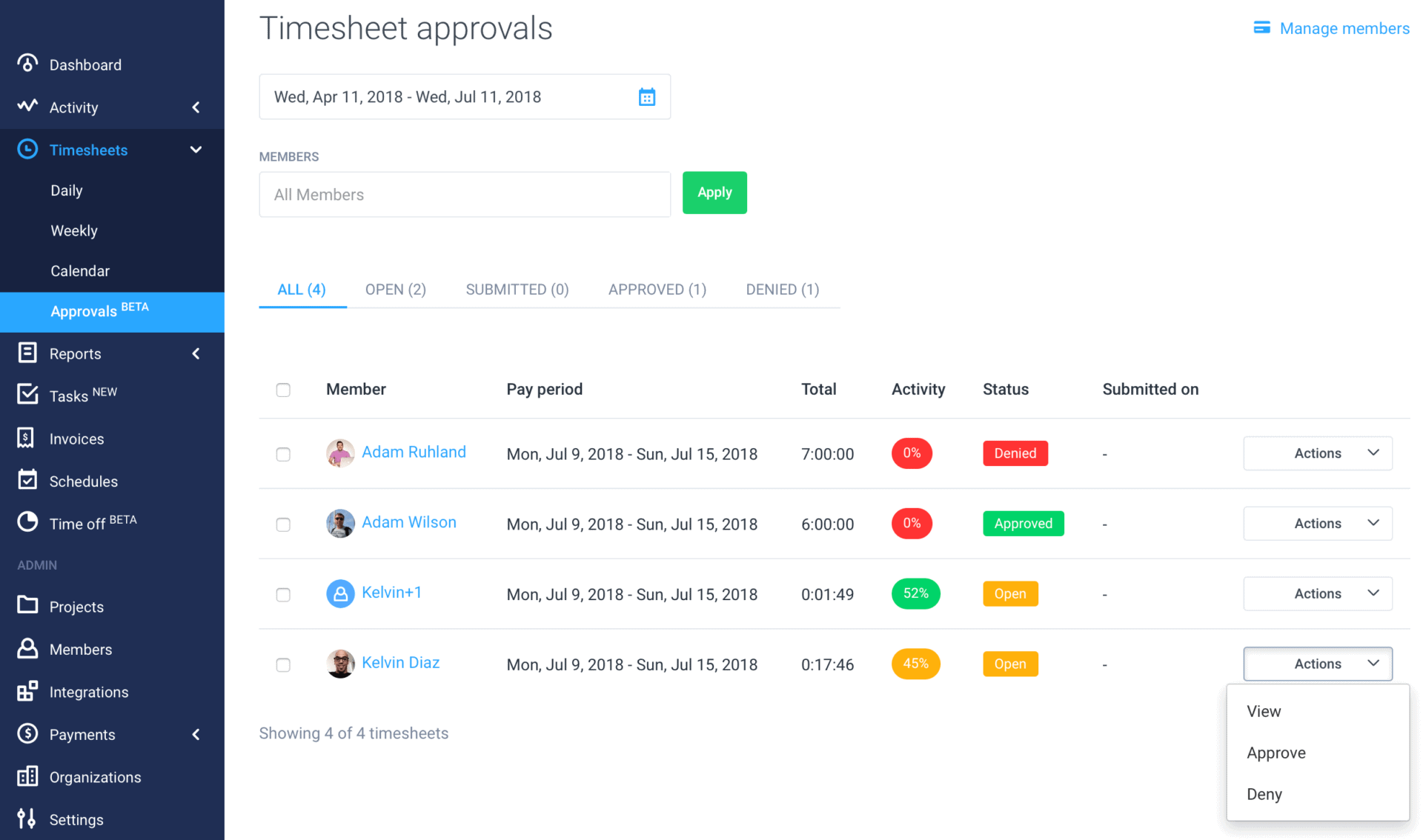
Like My Hours, Hubstaff has timesheet approval workflows. You can set weekly, bi-weekly, twice-monthly, or monthly pay periods and have timesheets generated automatically.
Managers review and approve (or reject) submitted timesheets.
Approved timesheets are locked, while denied timesheets can be reopened so employees can make corrections. Employees also receive notifications when their timesheets are approved or denied.
The only caveat is that you can only review, approve, or reject timesheets through Hubstaff’s web dashboard.
Timesheet approval verdict
Both My Hours and Hubstaff have tight timesheet approval workflows. You can review, approve, reject, and lock timesheets on both platforms.
The difference is where you can do it: My Hours lets you handle approvals from the web or mobile app, so you can manage timesheets on the go from your phone. But for Hubstaff, you can only do this from their web app.
In this area, My Hours gives you more flexibility and convenience since you can act on timesheets even if you’re away from your computer.
3. Labor Rates and Cost Tracking
My Hours
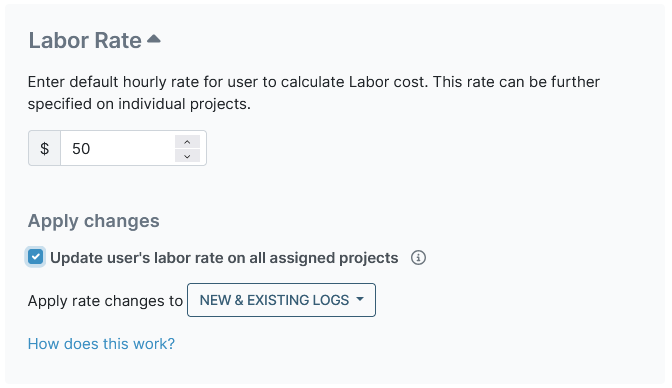
My Hours lets you set a labor rate for each team member and use it to calculate how much their work costs.
You can set a default rate for employees and define different rates for projects where the payments change.
My Hours provides control over when a rate change takes effect. You can apply a new rate to new time logs, existing unlocked logs, or logs created from a specific date.
Approved, invoiced, or locked time keeps its existing rate, so changing a rate won’t affect records that have been finalized.
Labor rates are separate from billable rates. The labor rate calculates what the work costs your business, while the billable rate determines what you charge the client. You can use either one independently or track both for the same project.
This gives you a direct view of labor costs at the project level, including situations where the same person has different labor rates across projects.
Hubstaff
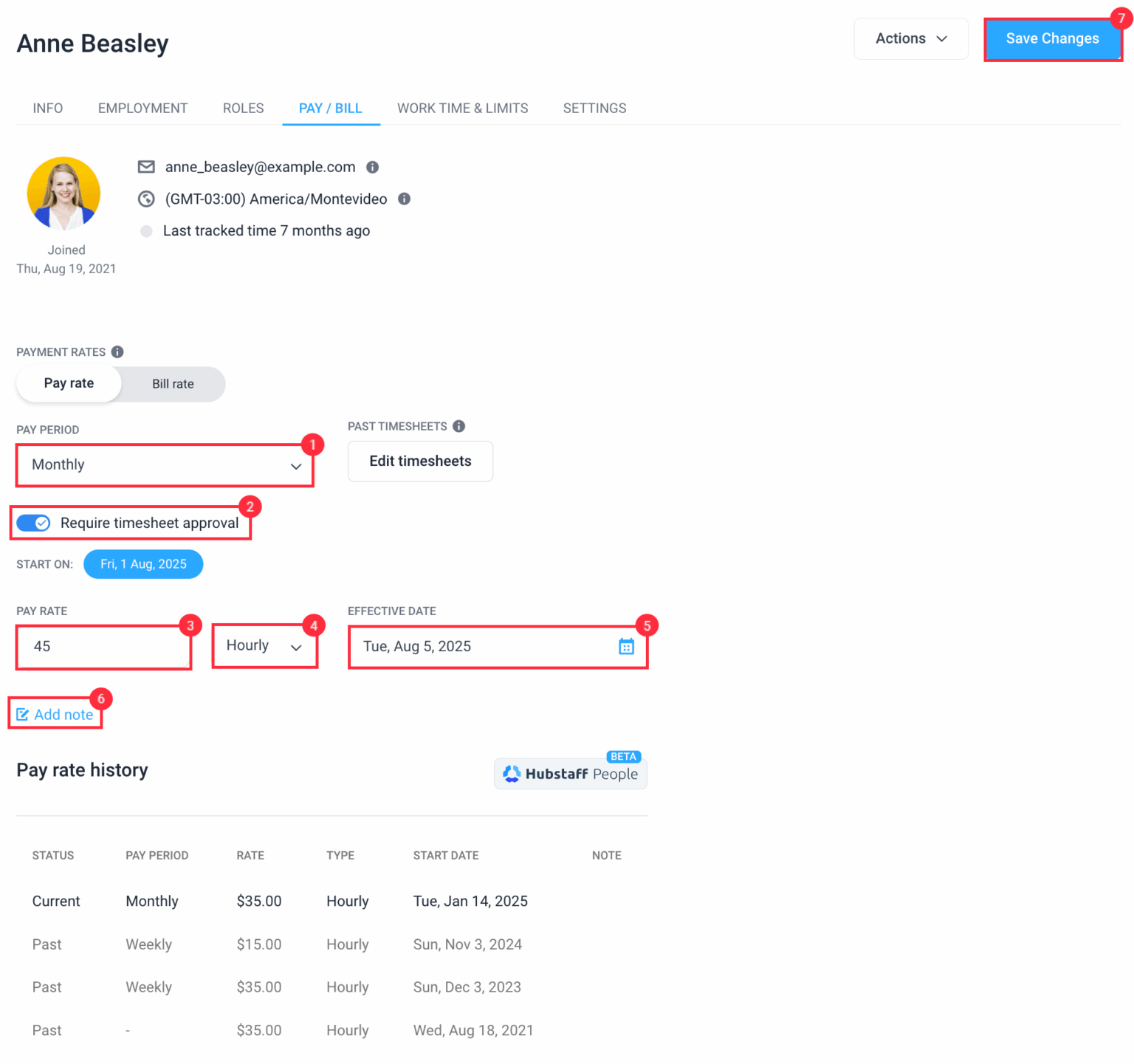
Hubstaff also lets you set separate pay rates and bill rates for each team member. You can configure default rates at the organization level or assign different rates to specific projects.
There are two levels for pay and bill rates: default rates for each team member and project-specific rates. A project-specific rate overrides the team member’s default rate for that project.
Hubstaff also uses those rates to calculate project costs, so you can see what each team member’s tracked time costs based on their pay rate.
Labor rates and cost tracking verdict
Both platforms give you solid control over labor rates and project costs.
One edge My Hours has over Hubstaff is how you can apply rate changes. My Hours lets you choose whether a new rate applies to new logs, existing unlocked logs, or logs created from a specific date.
Hubstaff doesn’t offer these same options for applying rate changes to specific groups of time logs.
4. Scheduling and Time Off
My Hours
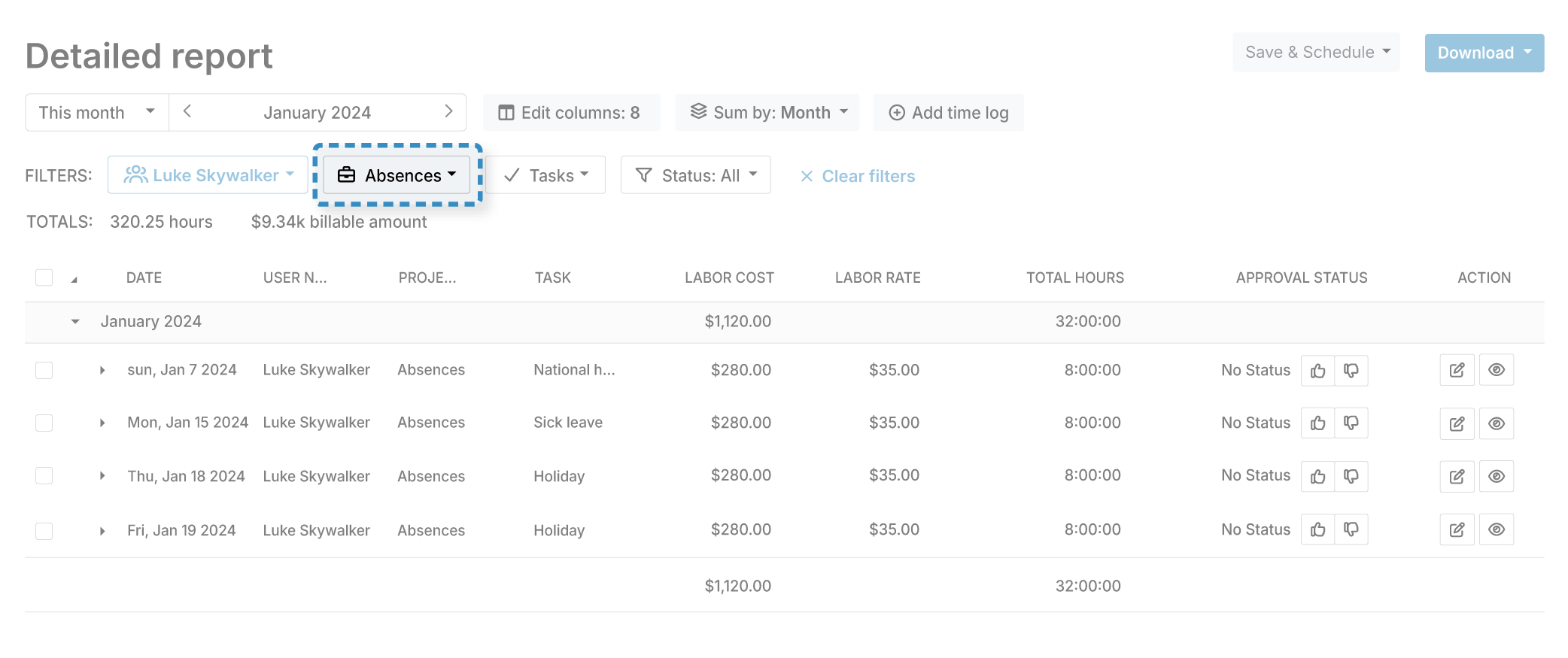
My Hours lets you track time off alongside your regular work hours. You can create an “Absences” project and add tasks for different types of leave, such as vacation, sick leave, or emergencies.
Employees then log their time off against the appropriate task, just like they log time against a normal project.
It's functional, and plenty of My Hours customers run it this way today, but you have to configure the time-off system yourself.
My Hours does not have a dedicated scheduling system. You can set daily target hours for each employee and receive alerts when someone logs too few or too many hours, but there are no built-in shift schedules or PTO accrual rules.
Hubstaff
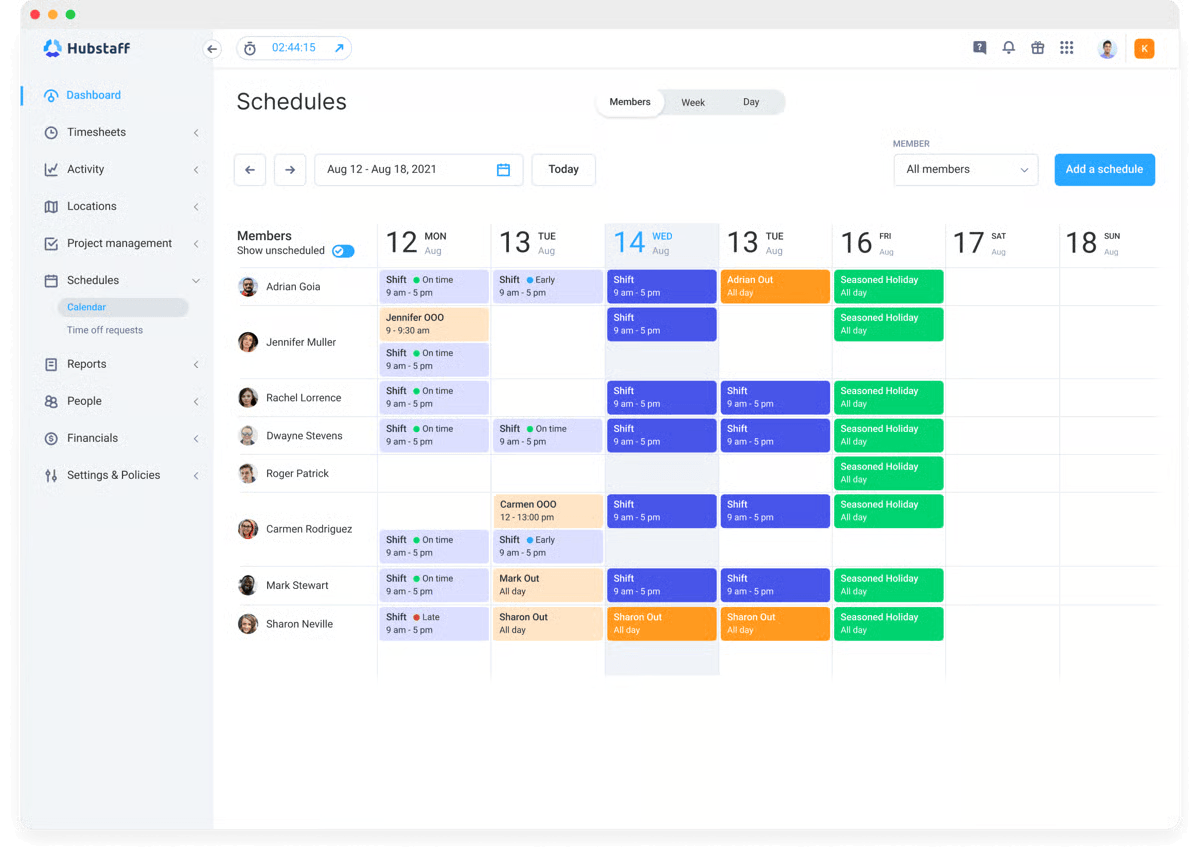
From the Team plan up, Hubstaff includes both employee scheduling and built-in time-off management.
You can create employee schedules with defined working hours, recurring shifts, and minimum hour requirements. Hubstaff then tracks attendance against those schedules and sends alerts if someone falls behind.
For time off, Hubstaff lets you set policies based on annual schedules, monthly schedules, hours worked, or when an employee joins the policy. Balances can also roll over year to year, and Hubstaff allows for negative balances.
The platform supports holiday calendars that can be assigned by employee and home country. Employees submit time-off requests and managers approve or deny them.
Scheduling and time-off verdict
Hubstaff is the clear winner for teams that need built-in scheduling and structured time-off management. My Hours can track absences and set target hours, but it requires more manual setup and does not offer built-in shift scheduling or leave policies.
5. Billing and Invoicing
My Hours
With My Hours, you have full billing flexibility and can bill clients in four ways:
- User-based billing
- Task-based billing
- Project-based billing
- Flat fee
You can also mark projects, tasks, and individual time logs as non-billable, so internal work and administrative tasks are tracked but not added to client invoices.
You can safely update rates without it affecting your past work. Locked, invoiced, or approved entries maintain their old rates, which is important for a consistent audit trail.
When billing time, My Hours can round billable hours up, down, or to the nearest interval, with intervals ranging from 1 to 60 minutes.
It also supports project expenses, including receipt uploads, tags, descriptions, and approval before they are included in the project data.
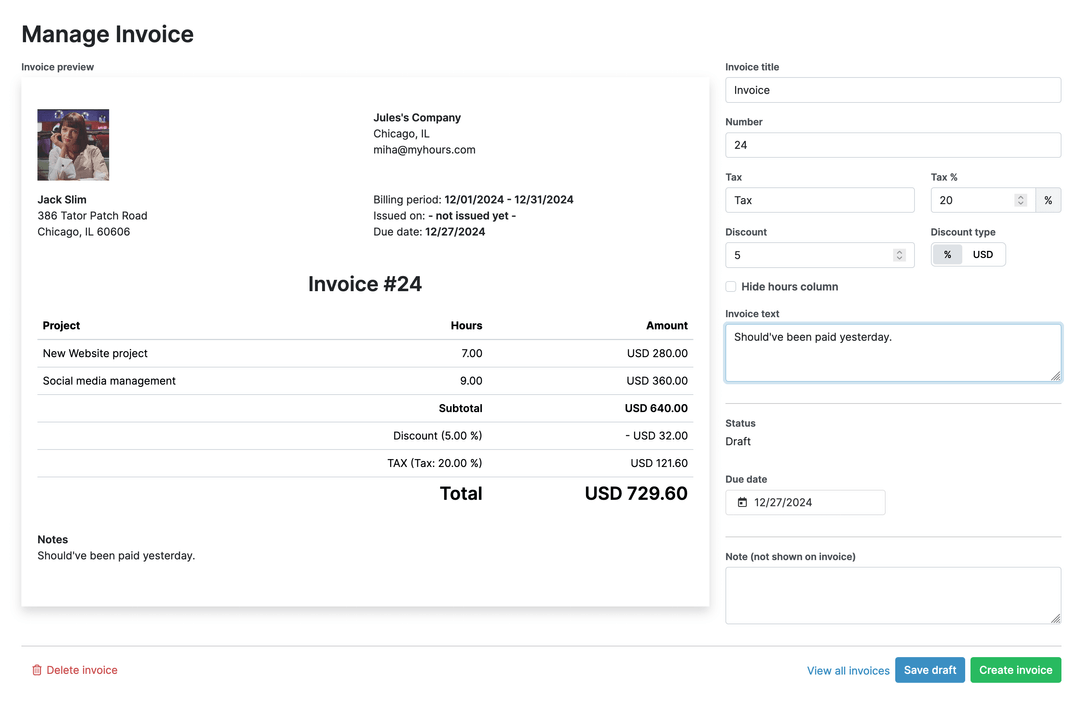
Once you're ready to invoice, My Hours can turn tracked billable time and expenses into client-ready invoices. You can set tax rates for clients, so they apply automatically to new invoices, while still being able to change the tax on an individual invoice.
Hubstaff
Unlike My Hours, which gives you four billing structures, Hubstaff charges clients based on the bill rate assigned to each team member.
You can set a default rate for each person across the organization, then give that person a different rate for a specific project when needed.
You can also mark projects or individual time entries as non-billable, but Hubstaff doesn’t give you a way to set tasks as non-billable.
Hubstaff doesn't have a separate flat-fee billing method for projects like My Hours.
For example, if you agree to complete a website project for $5,000, My Hours lets you set the project’s billing method to Flat fee and set the fee at $5,000. Hubstaff can also send a $5,000 fixed-price invoice, but you have to enter that amount on the invoice yourself; the project itself is not set up as a $5,000 flat-fee project.
Expense tracking (from the Grow Plan) works much like My Hours: Hubstaff lets you add expenses to projects and upload receipts.
However, for invoicing, Hubstaff lets you create recurring invoices based on weekly, bi-weekly, or monthly schedules, and add automatic payment reminders.
Billing and invoicing verdict
My Hours gives you more billing flexibility, with four billing methods, task-level non-billable control, and built-in flat-fee project billing.
Hubstaff's main advantage is that it gives you recurring invoices and automatic payment reminders.
6. Global Payments
My Hours
My Hours doesn’t have a built-in payment system, so receiving payments requires an external platform. You can integrate with QuickBooks or Xero, where the actual payment can be handled, so your invoicing and accounting data stay in sync without any manual re-entry.
Hubstaff
Unlike My Hours, Hubstaff supports both payment directions: paying your team and collecting client payments.
For staff payments, you can connect to six providers: Deel, Gusto, Wise, PayPal, Payoneer, and Bitwage. These integrations let accounting teams automatically or manually send payments based on tracked hours and pay rates.
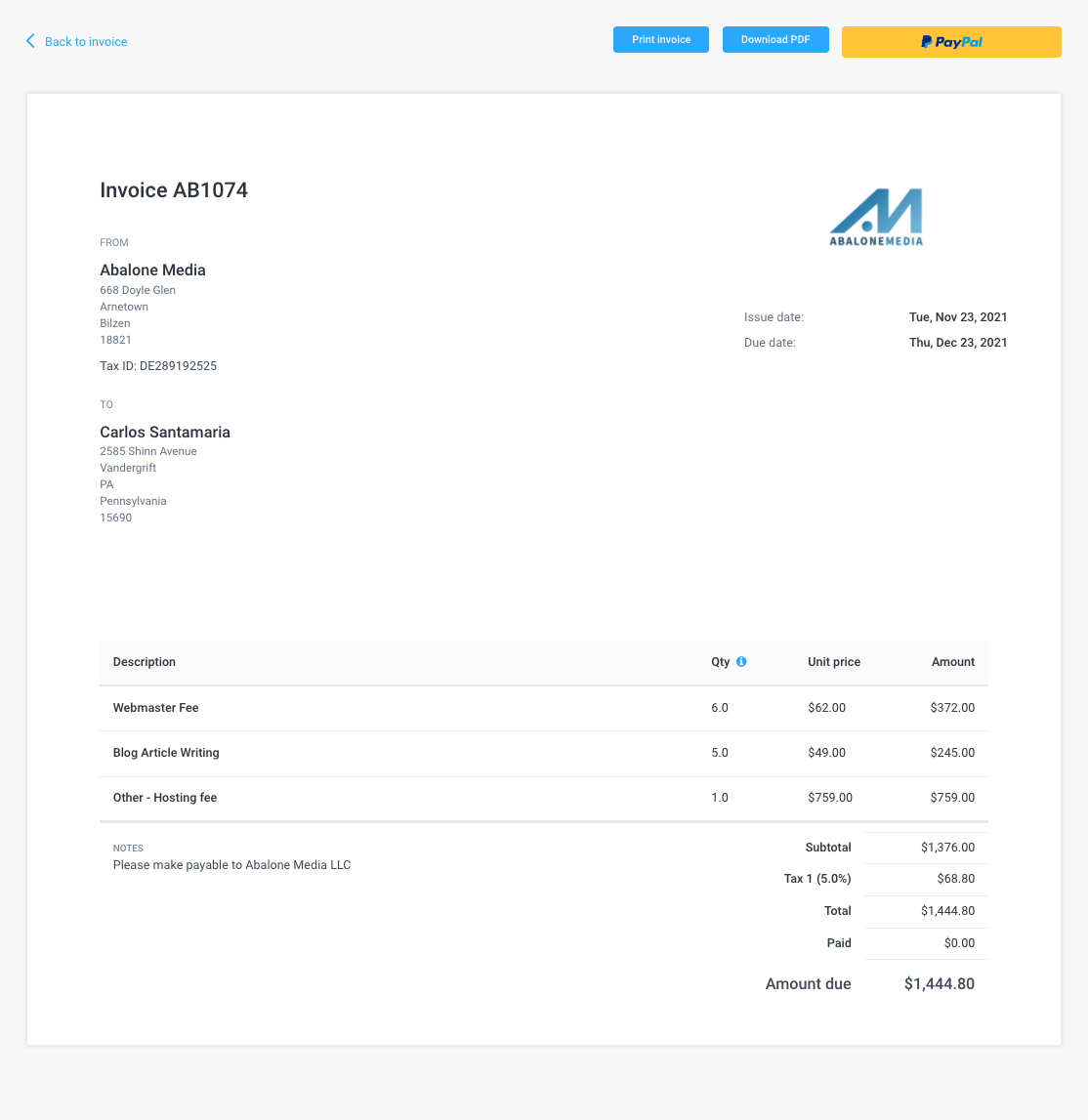
Hubstaff also supports collecting client payments directly through its invoices. Clients can pay through the PayPal payment option on the invoice, while Hubstaff also supports payment reminders and recording partial payments.
Global payments verdict
Hubstaff handles both sending team payroll and collecting funds from clients through its payment and invoicing tools.
However, My Hours still works well if you already use QuickBooks or Xero for invoicing and payments, since you can connect with those platforms and keep that workflow.
7. Workforce Analytics and Client Reporting
My Hours
My Hours offers three main reporting options, each suited to a different level of analysis.
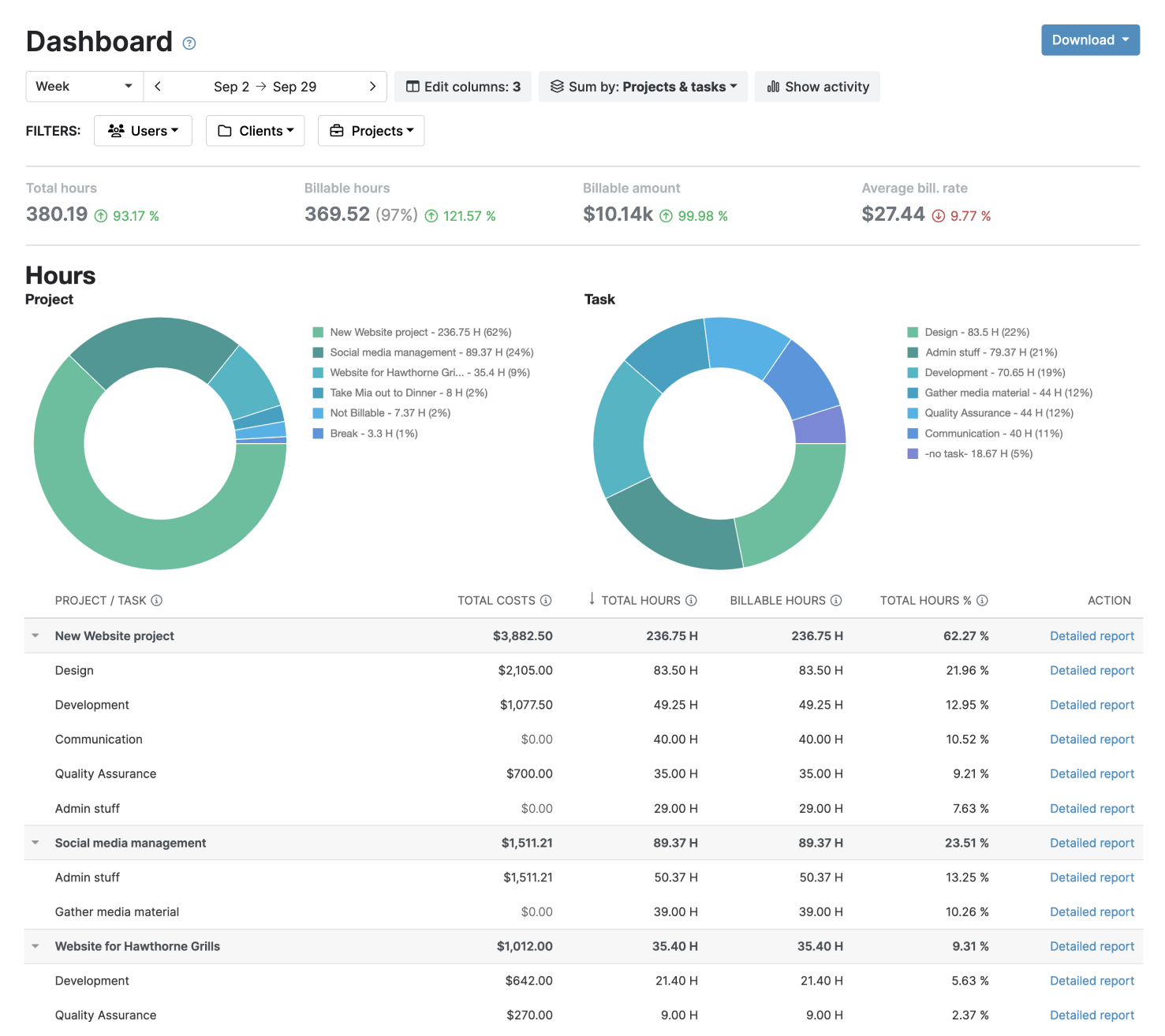
The Dashboard report gives you a visual overview of time, costs, budgets, and profitability across clients, projects, tasks, and team members. It works well when you need a quick picture of what is happening across the business.
The Timesheet report helps you get insights into the productivity and workload of individual team members.
Reach for the Detailed report when you need to dig deeper. You can choose from a wide range of data columns and filters to build the exact view you need, then save those settings for future reports.
Both Dashboard and Detailed reports are exportable as PDF or XLS files, but the Timesheet Report is only available in XLS format. You can add your company’s logo to exports, too, and there’s also the option of auto-scheduling and sending out reports at different intervals.
Hubstaff
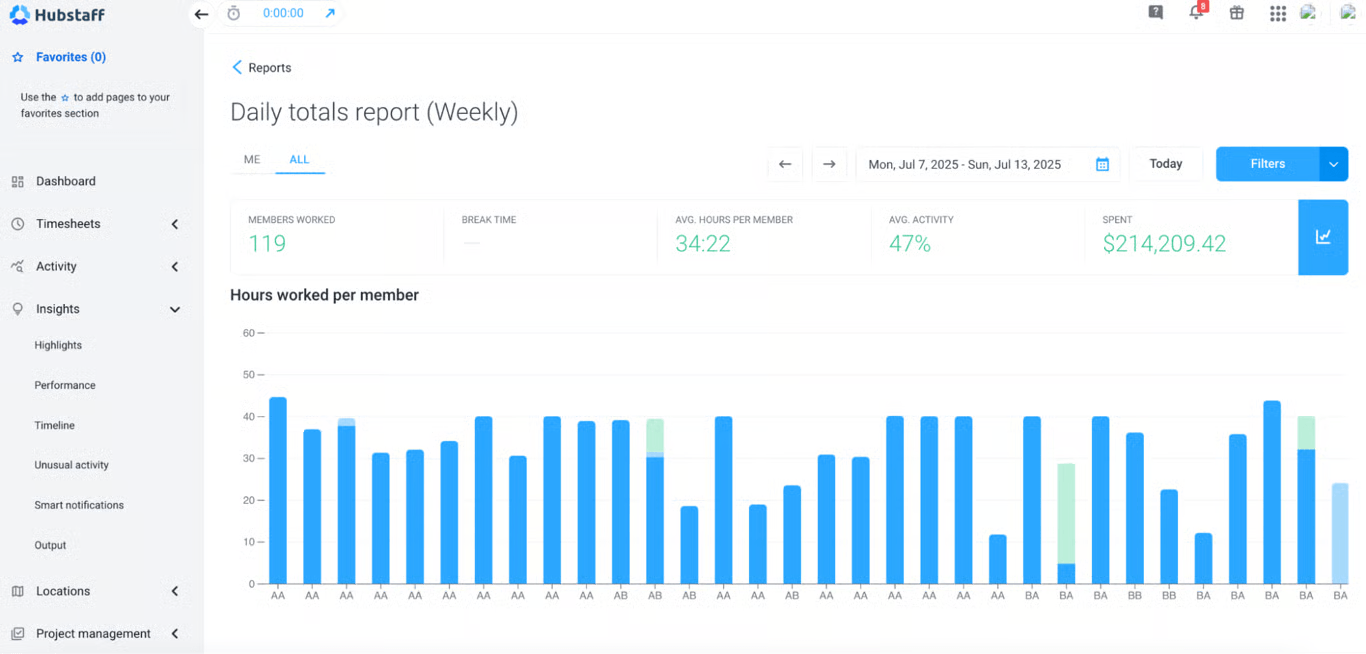
Hubstaff offers more than 20 report types, covering everything from tracked time and team activity to budgets, invoices, payments, attendance, and time off.
The main ones include the Time & Activity report for analyzing tracked hours, the Daily Totals report for a simpler view of hours and overtime, and the Work Sessions report that shows when employees started and stopped tracking time.
Apps & URLs report shows the applications and websites used while tracking time, while the Shift Attendance report helps managers monitor scheduled work and attendance.
There are also reports on project and client budgets, client invoices, and aging client invoice reports.
Hubstaff supports exports in PDF or CSV formats, as well as scheduling recurring reports.
Workforce analytics and client reporting verdict
Hubstaff has the edge if you need deeper workforce monitoring. My Hours is the better fit if your priority is straightforward reporting on time, workload, costs, and project performance without the added monitoring.
8. Platform Coverage and Accessibility
My Hours
You can access My Hours through its Chrome and Firefox browser extensions, Android and iOS apps, desktop app (PWA), and web app.
The browser extensions are mainly for quick time tracking and generating reports without having to open the full My Hours app.
The mobile apps take things further and are built for on-the-go usage. You can manage timesheets, add expenses, notes, tags, and attachments, and access other core time-tracking features while you're away from your computer.
Detailed reporting, detailed review and approval of individual time logs, and deeper account-level management are only accessible via the web and desktop app.
Hubstaff
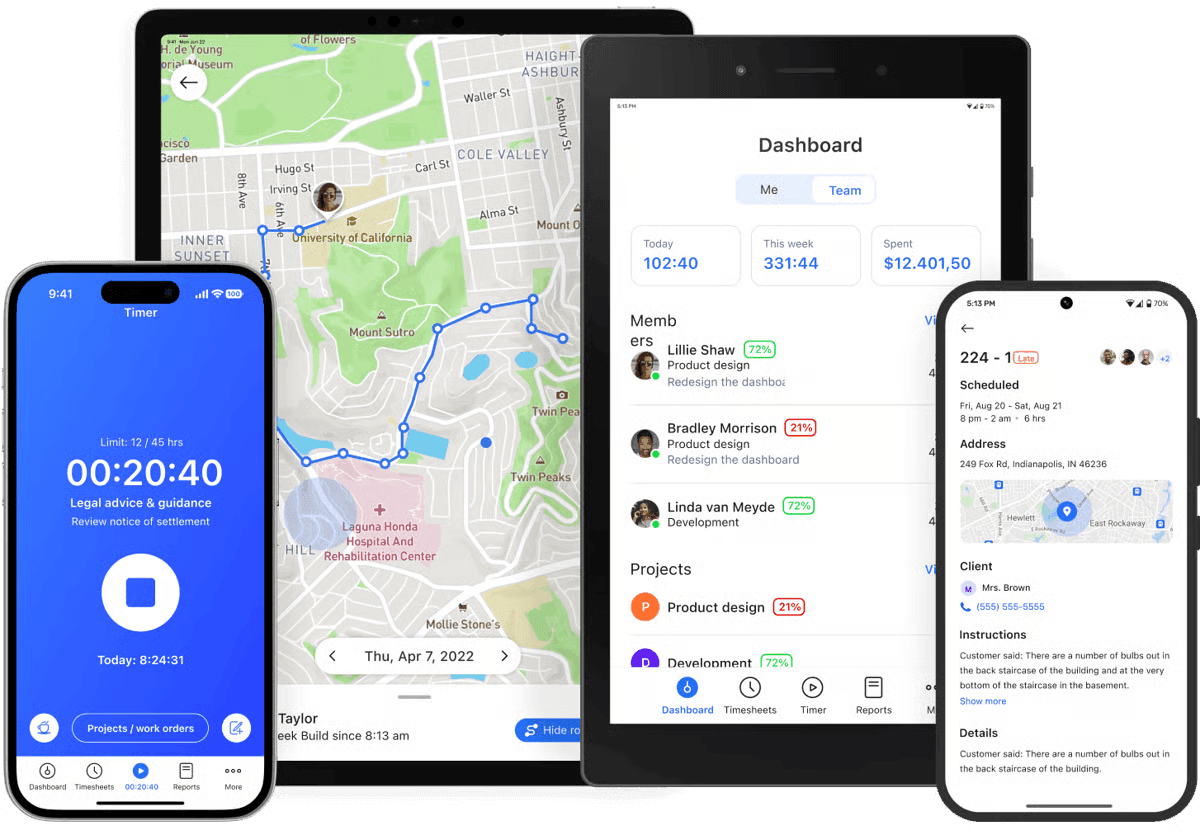
You can access Hubstaff through its Chrome and Firefox extensions, iOS and Android apps, desktop apps (Windows, Mac, and Linux), and web apps.
The browser extensions handle core time tracking, project and task selection, manual time entries, notes, and reminders. But the Firefox extension also lets you edit time entries, submit timesheets for approval, configure idle detection, and manage screenshot settings.
The mobile apps take things further, adding GPS location tracking and geofencing alongside time tracking. They also support reminders for scheduled shifts and let you view your daily and weekly timesheets.
The desktop apps for Windows, Mac, and Linux provide the full platform experience.
Platform coverage verdict
Both platforms are available on mobile, web, desktop, and as browser extensions. The only difference is that with Hubstaff, you can do more with Hubstaff’s browser extensions than you can with My Hours'.
Pros and Cons of Each Tool
My Hours
Pros
 Four billing structures, including task-level rates and a true flat-fee method
- Non-billable status settable at the project, task, or individual entry level
- Flat per-user pricing with no seat minimum
- Free for up to 5 users
- Rate history preserved automatically; past logs keep their original calculation
- Native Xero and QuickBooks integrations with scheduled two-way sync
- 24/7 live support on every plan, including Free. Average response time under 3 hours
Cons
 No native payroll or payment disbursement; requires an external system
- No dedicated scheduling or time-off feature
Hubstaff
Pros
- Full scheduling and leave management from the Team plan up
- Native global payroll across six providers
- Clients can pay an invoice directly via PayPal
- Transparency controls around its monitoring features
- Over 20 report types, plus dedicated Workforce Analytics
- Achievement badges built in for team motivation
Cons
- No permanent free plan
- 2-seat minimum on every paid tier
- Several features/insights sold as paid add-ons
- Monitoring capability exists by default in the product and has to be deactivated
- Billing rates limited to org default and project override, no task-level pricing
- No structured flat-fee billing method, only a manually entered fixed-price invoice
Bottom Line
My Hours and Hubstaff both serve remote and distributed teams, but take different approaches.
Hubstaff is the stronger fit for remote teams that want payroll, scheduling, and monitoring handled in one place. It pays your team through six global providers and lets clients pay their invoices directly, covering both sides of the money flow.
My Hours is a better match for teams that want to track time and bill clients without having to deal with any surveillance monitoring layer. Billing rates can go all the way down to individual tasks, and you don’t have to deal with add-ons. What you see on the pricing page is what you pay.
With no seat minimum and a genuinely free plan for up to 5 users, My Hours also scales more predictably for smaller or growing teams.
For remote and distributed teams that want trust-based time tracking built into the product from the start, My Hours is worth exploring.
Start tracking time your remote team can trust. Try My Hours for free, no credit card required.

Waste no more time,
jump right in!

All rights reserved.